

Texting Features
OAT texts new SmartAsset leads for you. SmartAsset sends an introductory text from an approved SmartAsset phone number, and you and the lead keep texting on that same number. It isn’t the OAT number you call from, so a lead may see one number for your texts and another for your calls.
The SmartAsset Introductory Text
Section titled “The SmartAsset Introductory Text”When a new SmartAsset lead arrives, OAT sends the lead an introductory text on your behalf. It comes from an approved SmartAsset phone number, not the OAT number you call from.
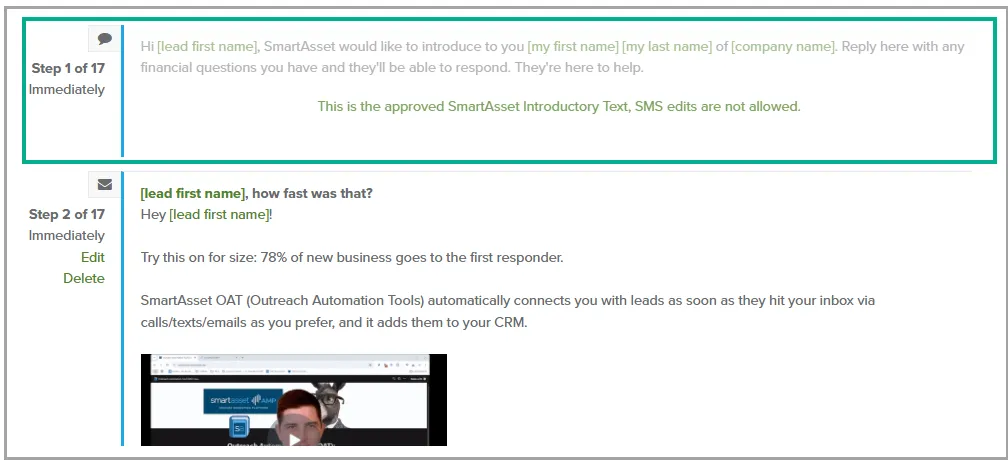
- The intro text is the only text step in the campaign.
- You can’t edit it.
- You and the lead can text back and forth, the conversation stays on that SmartAsset number.
Turn On the Intro Text
Section titled “Turn On the Intro Text”-
In the side nav, click Lead Sources.
-
In the SmartAsset Introductory Text section, check Turn on SmartAsset introductory text.
-
Click Save SmartAsset Settings.
If you see Some of the used tags are not configured:, click Configure next to each tag listed, such as your first name or company name, and fill it in.
New SmartAsset leads now get the introductory text.
Sending a Text
Section titled “Sending a Text”- On the Leads page, click the lead’s name. The lead’s details page opens.
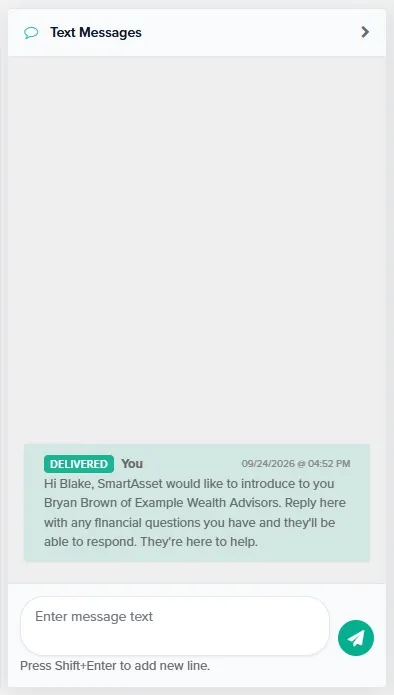
- In the Text Messages panel, type your message in the Enter message text box. If the panel is closed, click Show first. On a phone, open the Texts tab.
- Click the send button (paper plane), or press Enter. To add a new line instead, press Shift+Enter.
Your message appears at the bottom of the thread. For SmartAsset leads, it goes from the same SmartAsset number as the intro text.
Receiving Texts
Section titled “Receiving Texts”When a lead replies by text, their campaign stops, the Contact made tag is added, and their status changes. Opt-outs work differently; see Opt-Outs.
On the Leads Page
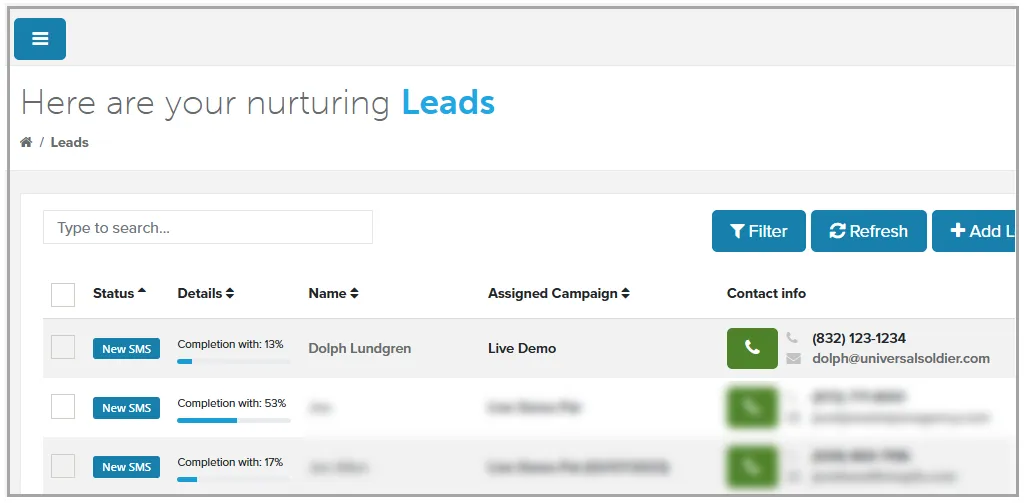
Section titled “On the Leads Page”- New SMS: the lead has replied and you haven’t opened their details page yet.
- Responded: you’ve opened the lead’s details page since the reply.
A reply moves the lead near the top of the Leads page, because the list is sorted by last activity. To list every New SMS lead first, sort by the Status column.
In the Inbox
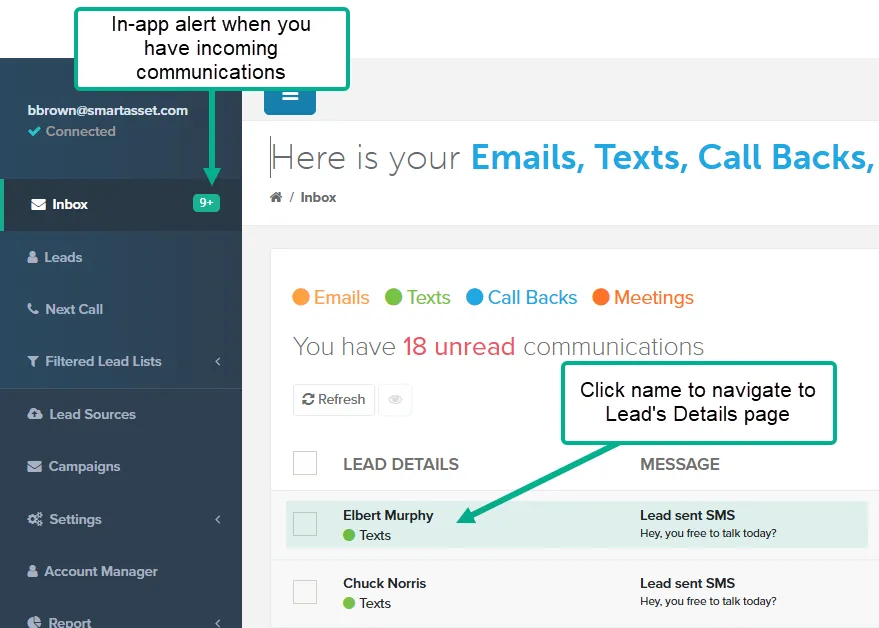
Section titled “In the Inbox”Every incoming text also appears under Texts in the Inbox. Inbox in the side nav shows a count of unread items.
Text and Email Alerts
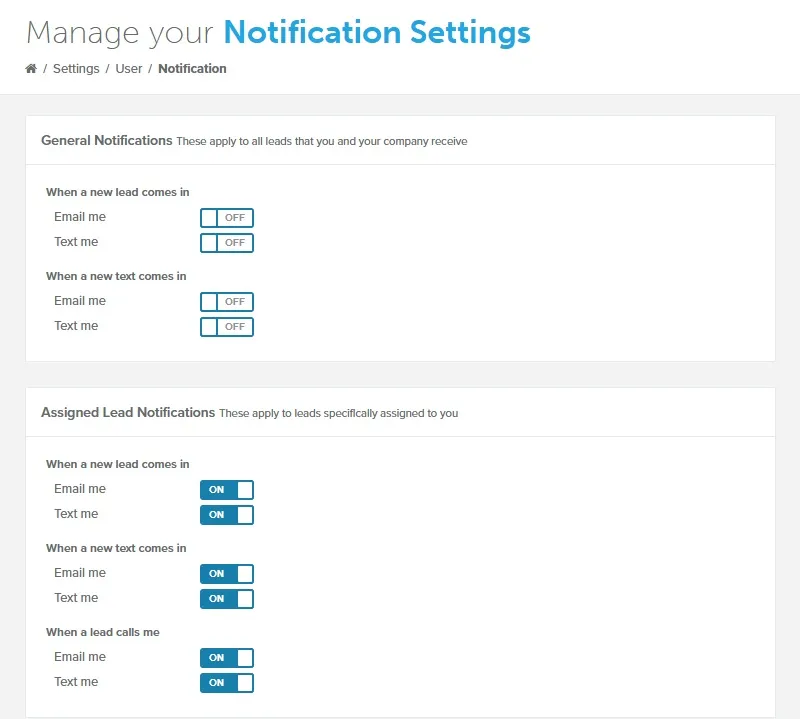
Section titled “Text and Email Alerts”- Go to Settings > Notifications.
- Under When a new text comes in, turn on Email me, Text me, or both. Changes save right away.
Text me needs a Calls Forwarded To number in Settings > Phone. Text and email alerts include a link to the lead’s details page.
Calls to the SmartAsset Number
Section titled “Calls to the SmartAsset Number”If a lead calls the SmartAsset number, the call rings the Calls Forwarded To number of the lead’s assigned user.
Opt-Outs
Section titled “Opt-Outs”If a lead replies with only STOP, END, QUIT, UNSUBSCRIBE or CANCEL, they’re opted out:
- Their status changes to Opted out, and their campaign stops.
- You can no longer text or call them from OAT. Their details page shows a banner saying so, and the text box reads SMS is disabled.
Text Message Archiving
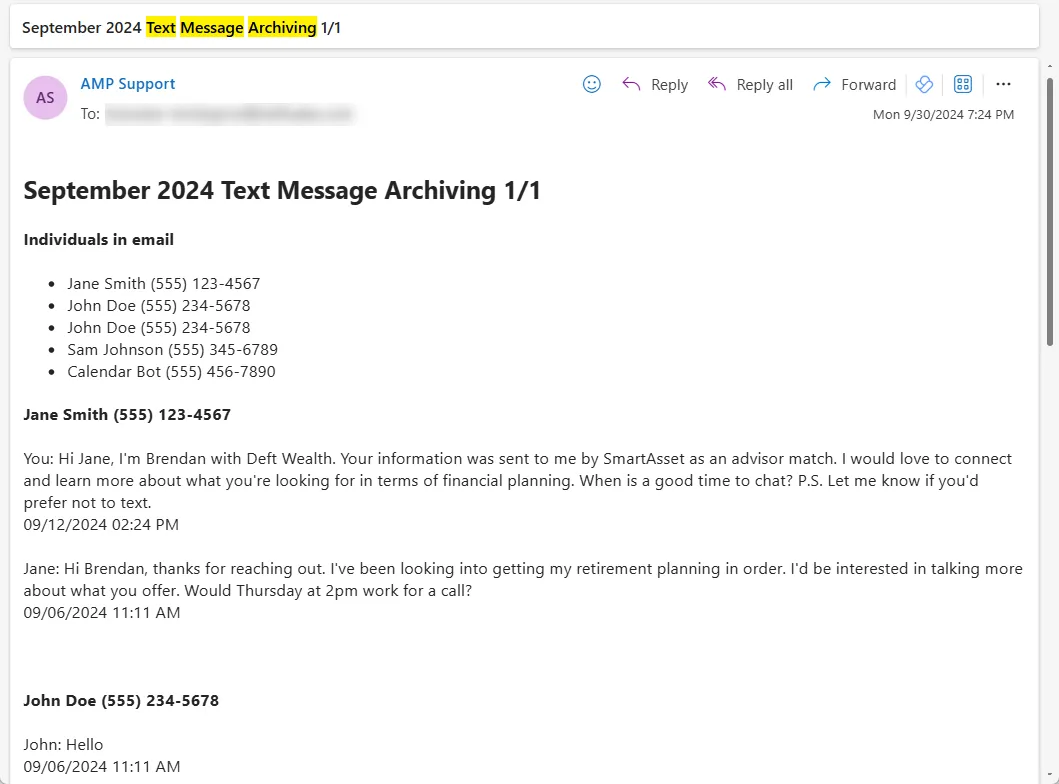
Section titled “Text Message Archiving”Every month, OAT emails you last month’s text messages for archiving and record keeping. Reports go to your own email address, so your email archiving system can capture them.
-
Go to Settings > Phone.
-
In the Calling and Texting box, click Archive SMS Messages. The Archive SMS Messages window opens.
-
Optional: To get a report every day, turn on Daily Archiving. The change saves right away.
-
Optional: To copy reports to another address, such as your compliance team, click the CC field, enter the address, and click Save.
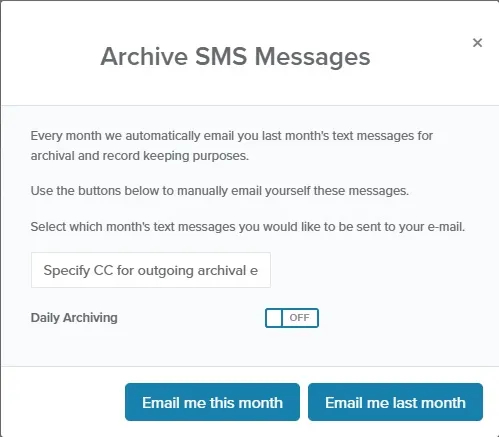
To get a report now, click Email me this month or Email me last month.
Related Guides
Section titled “Related Guides”- Notifications: choose email or text alerts for new texts, leads and calls
- Inbox: see every incoming text, email and call back in one list
- Lead Details Screen: view a lead’s information, timeline and tags
- Calling Features: call leads and set up call forwarding