

Calling Features
Calling through OAT keeps your personal number private: leads see your local OAT number, and their calls and texts show up in your Inbox.
Before you begin
Section titled “Before you begin”To use calling features, you need:
- An OAT phone number. See Set Up Your Local Phone Number.
- A business profile and caller ID, so leads see your business name when you call. Your OAT team sets these up with you during onboarding; see Set Up Your Business Profile and Caller ID.
- A call forwarding number. Without one, leads who call your OAT number hear an error message. See Change Your Call Forwarding Number.
If you have questions about calling features, email amphelp@smartasset.com.
Fast Call
Section titled “Fast Call”Fast Call phones you as soon as a new lead arrives, so you can talk while the lead is fresh. To turn it on, set the Fast Call column to Enabled on the Lead Sources page; see Lead Sources: Routing & Automation.

When a new lead arrives during your Fast Call hours:
- OAT calls your forwarding number from your OAT number.
- When you answer, you hear the lead’s name and lead type.
- Press 1 to connect, or 9 to hear the message again.
OAT places Fast Calls only during the lead’s legal calling hours.
What the Lead Sees
Section titled “What the Lead Sees”- The lead sees your OAT number as the caller ID.
- Texts from SmartAsset come from a different number; see Texting Features.
- If the lead calls that number back, the call rings the forwarding number of the lead’s assigned user.
- To get an email or text saying which lead is calling, turn on the When a lead calls me alerts in Settings > Notifications.
Set Your Fast Call Hours
Section titled “Set Your Fast Call Hours”OAT Fast Calls you only during these hours.
-
Go to Settings > Phone.
-
In the Fast Call box, under Weekdays, set Start and End.
-
Optional: To take Fast Calls on weekends, check Saturday or Sunday and set its hours.
-
Click Save at the bottom of the page. The box shows Fast Call is active on… with your hours.
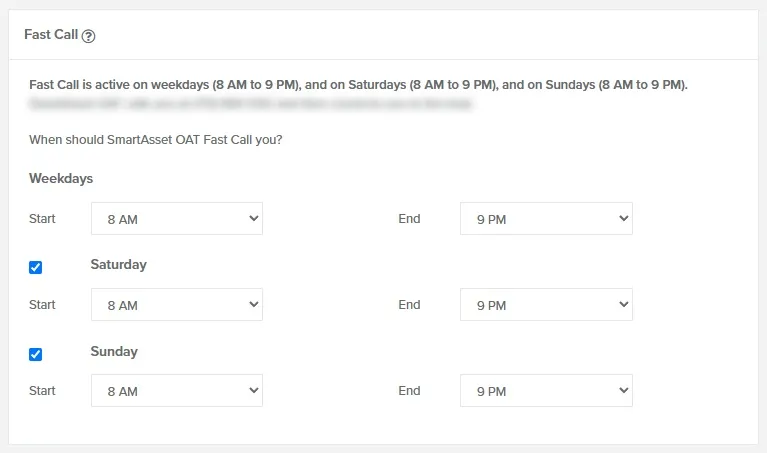
You can choose hours from 6 AM to 9 PM. However, OAT places Fast Calls only between 8 AM and 9 PM in the lead’s time zone, or narrower where state law requires. If the box reads Fast call is disabled., no lead source has Fast Call turned on yet.
Add a Backup Caller
Section titled “Add a Backup Caller”A backup caller gets the Fast Call when the first user can’t take it:
- If you’re outside your Fast Call hours, OAT calls your backup instead.
- If you miss the call or hang up without pressing 1, OAT calls your backup next.
Your backup’s own Fast Call hours must cover that time.
-
Go to Settings > Users.
-
In the user’s row, click Edit. The Edit User window opens.
-
In Fast call back up, select the backup user.
-
Click Save.
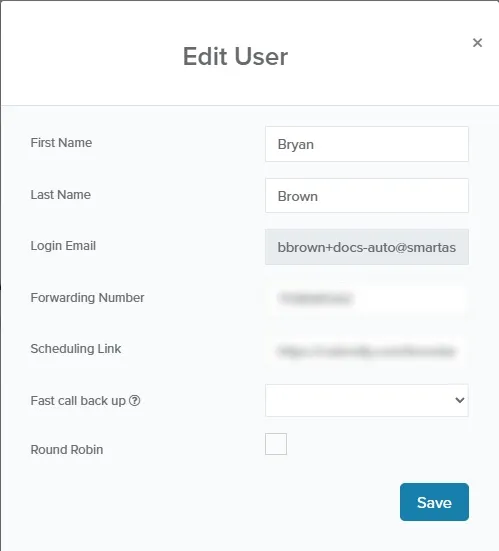
OAT now Fast Calls the backup when this user can’t take the call.
Change Your Call Forwarding Number
Section titled “Change Your Call Forwarding Number”Your forwarding number is where calls to your OAT number ring when one of your assigned leads calls. Fast Calls ring it too.
- Go to Settings > Phone.
- Click the Calls Forwarded To field.
- Enter your phone number.
- Click Save.
Calls from your leads to your OAT number now ring this number.
To get a text when a lead calls, turn on Text me under When a lead calls me in Settings > Notifications. Text me needs a forwarding number.
Next Tasks
Section titled “Next Tasks”Next Tasks lists the calls, emails and texts due today. To open it, click Next Tasks in the side nav. On a call task, click Call to call the lead from your OAT number.
OAT doesn’t stop a lead’s campaign after a call. If you connect with the lead, stop the campaign yourself.
Related Guides
Section titled “Related Guides”- Live Connection vs Fast Call: how concierge transfers differ from Fast Call
- Lead Sources: Routing & Automation: turning Fast Call on for each lead source
- Next Tasks: working calls, emails, and texts from your daily task list
- Notifications: email and text alerts when a lead calls