

Hello Pages
What is Hello Pages?
Section titled “What is Hello Pages?”Hello Pages is a video landing page that helps financial advisors connect with potential clients. Think of it as a personal introduction page that does three things:
- Shows prospects who you are through a short video
- Answers their most common questions before they even ask
- Makes it simple for them to schedule a meeting with you
When someone is thinking about working with a financial advisor, they want to know three things:
Can I trust this person? Do they know what they’re doing? Do I like them?
Your Hello Page helps answers all of these questions in one place. Instead of sending a generic email, you’re giving prospects a chance to see and hear from you directly. This helps build familiarity and trust (even before the first conversation).
Example Hello Pages
Section titled “Example Hello Pages”A Better Path to Your Financial Goals 👋

example advisor page
Turn Curious Prospects into Warm Conversations 👋

example showcasing the feature
Why and when to use Hello Pages?
Section titled “Why and when to use Hello Pages?”Why use Hello Pages
Video introductions help prospects feel more comfortable before your first conversation and make your outreach stand out from generic text-only emails. When leads can see who you are and how you work, they’re more likely to engage.
When to use Hello Pages
Use Hello Pages to warm up leads, personalize automated campaigns, or share directly with individual prospects. The good news: once you record your intro video, you can reuse your Hello Page across all campaigns and share it as many times as you want.
Get Started
Section titled “Get Started”Before building your Hello Page, you’ll need to create a script and record your intro video.
This is the foundation of your Hello Page: a short, friendly video that introduces you and explains what a first meeting looks like.
What you’ll do:
- Write your script: Plan what you’ll say in 1–2 minutes. Focus on who you are, who you help, and what prospects can expect in a first meeting.
- Record your video: Use your laptop or smartphone camera in a quiet, well-lit space. Keep it simple and conversational.
Once your video is ready, you can move on to building your Hello Page.
Step 1: Record your intro video
Section titled “Step 1: Record your intro video”Before building your Hello Page, record a 1–2 minute video that introduces you and explains what to expect in a first meeting.
Step 2: Create your Hello Page
Section titled “Step 2: Create your Hello Page”-
In the left-hand menu, click Hello Pages.
-
On the Hello Pages dashboard, click Create New Hello Page.
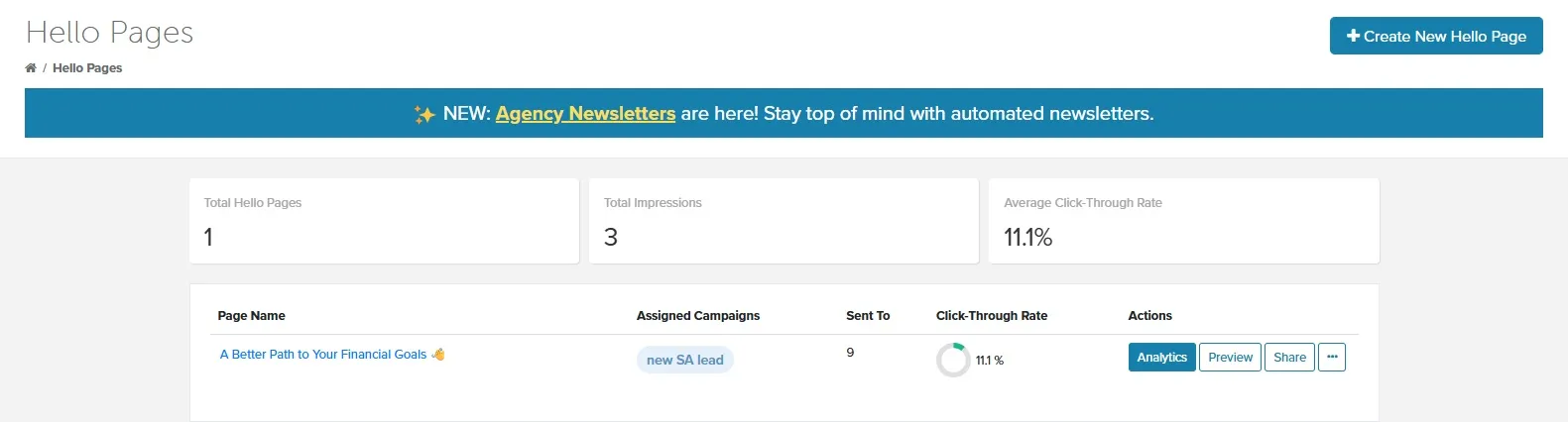
Hello Pages dashboard
Customize your page
Section titled “Customize your page”In the Hello Page editor, you can:
-
Add your heading and subheading
-
Upload your video
-
Write your main text
-
Add FAQ questions and answers
-
Pick a color theme
-
Set your button text and add your calendar link
-
Add your required disclosures
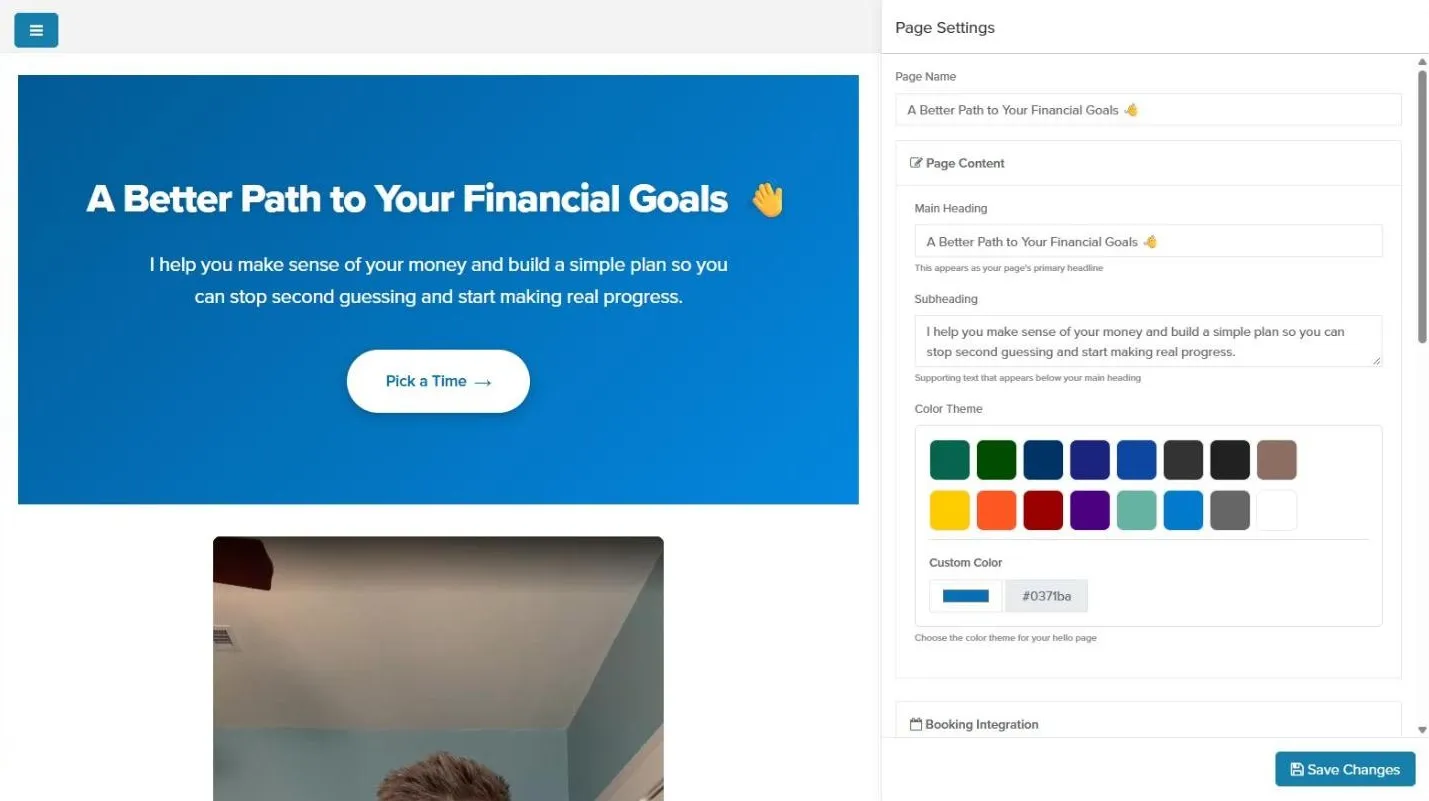
Hello Pages editor
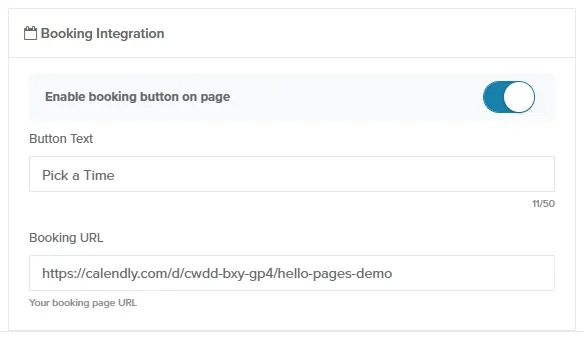
Booking Integration settings
Preview your page
Section titled “Preview your page”When you’re done, save your changes. From the Hello Pages dashboard, click Preview to quickly confirm that:
- The video plays
- Text is clear and easy to read
- The button opens the correct calendar link
- Disclosures look correct
If needed, click ⋯ > Edit, make updates, and save again.

Hello Pages dashboard: where you can preview your pages
Step 3: Share Your Hello Page
Section titled “Step 3: Share Your Hello Page”You can use your Hello Page in a couple of ways:
1) Add your Hello Page to a campaign email
Section titled “1) Add your Hello Page to a campaign email”This makes sure the Hello Page is automatically sent to all new leads going forward.
-
Open your campaign.
-
Find the first or second email step in the campaign (where you want to introduce yourself).
-
Click Edit on that email step.
-
In the email editor, click Add Hello Page. The Select Hello Page window opens.
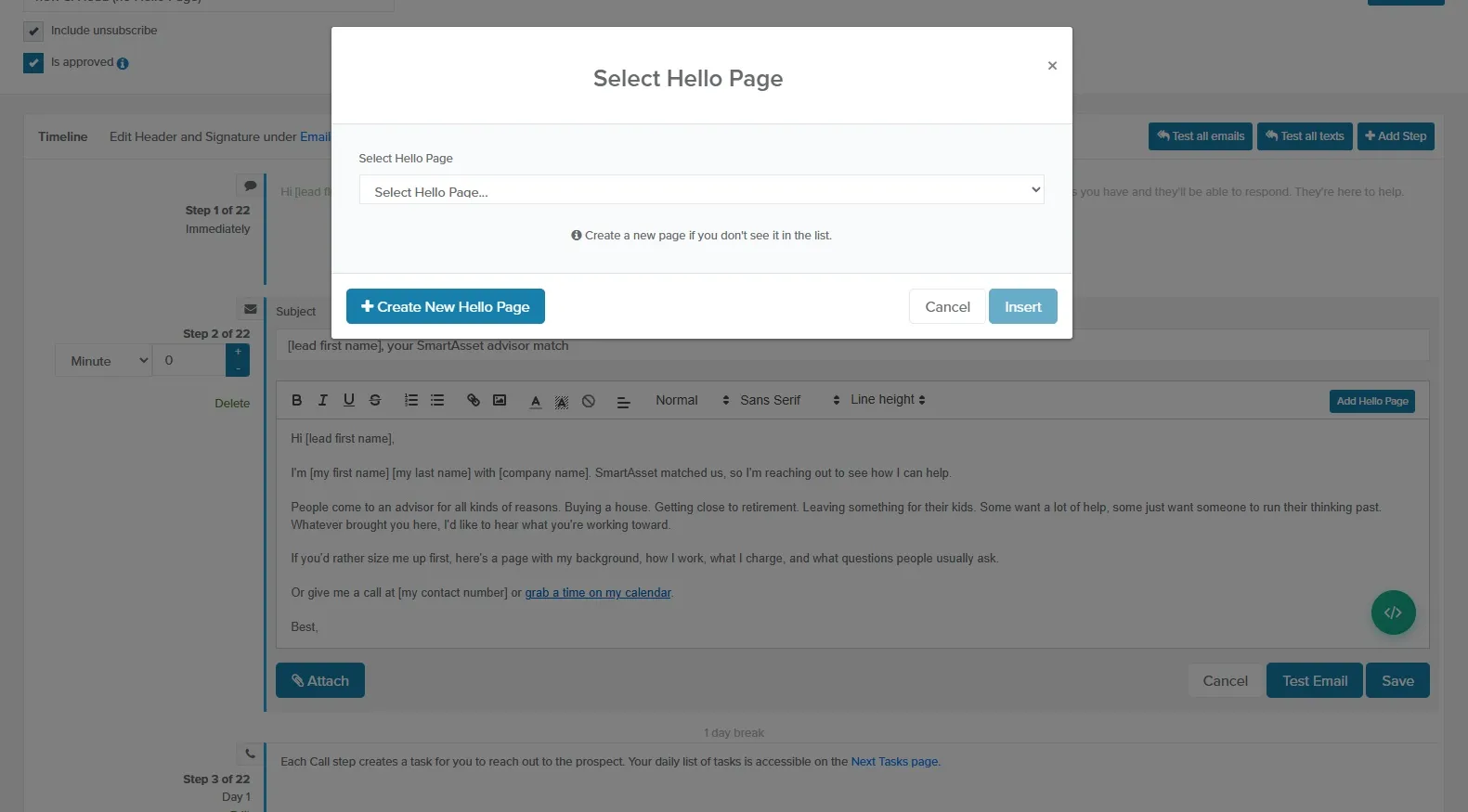
The Select Hello Page window, opened from Add Hello Page
-
Choose the Hello Page you created, click Insert, and save the email step. A Hello Page needs a disclaimer and a video before you can insert it.
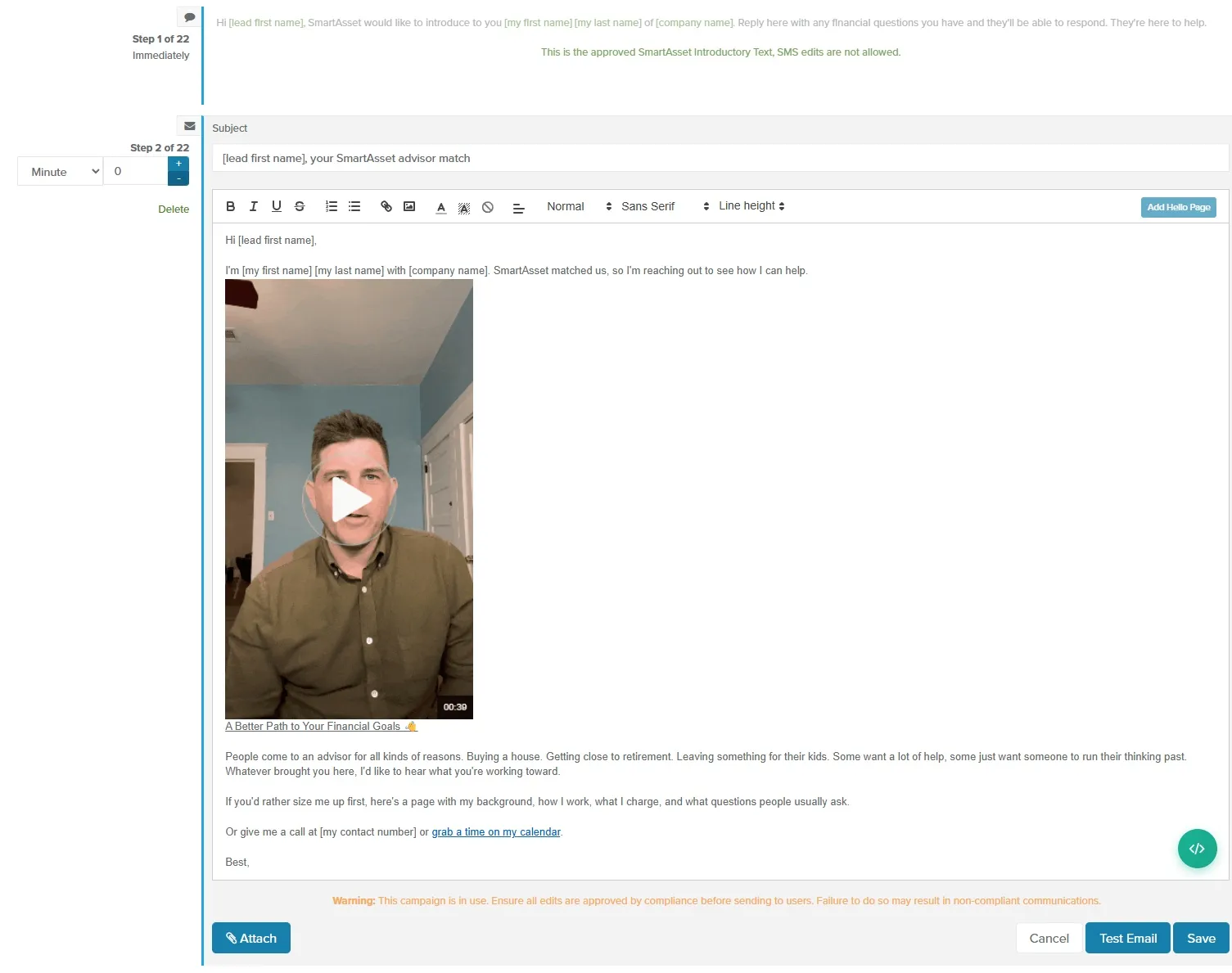
The Hello Page in the email body
From now on, every new lead that enters this campaign will get that email with your Hello Page included.
2) Share the Hello Page with a specific lead
Section titled “2) Share the Hello Page with a specific lead”You can also share your Hello Page outside of campaigns:
-
Go to Hello Pages and click Share.
-
You’ll see two options:
- Just share the link:
- Keep Enable Analytics turned off.
- Click Copy Link and paste it in your email.
- Just share the link:
-
Share the link and track who opens it:
- Turn on Enable Analytics.
- Find the lead’s name or click Create a new Lead and enter their information.
- Click Copy Link and paste it in your email.

Hello Pages Dashboard
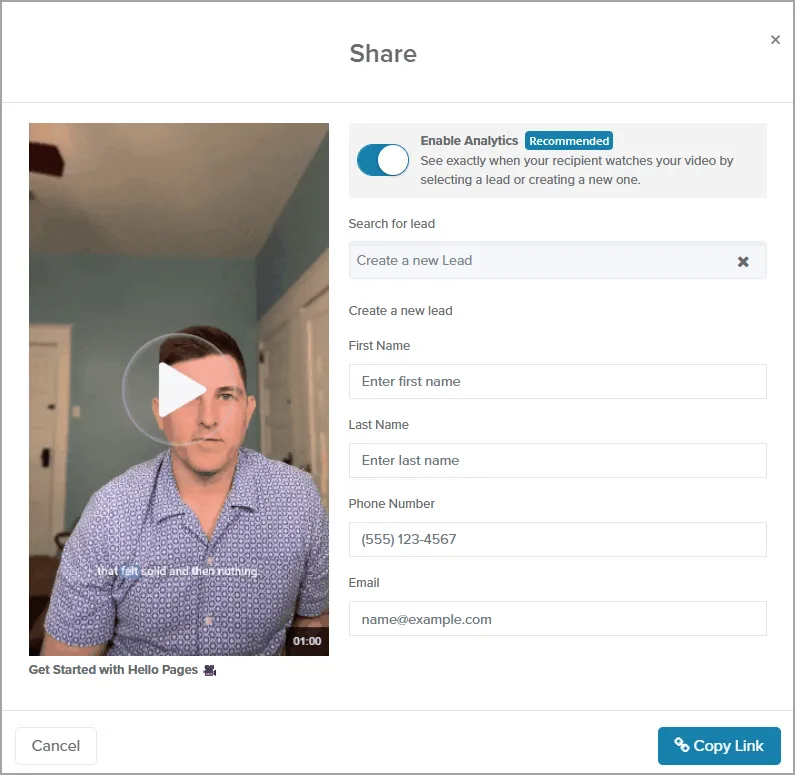
Hello Pages: Share with a specific lead
Using Analytics
Section titled “Using Analytics”From the Hello Pages dashboard, you can view basic performance for each page, such as:
- How many people visited the page
- How long they stayed
- How many clicks occurred on the page
Use this to:
-
Focus your time on leads that are showing interest
-
Refine your video, headline, or FAQs over time
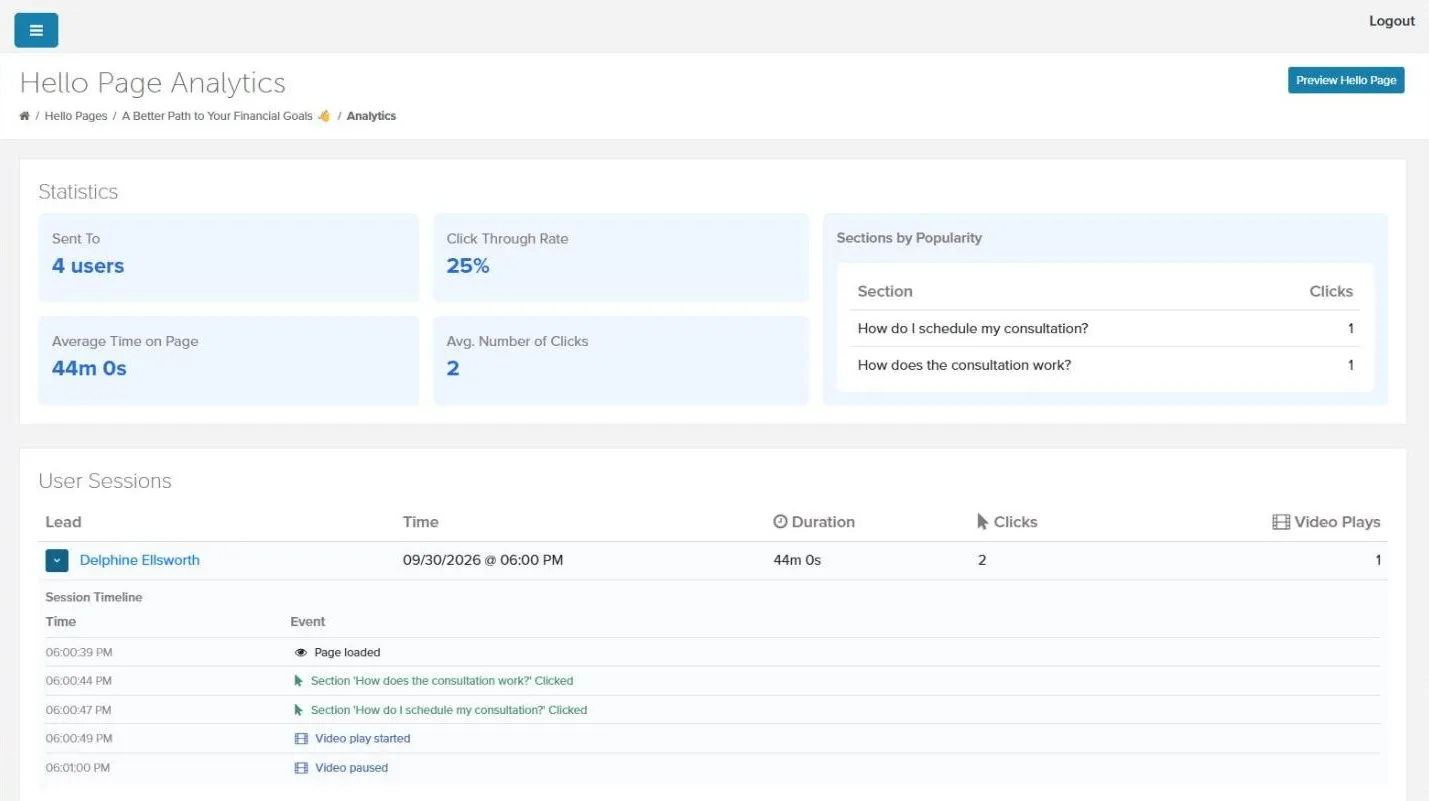
Hello Page Analytics page
1. What is Hello Pages?
Hello Pages is a built-in video page tool. It lets prospects quickly see who you are, how you work, and how to book a meeting, all in one place.
2. How long should my video be?
Aim for 1–2 minutes. Short, clear, and friendly works best.
3. Do I need special equipment?
No. A standard laptop or smartphone camera in a quiet, well-lit space is enough. Focus on clear audio and a steady camera.
4. Can I use the same Hello Page for all leads?
Yes. Most advisors use one strong Hello Page for all new leads. You can create additional pages later for different audiences if you want (for example, retirees vs. business owners).
5. How do I add my calendar link?
In your Hello Page Settings, turn on the booking button, set the button text, and paste in your online scheduling link. Save and test it from Preview.
6. Can I change my video later?
Yes. You can edit the page at any time, upload a new video, and save. The link to your Hello Page will stay the same.
7. Who do I contact if I need help?
If you need help with Hello Pages or the platform, contact SmartAsset support (for example, at amphelp@smartasset.com) or your Customer Success contact.