

Next Tasks
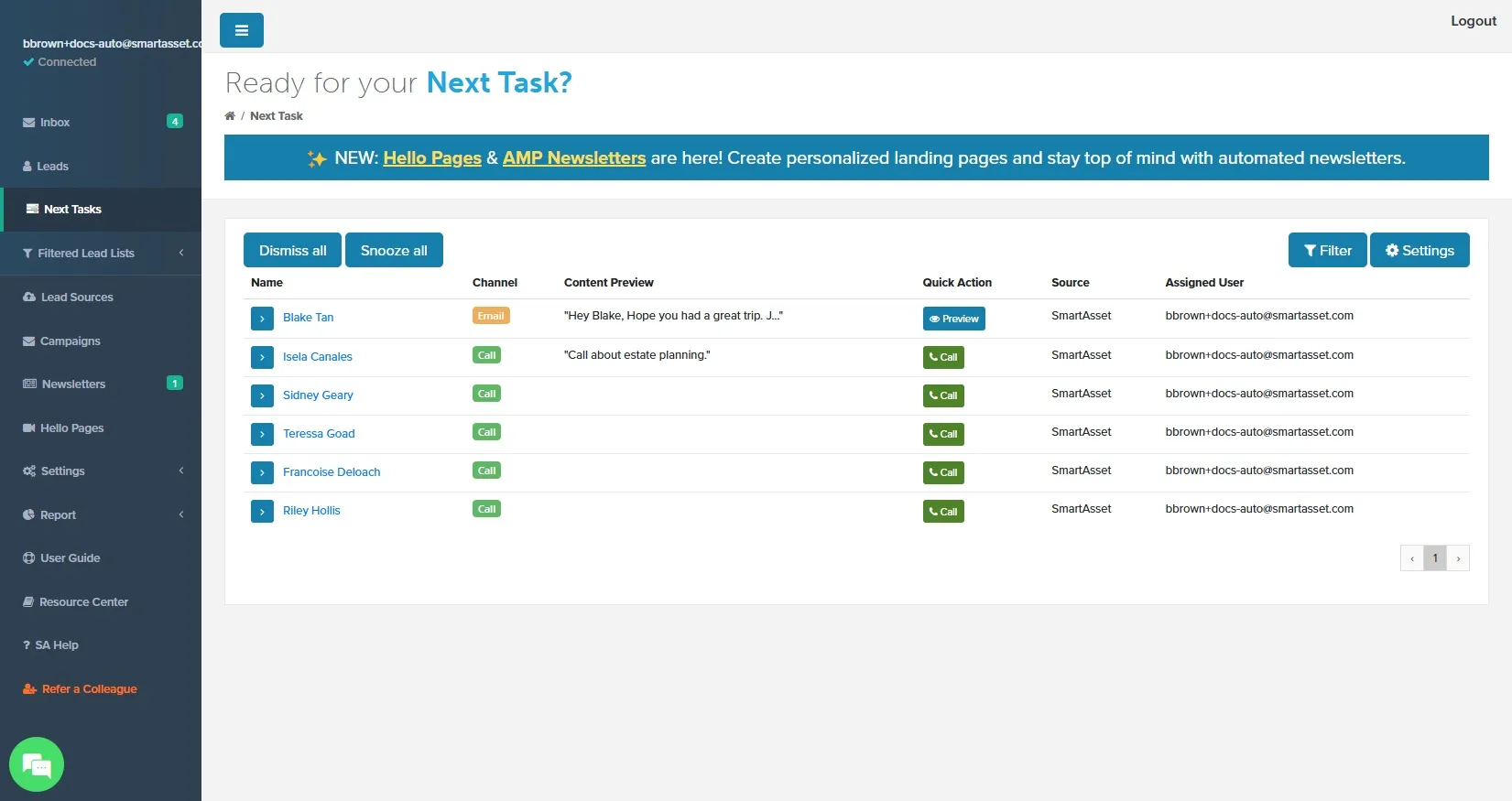
Next Tasks is your daily to-do list for outreach. It gathers the calls, emails and texts due today, so you don’t have to search your leads to decide who to contact next.
Tasks come from two places:
- Campaign tasks: steps in a lead’s campaign that your firm has OAT add to your list instead of sending.
- Ad hoc tasks: one-off tasks you add for a single lead from the lead’s page.
Getting to Next Tasks
Section titled “Getting to Next Tasks”- In the side menu, click Next Tasks.
What Your Firm Allows
Section titled “What Your Firm Allows”Your firm decides whether OAT sends emails and texts for you. Email and text are set separately, so one channel may send automatically while the other becomes tasks. Calls are always tasks.
When OAT can’t send a campaign step for you, the step still comes due on schedule but lands on your task list instead. Send the message yourself, then click Mark Completed.
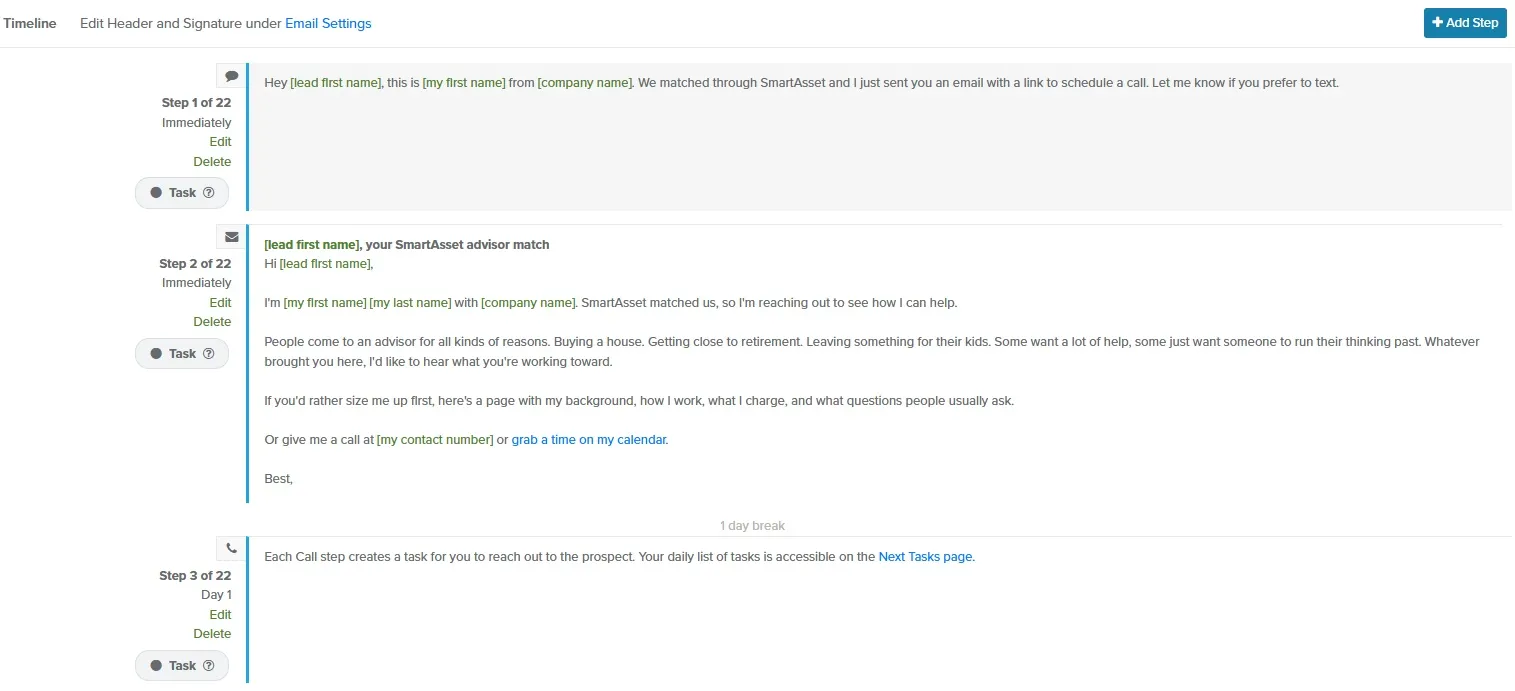
On a campaign’s page, a grey Task badge marks each step that will become a task. Hover over it to see why.
Reading the Task List
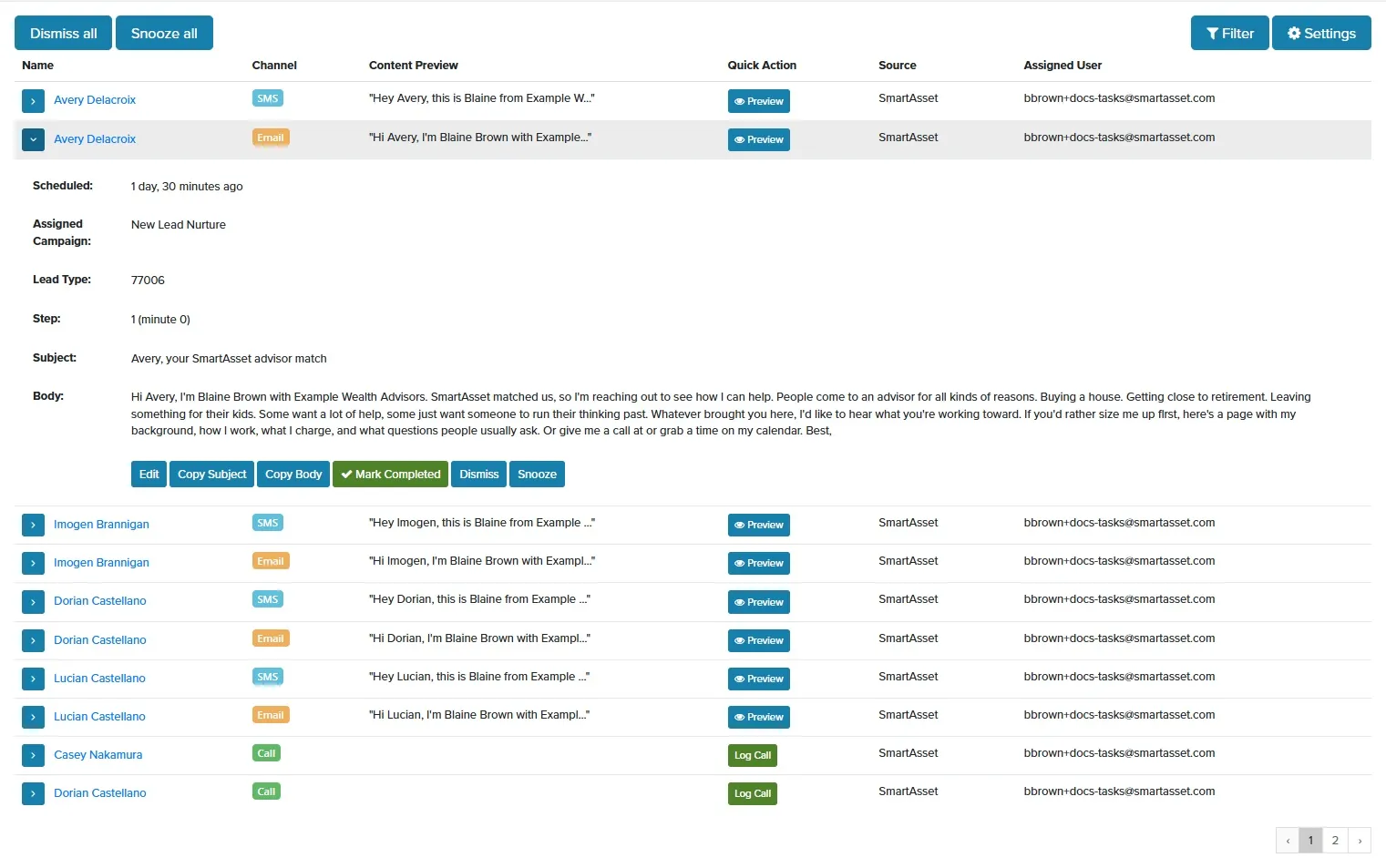
Section titled “Reading the Task List”- To see a task’s details, click the arrow to the left of the lead’s name. The row expands to show when the task is scheduled, its campaign and step, the message, and any note.
- To open the lead’s page, click their name.
- To see the message as the lead will receive it, click Preview.
Who Can Send
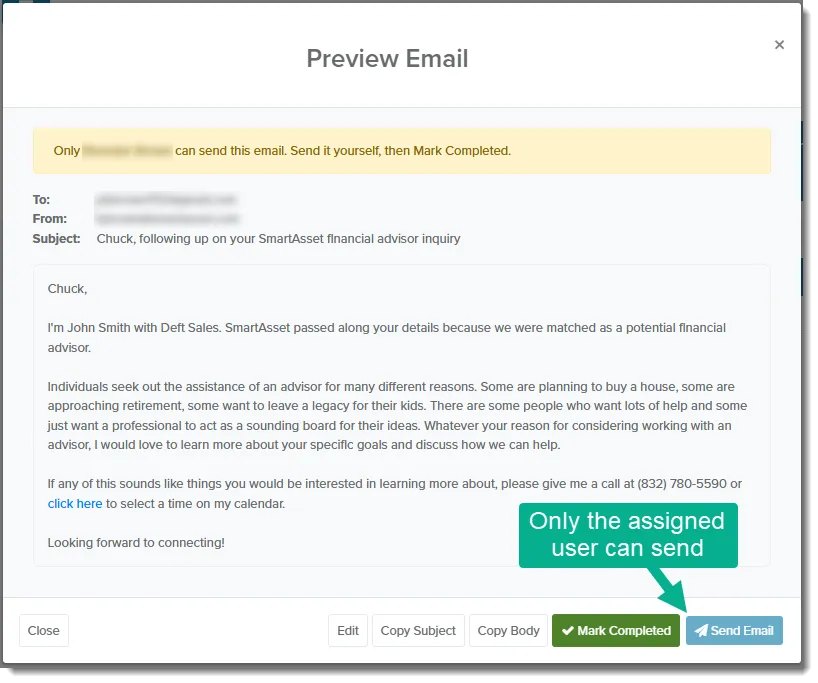
Section titled “Who Can Send”Only the lead’s assigned user can send a task’s email or text from OAT. If the lead has no assigned user, anyone can send it. When someone else is assigned, the Preview window names them and disables the send button. You can still copy the message and click Mark Completed.
Working a Task
Section titled “Working a Task”Before you start: call setup
Section titled “Before you start: call setup”To make calls from Next Tasks, your account needs:
- A phone number, under Settings > Phone Numbers.
- A forwarding number in Calls Forwarded To, under Settings > Phone.
If either is missing, a banner appears at the top of Next Tasks. It reads “To make next calls you need to add a phone number and set your call forwarding phone number.” It doesn’t appear if your account doesn’t make calls through OAT.

Call tasks
Section titled “Call tasks”- In the Quick Action column, click Call. The call window opens and counts down before dialing.
- Optional: To cancel, click Hang Up before the countdown ends.
When the countdown ends, OAT connects you to the lead from your OAT number, so the lead never sees your own number:
- Usually, OAT calls your Calls Forwarded To number and joins the lead to the call.
- With in-app calling, the call runs in your browser instead.
The task leaves your list as soon as the call starts.
If you see Log Call instead of Call, OAT calling is turned off for your account:
-
Click Log Call.
-
Call the lead from your own phone.
-
In the call window, click Mark Completed.
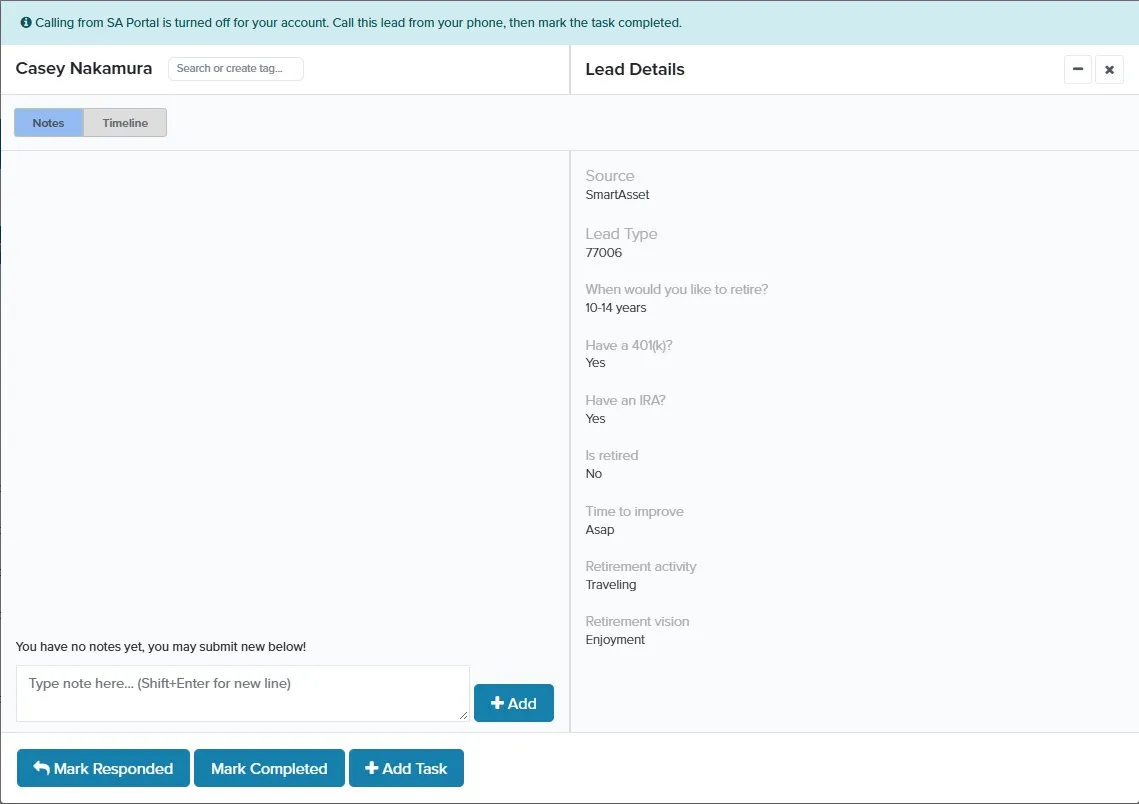
If neither button appears, finish the call setup above.
If OAT sends your emails and texts
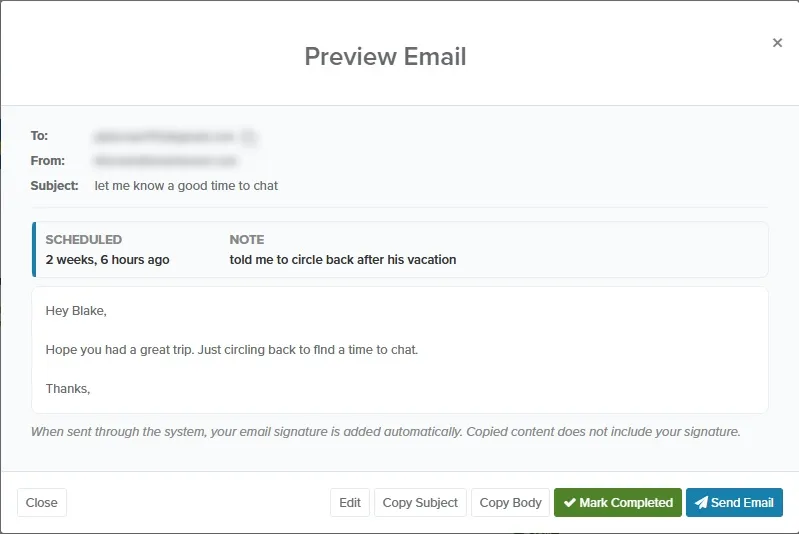
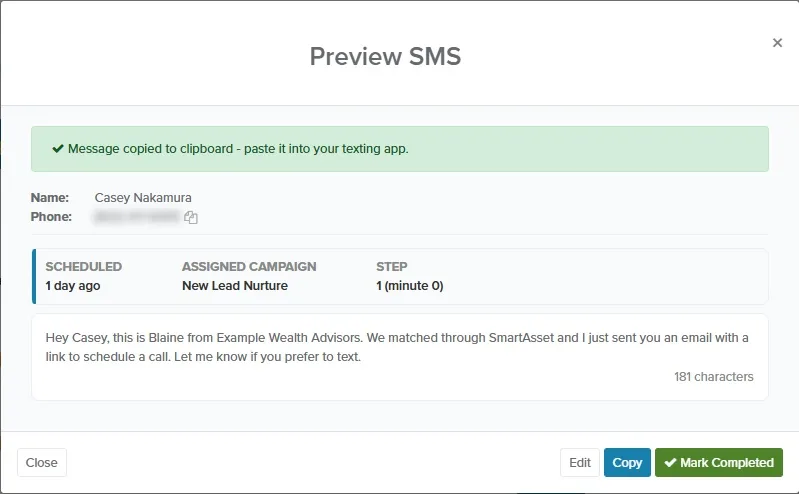
Section titled “If OAT sends your emails and texts”- In the Quick Action column, click Preview. The Preview Email or Preview SMS window shows the message as the lead will receive it.
- Optional: To change the message, click Edit.
- Click Send Email, or Send for a text.
The Email sent successfully. or SMS sent successfully. message appears, and the task leaves your list. Emails go from your connected email. Texts to SmartAsset leads go from the same SmartAsset number as their intro text.
If Send Email is greyed out and the window says Connect your email to send directly, connect your email first.
If you send your emails and texts
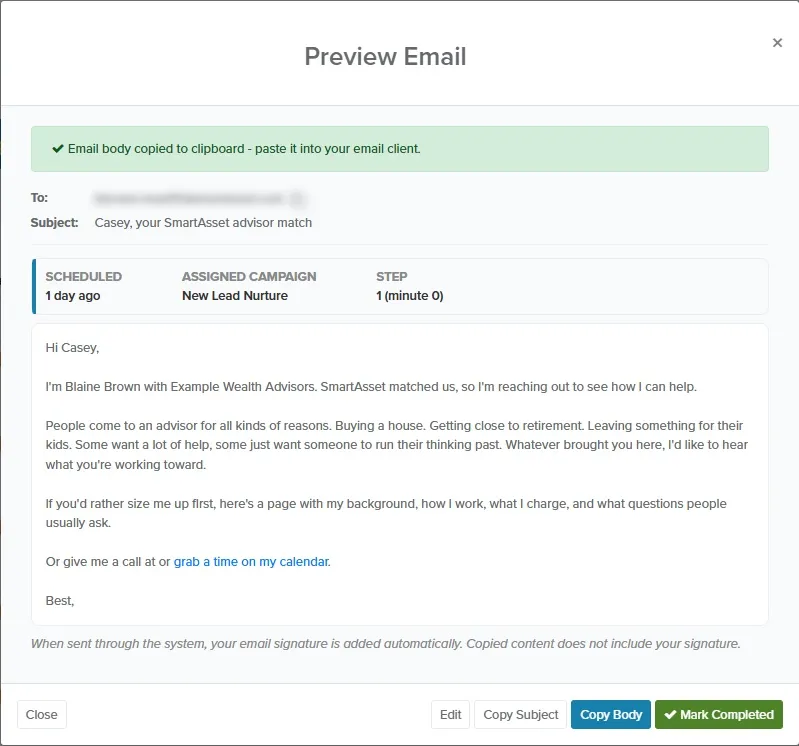
Section titled “If you send your emails and texts”When your firm doesn’t let OAT send for you, the Preview window has no send button.
- In the Quick Action column, click Preview. OAT copies the message body to your clipboard.
- Paste the body into a new email or text in your own app.
- For an email, click Copy Subject.
- Paste the subject into the email’s subject line.
- Send the message from your app.
- In the Preview window, click Mark Completed.
The task leaves your list. To change the message before you copy it, click Edit first, then use Copy Body (or Copy for a text) to copy the new version.
Mark Completed, Dismiss, and Snooze
Section titled “Mark Completed, Dismiss, and Snooze”Each expanded task has three buttons for clearing it from your list:
| Button | What it does | When to use it |
|---|---|---|
| Mark Completed | Records the task as done on the lead’s timeline, and adds a note in your CRM if one is connected. | You made the call, or sent the message yourself. |
| Dismiss | Removes the task without recording it as done. | The task no longer makes sense for this lead. |
| Snooze | Hides the task for 24 hours, so it comes back tomorrow. | You want to get to it, just not today. |
Two buttons at the top of the list act on every task that matches your current filters, on all pages:
- Dismiss all dismisses them.
- Snooze all snoozes them for 24 hours.
Filtering Your Tasks
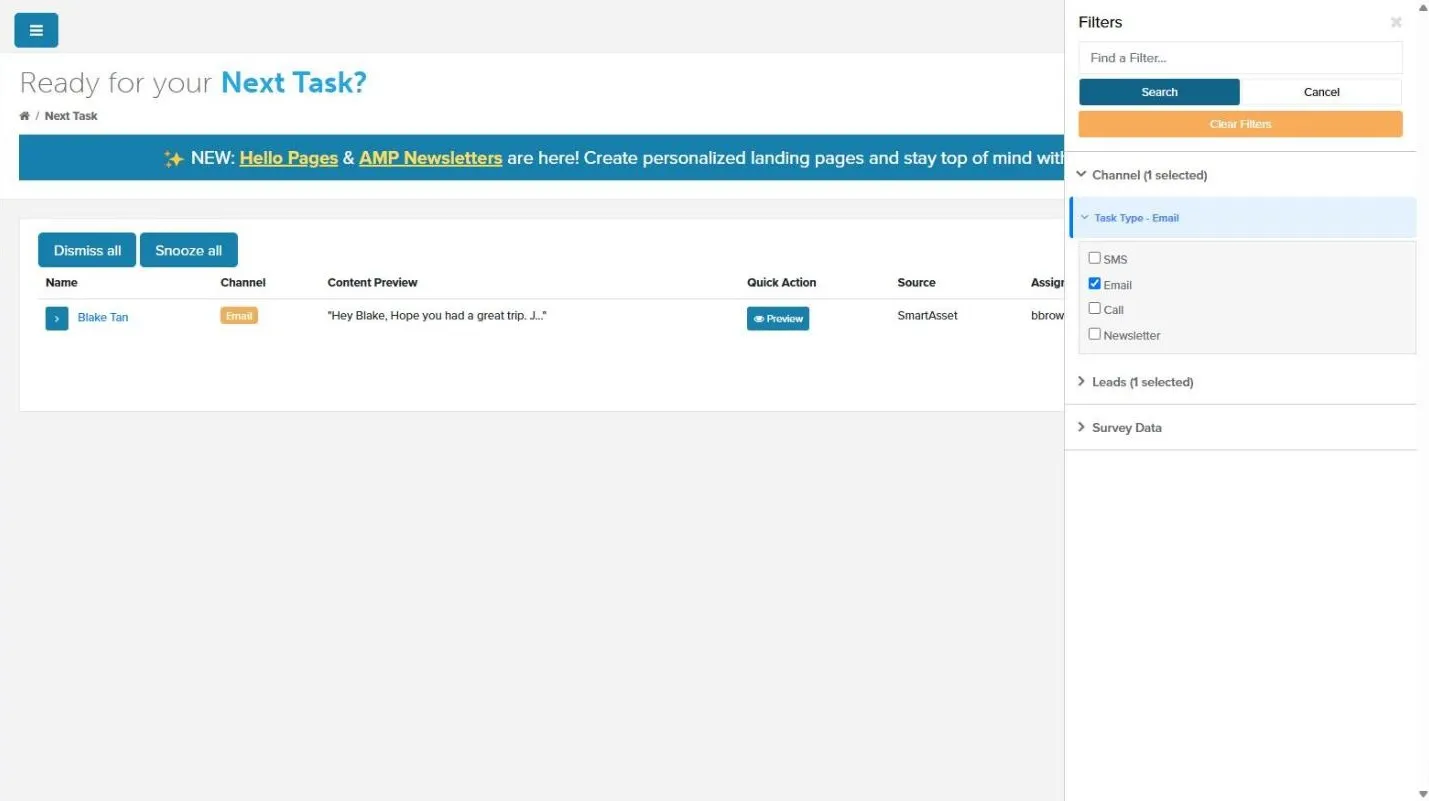
Section titled “Filtering Your Tasks”- Click Filter. The Filters panel opens.
- Under Channel > Task Type, select SMS, Email or Call.
- Click Search.
The list shows only tasks of those types. The panel also has the same lead filters as the Leads page.
Creating an Ad Hoc Task
Section titled “Creating an Ad Hoc Task”Ad hoc tasks are one-off reminders for a single lead. Create one when you promise to follow up at a set time and don’t need a whole campaign.
-
Open the lead’s page.
-
Click Next Tasks.
-
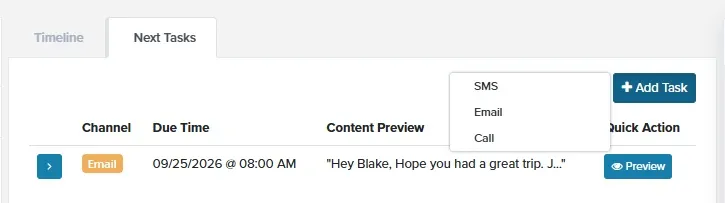
Click Add Task.
-
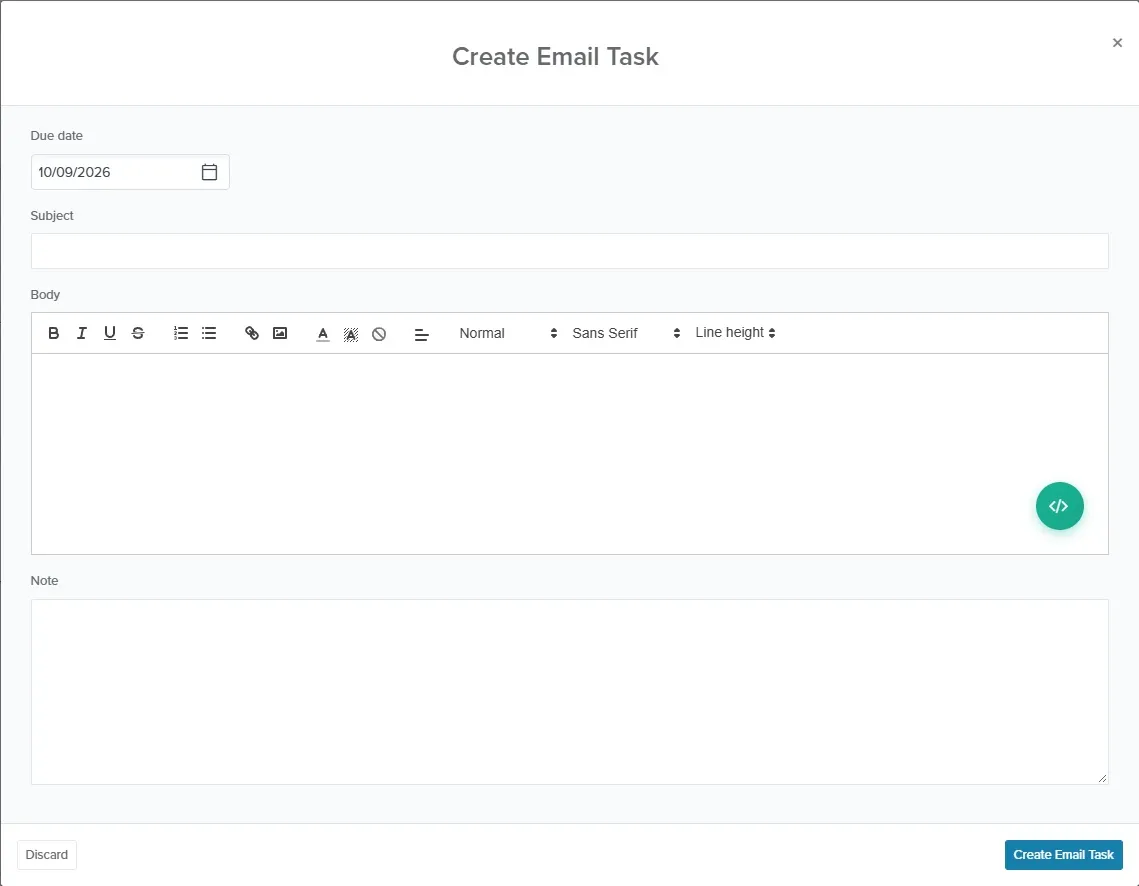
Choose SMS, Email or Call. The Create Email Task window (or its SMS or Call version) opens.
-
In Due date, pick when the task is due. Past dates aren’t allowed.
-
For an email, fill in Subject and Body. For a text, fill in Body.
-
Optional: In Note, add a reminder for yourself.
-
Click Create Email Task, Create SMS Task or Create Call Task.
The task appears in the lead’s Next Tasks, and on the Next Tasks page when it’s due. If SMS or Call is missing, the lead has opted out, or your firm doesn’t allow that channel.
Editing a Task
Section titled “Editing a Task”- Expand the task, or click Preview.
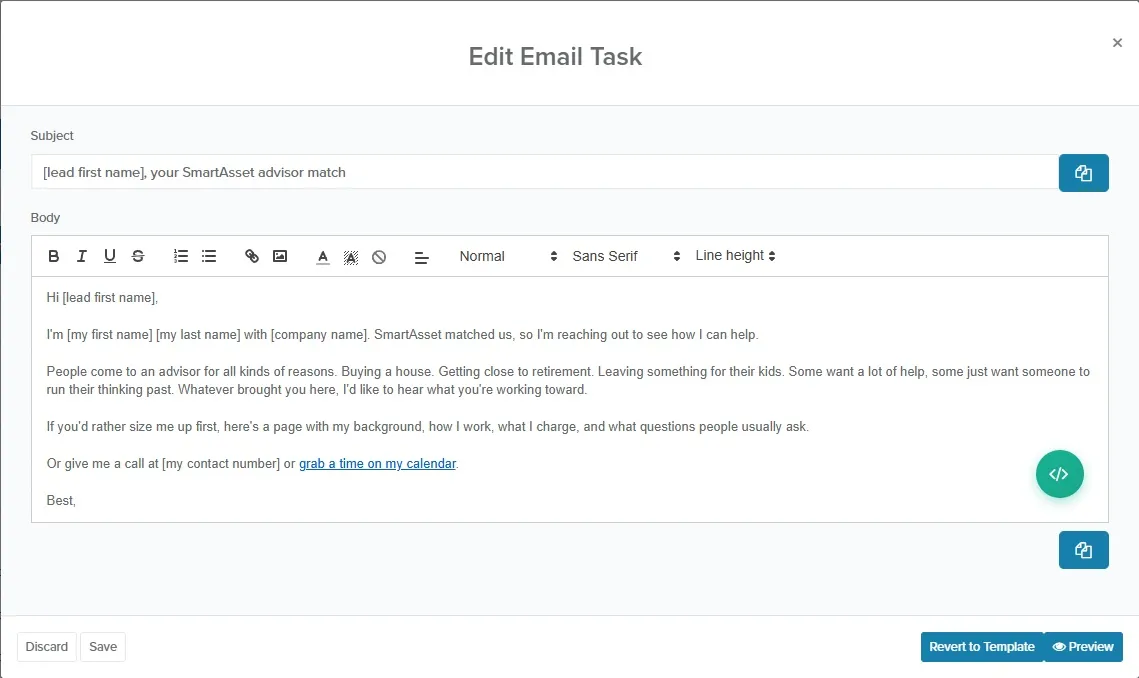
- Click Edit. The Edit Email Task window (or its SMS or Call version) opens.
- Change the message or note.
- Click Save.
The Email task updated successfully. message appears (or its SMS or Call version). On a call task, Edit appears only for ad hoc tasks.
To undo your changes to a campaign task, click Revert to Template in the same window. The task goes back to the campaign’s wording right away.
Daily Task Reminders
Section titled “Daily Task Reminders”OAT can send you a summary of the day’s tasks each weekday morning. Block time in your calendar to work through the list, the same way you would for scheduled calls.
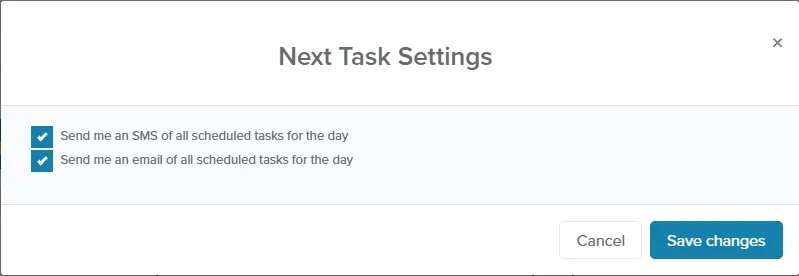
- On the Next Tasks page, click Settings. The Next Task Settings window opens.
- Check Send me an SMS of all scheduled tasks for the day, Send me an email of all scheduled tasks for the day, or both.
- Click Save changes.
OAT sends the summary each weekday at about 7:30 AM on days you have tasks. The email’s subject is Today’s Tasks. The text goes to your Calls Forwarded To number, so set one under Settings > Phone first.
When Tasks Leave Your List on Their Own
Section titled “When Tasks Leave Your List on Their Own”Campaign tasks leave your list when the lead’s campaign is no longer Active. That happens when the lead responds by call, text, email or booking a meeting, when someone stops the campaign, or when it finishes. In addition:
- When several campaign call steps are due for one lead, only the latest shows. Call steps don’t stack up.
- Campaign email tasks leave when the lead unsubscribes.
- All text and call tasks, ad hoc ones included, leave when the lead opts out.
- Campaign text and call tasks leave once the lead was received more than 90 days ago.
Otherwise, ad hoc tasks stay until you complete, dismiss or snooze them.
The list shows only tasks due through the end of today.
Related Guides
Section titled “Related Guides”- Calling Features: Fast Call, call forwarding and phone setup
- Campaigns: building the sequences that create tasks
- Lead Details Screen: a single lead’s page, where you add one-off tasks
- Filtering your Leads: the filters in the Filters panel
- Notifications: other email and text alerts