

Pipeline Report
The Pipeline Report follows your leads through four stages: Leads Delivered, Responded Leads, Scheduled Meetings and Conversion. It compares your results with target ranges that adjust for how mature your leads are (leads older than 90 days are mature).
To open this page, go to Report > Pipeline Report.
The report covers SmartAsset leads only, and counts activity from everyone in your company, not just you.
To change the period, use the dropdown at the top left: Last 3 months, Last 6 months or Last 12 months (the default). To download your data as a CSV file, click Export historical data. The export includes all of your company’s SmartAsset leads, not just the period you selected.
Sections of the Pipeline Report
Section titled “Sections of the Pipeline Report”Leads Delivered
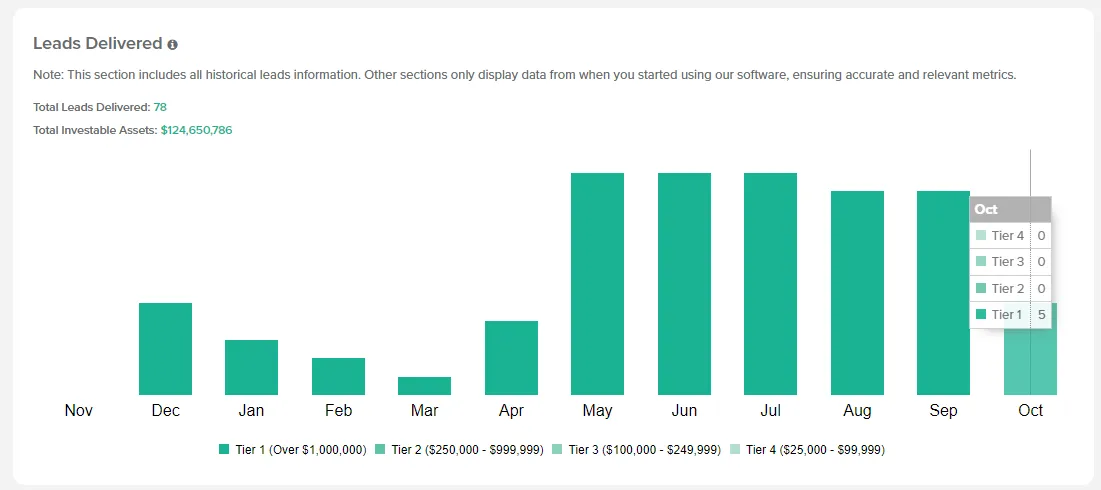
Section titled “Leads Delivered”Leads Delivered shows how many leads you received each month, by asset tier, with Total Leads Delivered and Total Investable Assets for the range. Total Investable Assets uses a set amount for each tier, and leads under $25,000 (Tier 5) aren’t counted. This is the only section that includes leads from before you started using OAT.
To see a month’s breakdown by tier, hover over its bar.
Responded Leads
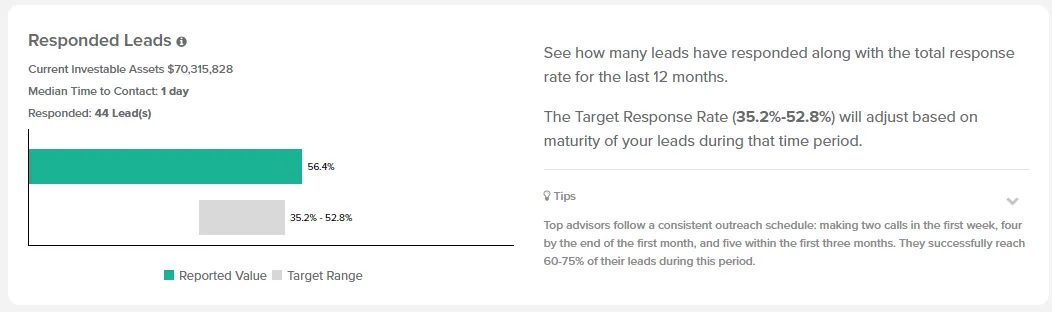
Section titled “Responded Leads”Responded Leads shows how many leads responded and their investable assets, with your response rate next to the target range.
A lead counts as responded when they reply to a text, email or call, or book a meeting. A phone conversation lasting over 2 minutes also counts, and so does clicking Mark Responded.
If your rate is below the target range, see the chart’s Tips for the outreach schedule top advisors follow, and compare your calling with the Activity Report.
Scheduled Meetings
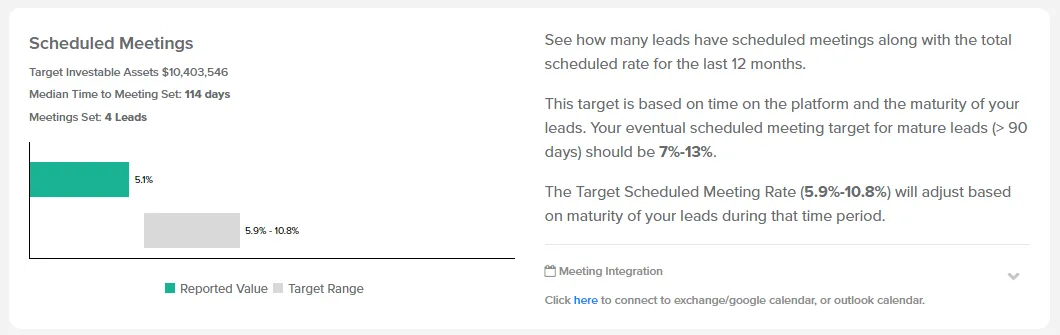
Section titled “Scheduled Meetings”Scheduled Meetings shows how many leads have a meeting set and their investable assets, with your meeting rate next to the target range.
A meeting counts when OAT detects a booking through your calendar integration, or when you use Log Meeting on the lead’s page.
If no one in your company has a calendar connected and no booking has been detected yet, the bar shows Unknown. To fix this, connect your calendar in Settings > Calendar.
If your meeting rate is below the target range, look at how you ask leads to book and how you confirm meetings.
Conversion
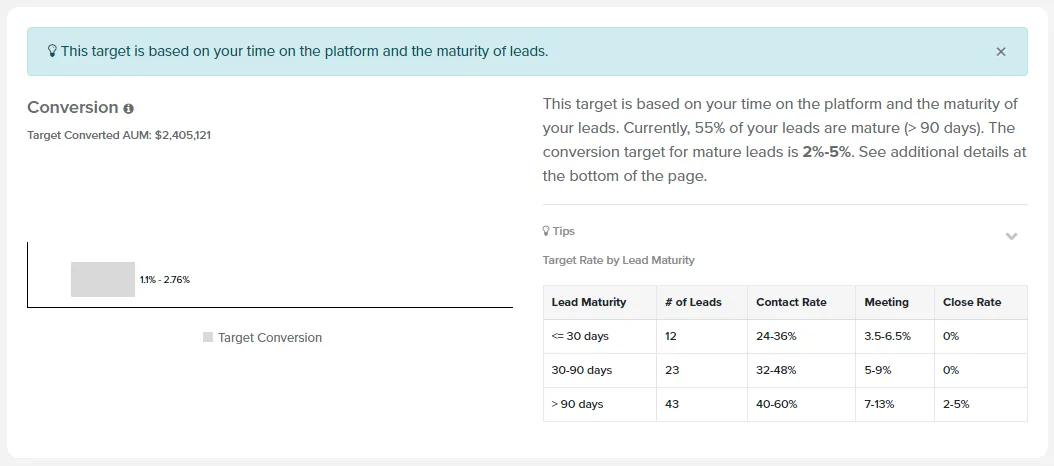
Section titled “Conversion”Conversion shows only a target, not your actual conversion rate: the target range shown on the report, and the Target Converted AUM it would produce. The target is based on how long you’ve used OAT and how mature your leads are, so expect it to rise as your leads mature.
Related Guides
Section titled “Related Guides”- Activity Report: compare your calling and reply times with top advisors
- Calendar Settings: connect your calendar so OAT detects bookings
- Lead Details Screen: log a meeting or mark a lead as responded