

Salesforce Integration Guide
SmartAsset OAT works directly with Salesforce to add new leads automatically. Follow the instructions below to connect Salesforce.
Before you begin
Section titled “Before you begin”- Have your Salesforce credentials ready.
- If you don’t see CRM under Settings > Company, CRM isn’t turned on for your company. Email amphelp@smartasset.com for help.
Step 1: Connect Salesforce
Section titled “Step 1: Connect Salesforce”-
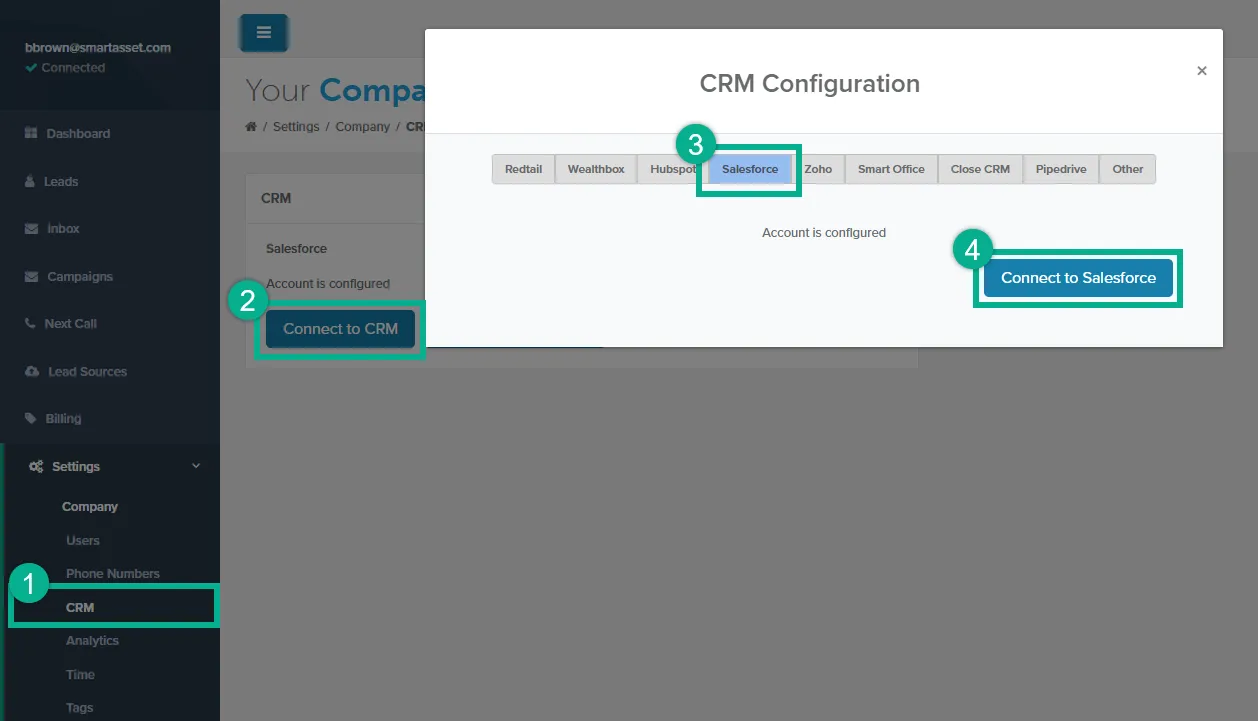
To open this page, go to Settings > CRM.
-
Click Connect to CRM. The CRM Configuration window opens.
-
Click the Salesforce tab.
-
Click Connect to Salesforce. Salesforce asks you to sign in.
-
Sign in with your Salesforce credentials.
-
Click Allow to give OAT permission to connect.
Once the connection succeeds:
- OAT returns you to the CRM page and shows Successfully authorized into Salesforce CRM.
- The CRM switch turns on, so new leads go to Salesforce automatically.
- A Configure Salesforce button appears next to Connect to CRM.
Step 2: Configure Your Salesforce Settings
Section titled “Step 2: Configure Your Salesforce Settings”-
On the CRM page, click Configure Salesforce. The Company Salesforce Configuration page opens.
-
In Configuration Name, enter a name you’ll recognize on the Lead Sources page.
-
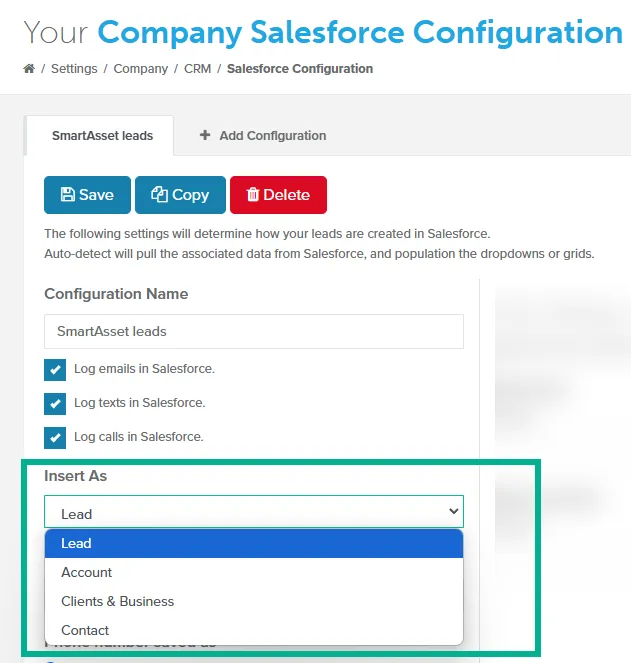
Under Insert As, select Lead, Account, Clients & Business, or Contact.
-
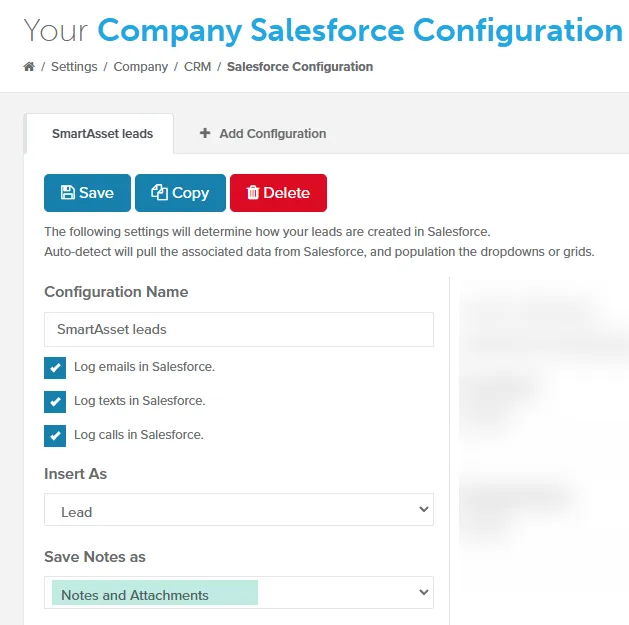
Under Save Notes as, select Notes and Attachments (Salesforce’s classic notes) or Notes (Lightning notes). Survey answers are saved either way.
-
If you see Company, enter what Salesforce should store in that required field. It’s set to “Individual” until you change it.
-
If you chose Account and want the lead’s email saved, set Insert lead email into to Website.
-
Optional: to map survey answers to your own Salesforce fields, see Map survey answers to custom fields.
-
Click Save.
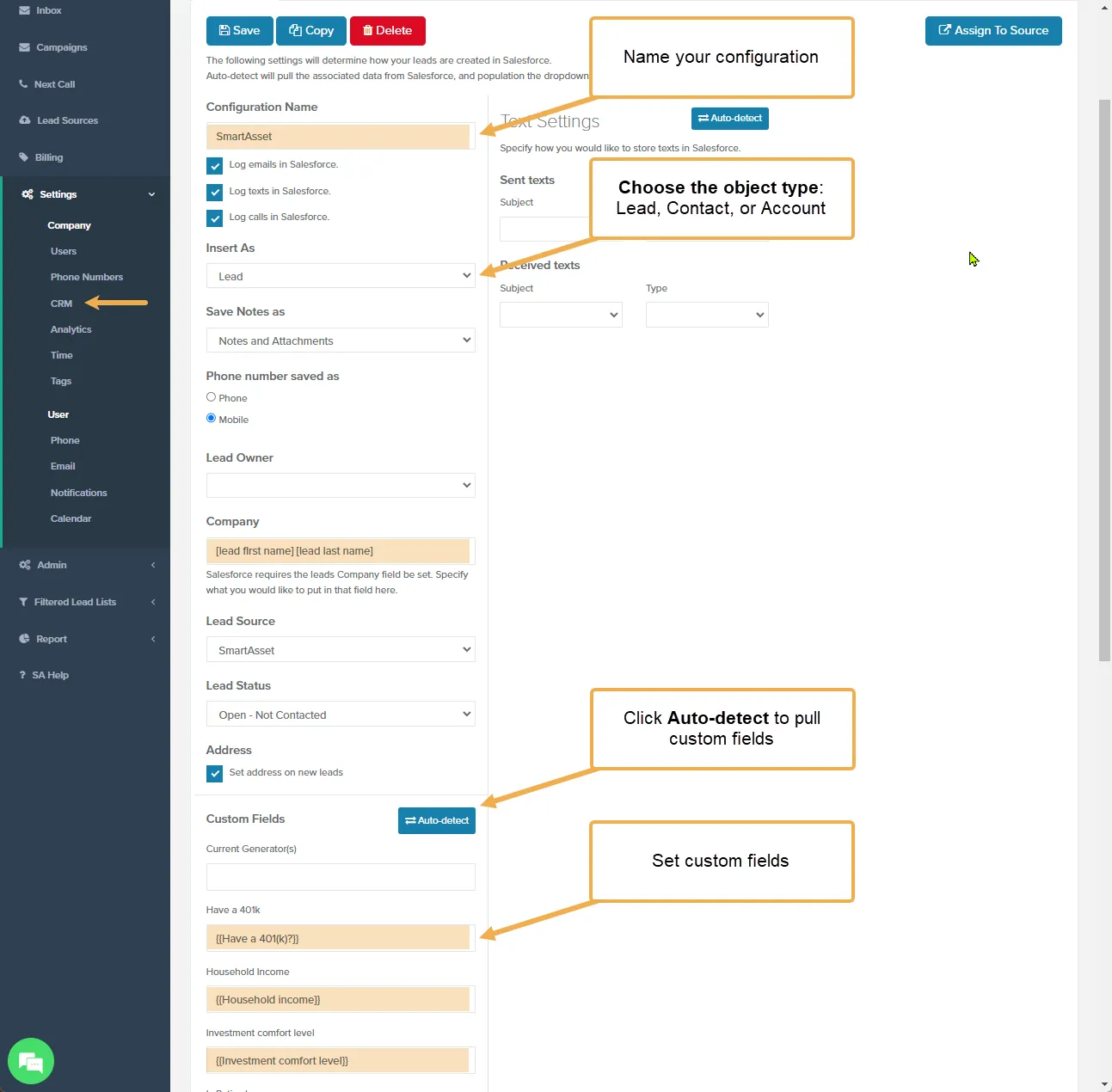
New leads are created in Salesforce with their name, email, and phone, using these settings.
Step 3: Assign Your Salesforce Configuration to a Lead Source
Section titled “Step 3: Assign Your Salesforce Configuration to a Lead Source”-
In the side nav, click Lead Sources.
-
In the CRM Configuration column, select your Salesforce configuration for the Default row. To use a different one for a lead type, select it in that lead type’s row.
-
Click Save and the source name, for example Save SmartAsset Settings.
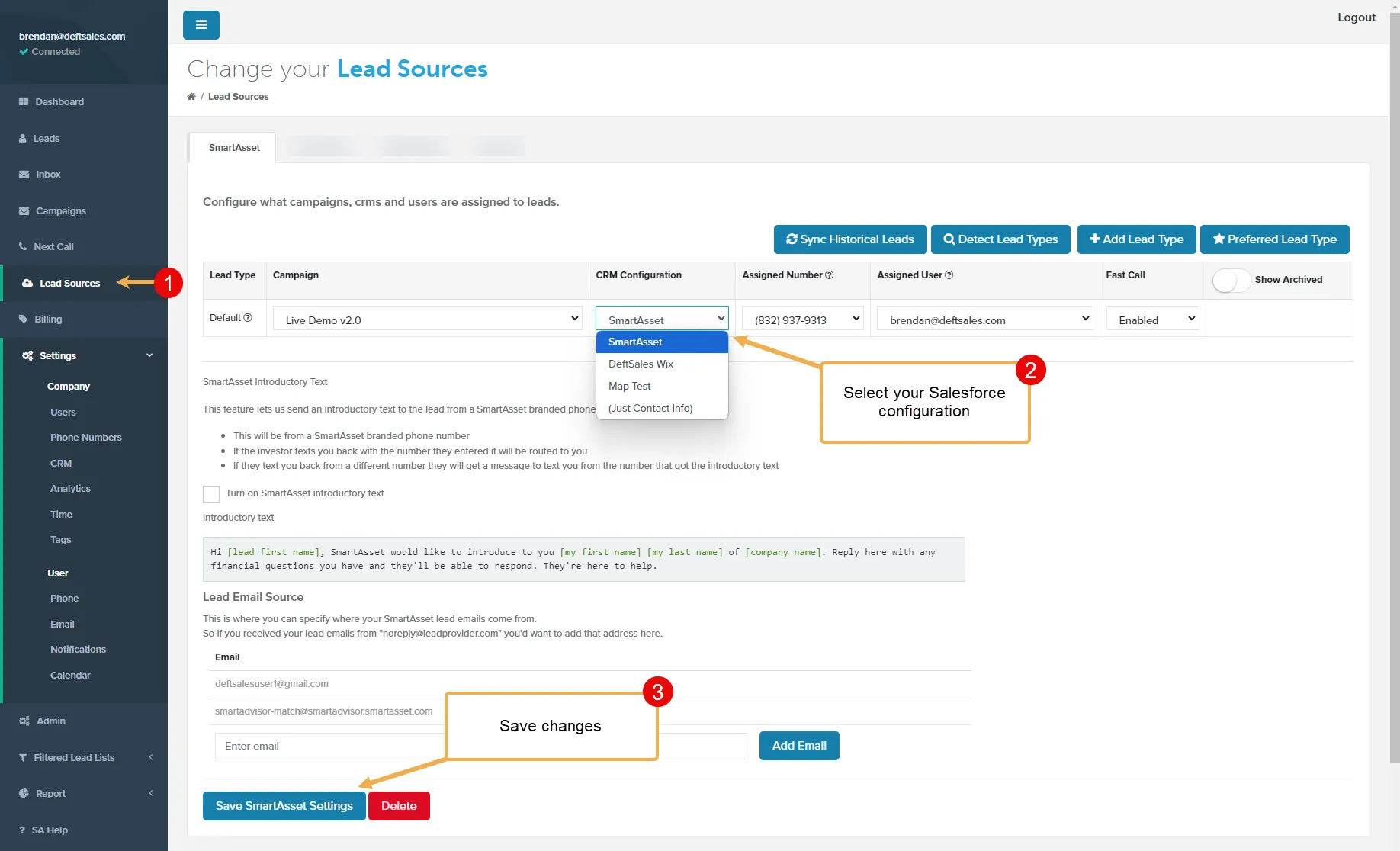
New leads from that source now use your Salesforce configuration.
Map survey answers to custom fields
Section titled “Map survey answers to custom fields”Mapping is optional. You can fill your own Salesforce custom fields with lead details and survey answers.
- On the Company Salesforce Configuration page, under Custom Fields, click Auto-detect. Your Salesforce custom fields appear.
- In each field you want filled, enter one or more tags from the table below.
- Click Save.
Tags fill text, long text area, email, and phone fields. A survey tag must match the question exactly, including capitalization. If a lead didn’t answer that question, the field is left blank.
To capture every answer in one field, create a Text Area (Long) field in Salesforce and map it to {{all-questions-and-answers}}. Each answer appears on its own line as “Question: Answer”.
Available tags
Section titled “Available tags”| Field Name | Field Name | Field Name |
|---|---|---|
| {{all-questions-and-answers}} | ||
| [lead first name] | [lead last name] | [lead email] |
| [lead phone] | [lead city] | [lead state] |
| [lead zip] | {{Life stages}} | {{Time to improve}} |
| {{When would you like to retire?}} | {{Have a 401(k)?}} | {{Current savings}} |
| {{How confident are you in your long-term financial plan?}} | {{Is retired}} | {{Household income}} |
| {{Savings per month}} | {{Investment comfort level}} | {{Care about socially responsible investing?}} |
| {{Health}} | {{Married?}} | {{Separate or joint}} |
| {{Any children under 18?}} | {{Are you a Homeowner?}} | {{Business owner?}} |
| {{Do you have an advisor?}} | {{Advisor need to be in driving distance?}} | {{Desired expertise}} |
| {{Investable Assets}} | {{Matching Advisor}} | {{Matching Zip}} |
| {{Retirement activity}} | {{Retirement vision}} | {{Retirement relocation}} |
| {{Income expectation}} | {{Emergency fund?}} | {{Have an IRA?}} |
| {{Recent refinance}} | {{How did you hear about SmartAsset?}} | {{Financial difficulty or stress caused by health?}} |
| {{Why new advisor}} | {{Additional information}} |
Related Guides
Section titled “Related Guides”- CRM Integration: overview of CRM integration and the other supported CRMs
- Lead Sources: Routing & Automation: where CRM configurations get assigned