

Calendar Settings
Connect Your Calendar
Section titled “Connect Your Calendar”Each user connects their own calendar.
-
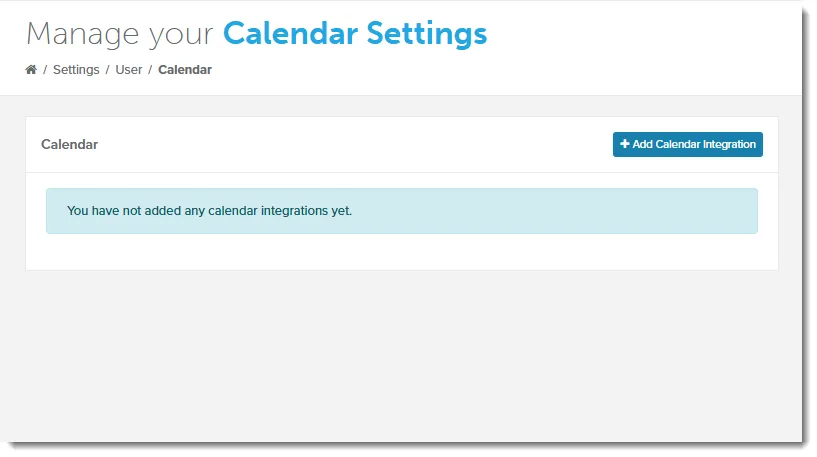
Go to Settings > Calendar.
-
Click Add Calendar Integration. The Configure Calendar window opens.
-
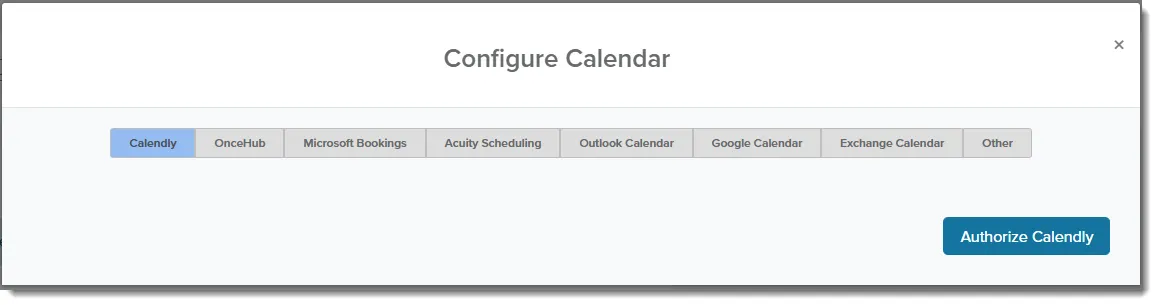
Click the tab for your tool: Calendly, OnceHub, Microsoft Bookings, Acuity Scheduling, Hubspot Meetings, Outlook Calendar, Google Calendar, or Exchange Calendar.

-
If you’re connecting OnceHub, paste your OnceHub API key into Set your API key.
-
If you’re connecting Exchange Calendar, enter your Email and Password. Then enter your Exchange service URL, or click Detect Url.
-
Click Authorize and your tool’s name, for example Authorize Calendly.
-
If your provider opens a sign-in page, sign in and allow access.
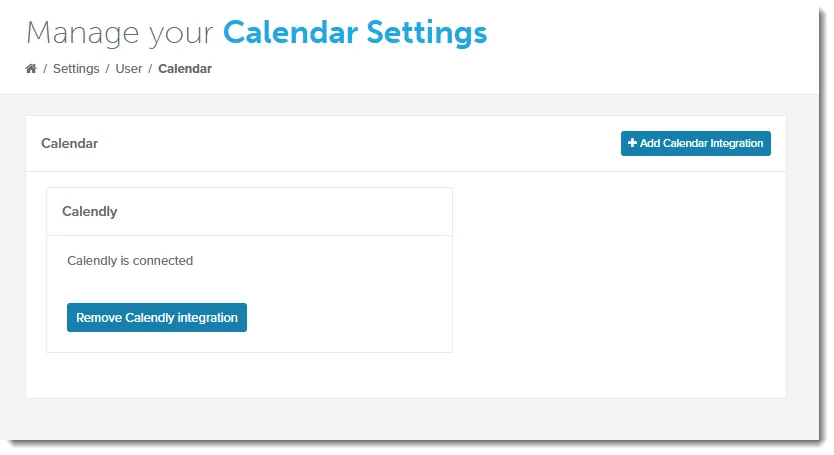
Your tool now appears under Calendar on the Calendar Settings page, for example Calendly is connected.
What Happens When a Lead Books
Section titled “What Happens When a Lead Books”When a lead books a meeting in your connected tool, OAT finds the lead by email address and:
- Changes the lead’s status to Responded, which stops their campaign.
- Adds the Contact made and Meeting set tags.
If the lead books with a different email address than the one in OAT, the booking isn’t detected.
Copy Bookings into Redtail with Zapier
Section titled “Copy Bookings into Redtail with Zapier”OAT connects directly to the tools above, so you don’t need Zapier for OAT to detect bookings. Redtail’s calendar has no direct integration, so if you want Calendly or OnceHub bookings to appear in Redtail too, use Zapier. This runs in Zapier, not OAT, so the options you see depend on your Zapier, Redtail, and scheduling tool plans.
Calendly
Section titled “Calendly”- Open the Calendly to Redtail Zapier template.
- Sign in to Zapier.
- When Zapier asks, connect your Calendly account.
- When Zapier asks, connect your Redtail account.
- Test the Zap.
- Turn on the Zap.
OnceHub
Section titled “OnceHub”- Open the OnceHub to Redtail Zapier template.
- Sign in to Zapier.
- When Zapier asks, connect your OnceHub account.
- When Zapier asks, connect your Redtail account.
- Test the Zap.
- Turn on the Zap.
If a booking doesn’t reach Redtail, check the Zap’s history in Zapier for errors.
Related Guides
Section titled “Related Guides”- Getting Started: where connecting a calendar fits in account setup
- Redtail Integration Guide: connect Redtail before setting up the Zapier templates