Connect your Email
Connect your email so OAT can send your campaign emails to leads. OAT works with Gmail, Office 365, Exchange and IMAP/SMTP.
How to Connect Your Email
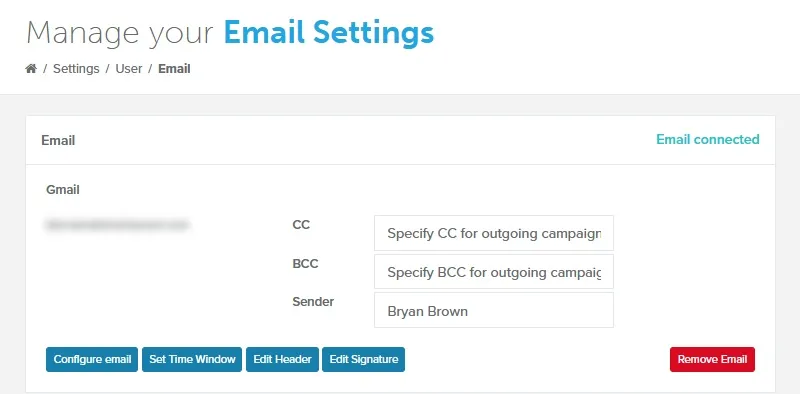
Section titled “How to Connect Your Email”To open the Email Settings page, go to Settings > Email. Each section below starts from this page.
Connect Gmail
Section titled “Connect Gmail”-
Click Configure email. The Configure Email window opens.
-
Select Gmail.
-
Click the Connect with Google… button.
-
Sign in to your Google account.
-
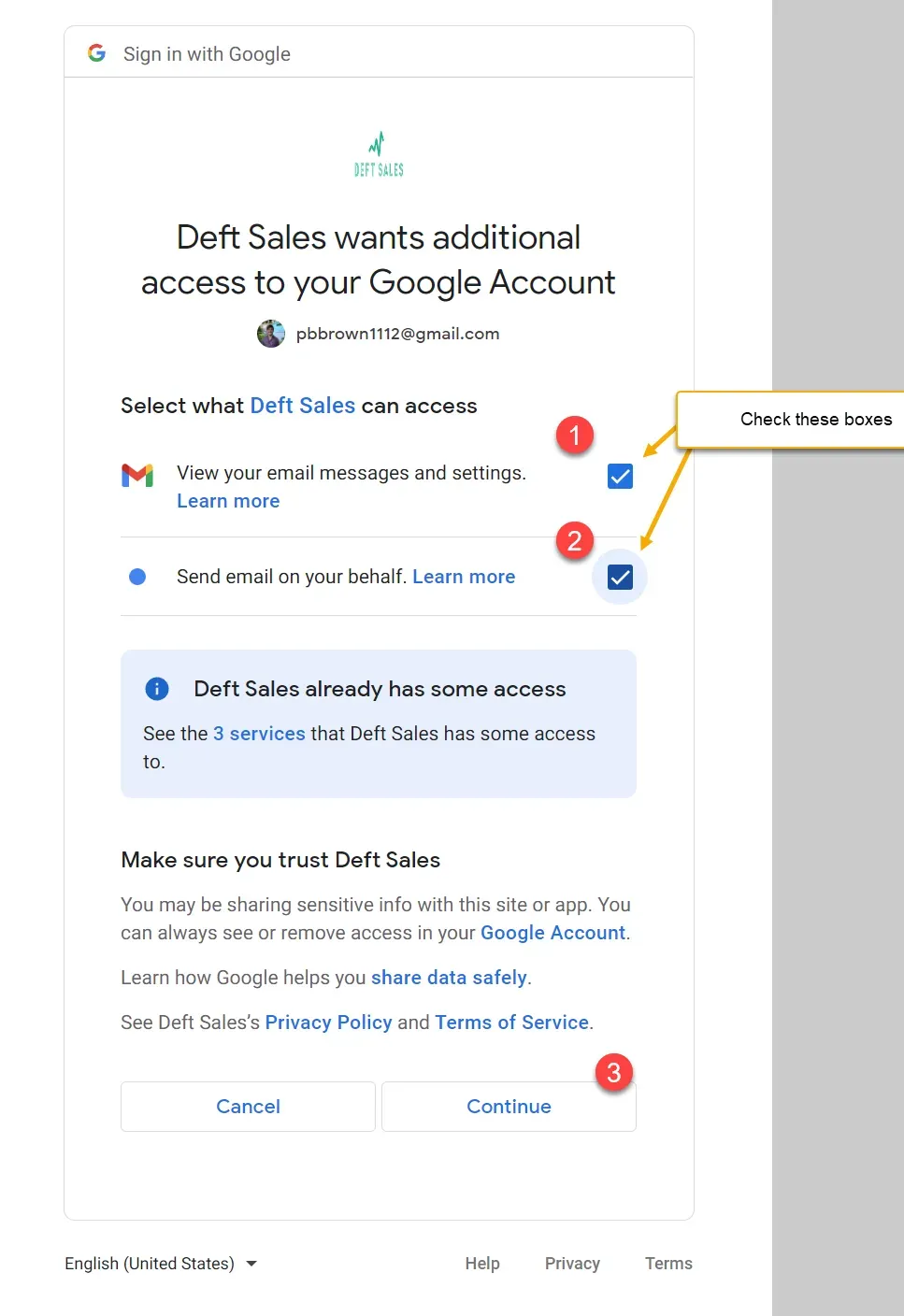
Select View your email messages and settings.
-
Select Send email on your behalf.
-
Click Continue. You return to OAT, and your email is connected.
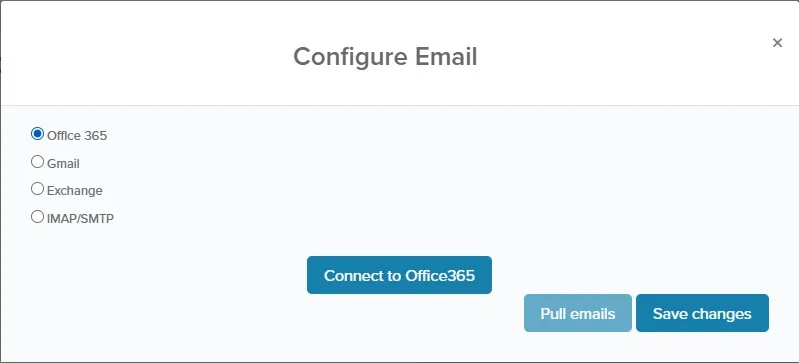
Connect Office 365
Section titled “Connect Office 365”- Click Configure email. The Configure Email window opens.
- Select Office 365.
- Optional: if Email Permissions appears, select Full Access or Limited Access. With Limited Access, lead sources other than SmartAsset can’t process leads.
- Click Connect to Office365.
- Sign in to your Microsoft account.
- Accept the requested permissions. You return to OAT, and your email is connected.
Connect Microsoft Exchange
Section titled “Connect Microsoft Exchange”-
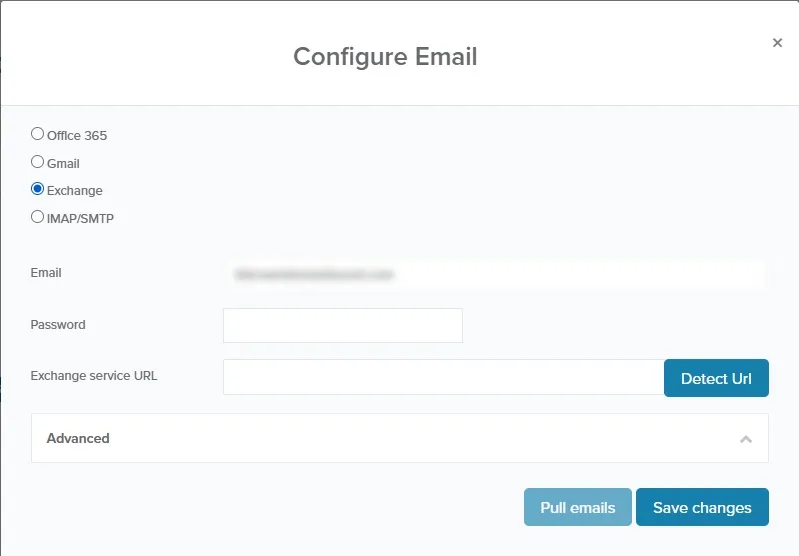
Click Configure email. The Configure Email window opens.
-
Select Exchange.
-
In Email, enter your email address.
-
In Password, enter your email password.
-
Click Detect Url. OAT fills in Exchange service URL.
-
Click Save changes.
Connect IMAP/SMTP
Section titled “Connect IMAP/SMTP”Use IMAP/SMTP for any other email provider.
-
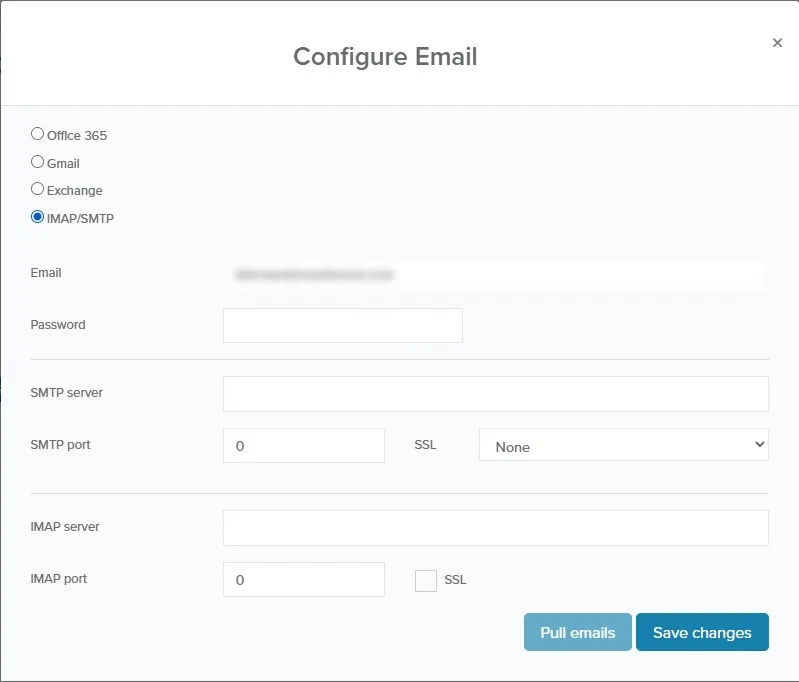
Click Configure email. The Configure Email window opens.
-
Select IMAP/SMTP.
-
Enter your connection details:
- Email: your full email address.
- Password: the password for your email account.
- SMTP server: from your email provider, for example smtp.example.com.
- SMTP port and SSL: typically 465 (SSL) or 587 (TLS).
- IMAP server: from your email provider, for example imap.example.com.
- IMAP port: typically 993, with SSL selected.
-
Click Save changes.
After you connect, import your email signature. See Import your email signature.
Send a Test Email
Section titled “Send a Test Email”After you connect, send yourself a test email to check that campaign emails go out correctly.
-
Go to Campaigns.
-
Next to a campaign, click Open.
-
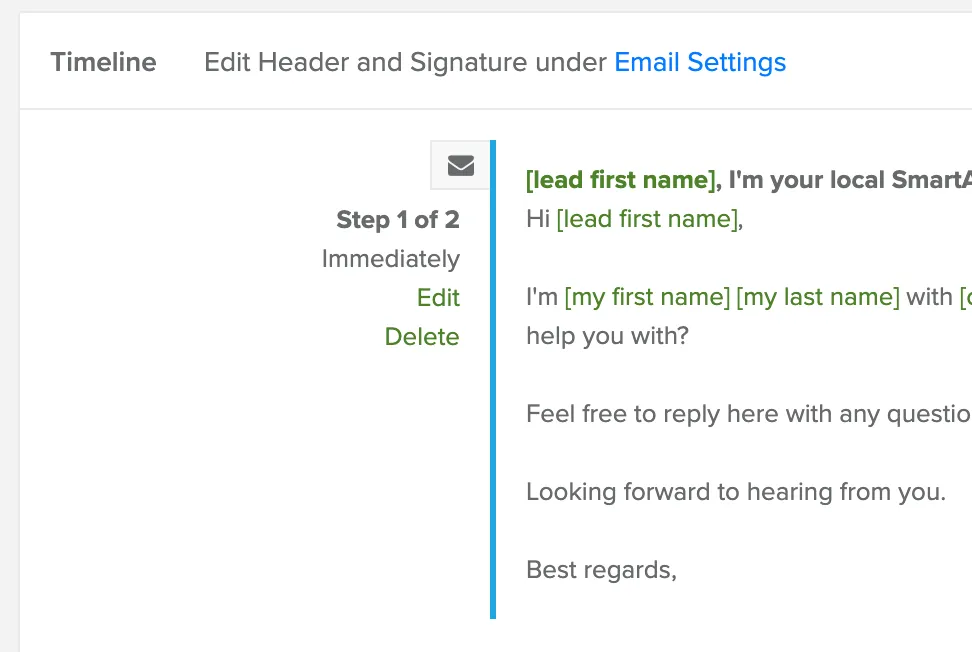
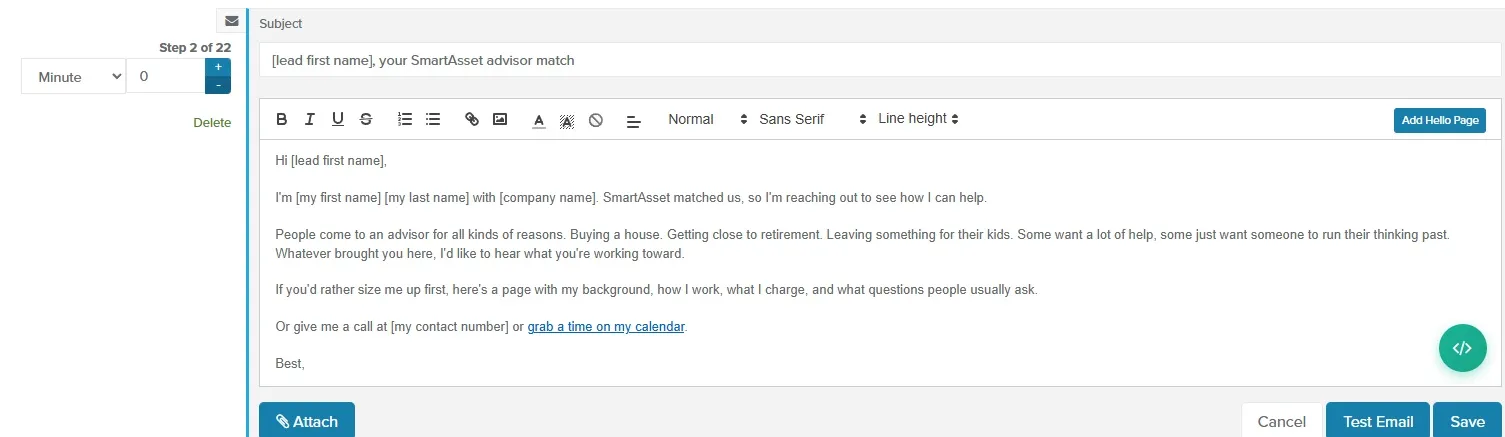
Under an email step’s number, click Edit.
-
At the bottom right of the editor, click Test Email. The Test Email window opens with your address in Email.
-
Click Send.
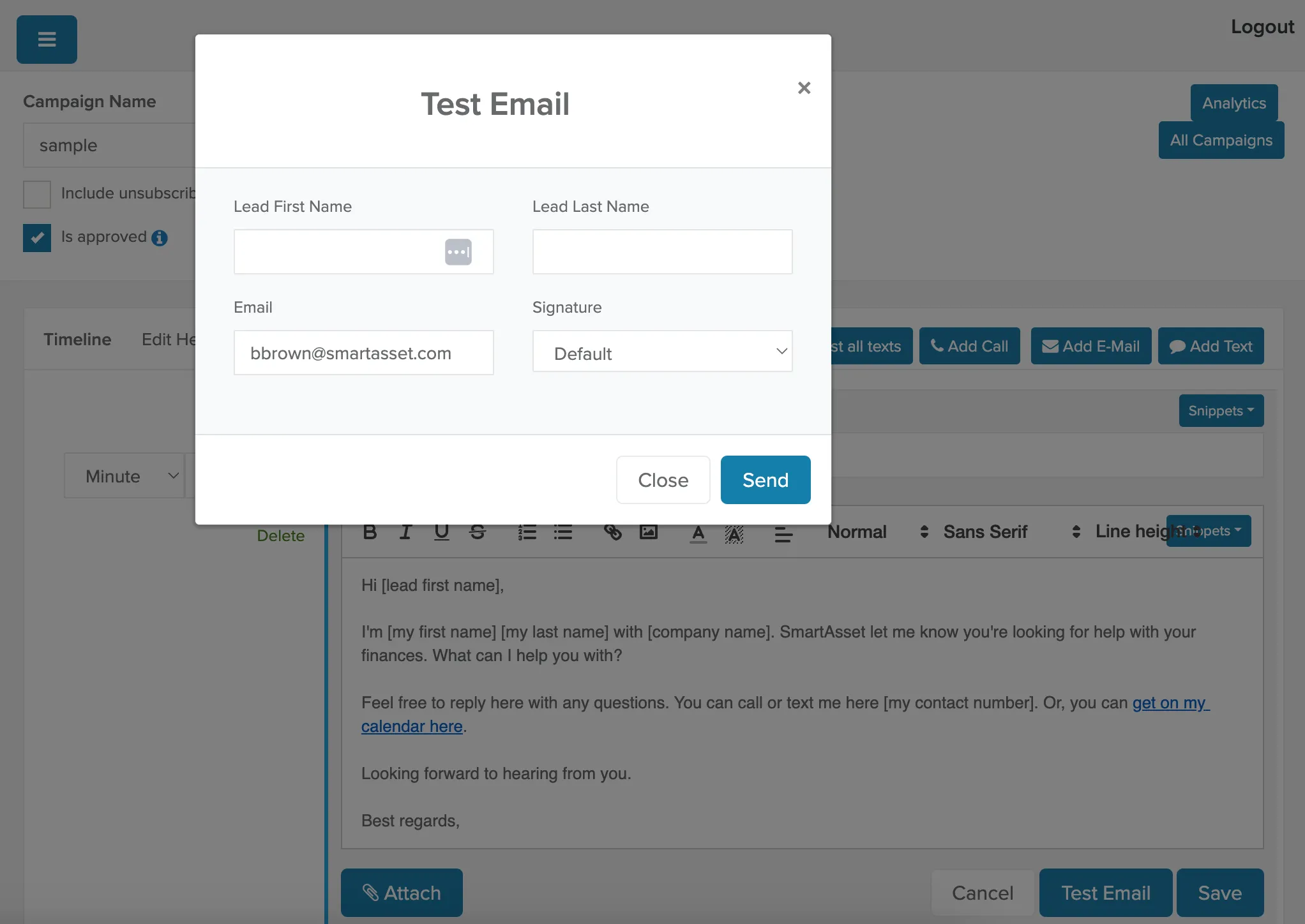
Check your inbox for the test email.
Check Your Connection Status
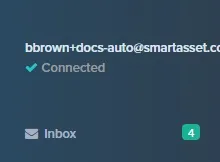
Section titled “Check Your Connection Status”Your connection status appears in the top-left corner, under your email address. It reads Connected once OAT has synced with your mailbox, and Pending until then. If it reads Disconnected, click Reconnect here.
For more about editing and testing campaigns, see Campaigns.
What Happens When Your Email Is Disconnected
Section titled “What Happens When Your Email Is Disconnected”OAT can’t send campaign emails while your email is disconnected. If your email has been disconnected for 3 days or more, or was never connected, OAT stops a lead’s campaign when its next email is due. New leads assigned to you are stopped as they arrive. This keeps leads from getting a burst of emails when you reconnect.
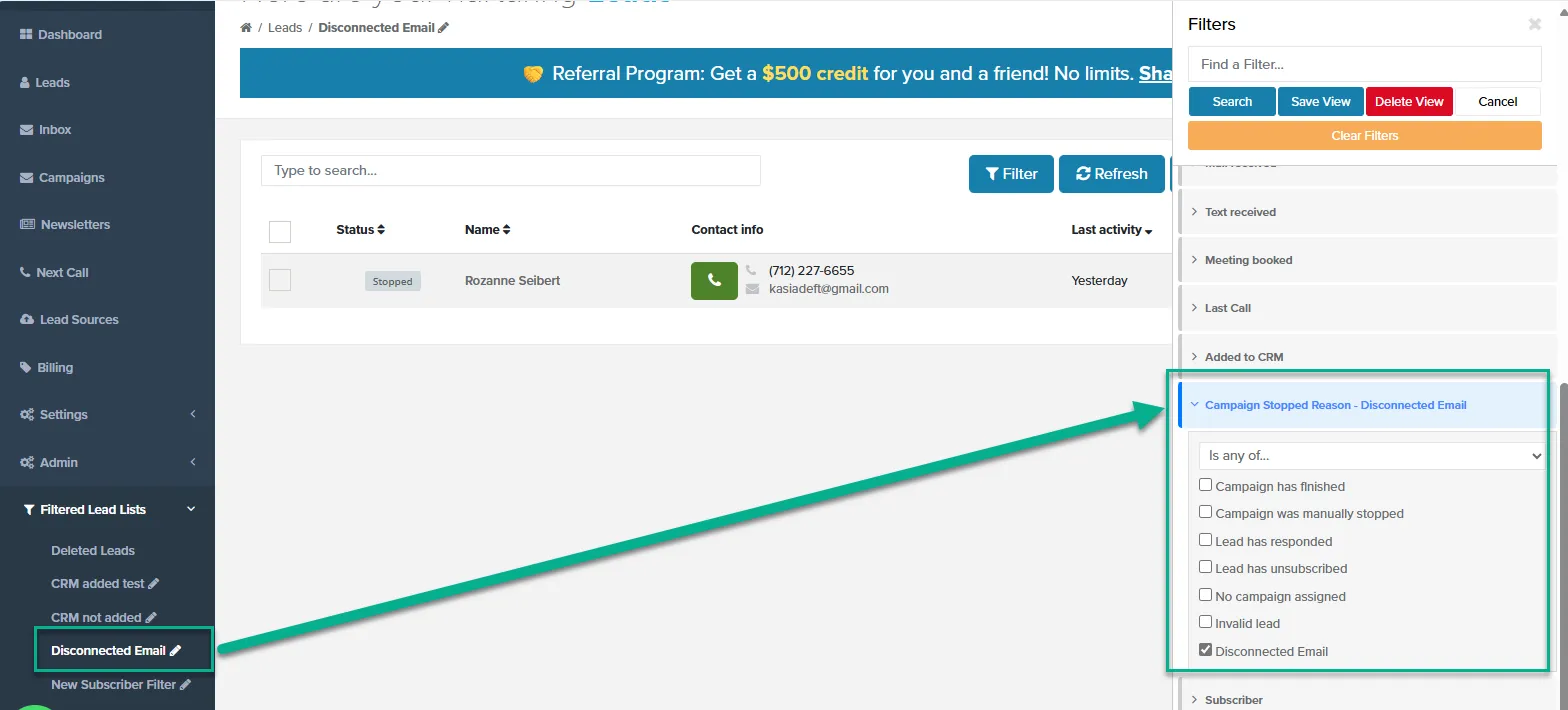
- Lead status: affected leads are marked Stopped, with the stop reason Disconnected Email. The lead’s timeline shows “Campaign was automatically stopped due to disconnected email.”
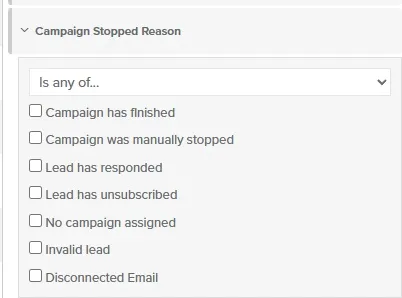
- Finding stopped leads: open the Disconnected Email list under Filtered Lead Lists in the side nav, or filter the Leads page by Campaign Stopped Reason.
- Warnings: while someone on your team is disconnected and being assigned leads, a red banner appears at the top of OAT. You also see a warning when you save lead source settings, or turn on a user whose email is disconnected.
- Reconnecting: when you reconnect, the Disconnected Email Leads window shows how many leads were stopped and links to the list. To restart them, select the leads, then click Bulk Edit > Resume Campaign.