

Round Robin Lead Assignment
Round robin assigns each new lead to the next user in a rotation, so leads are shared evenly. Your company uses one of two setups:
- Single rotation: one rotation for the whole company.
- Round Robin Groups: several named rotations, so different lead types can go to different teams.
Set Up a Single Rotation
Section titled “Set Up a Single Rotation”-
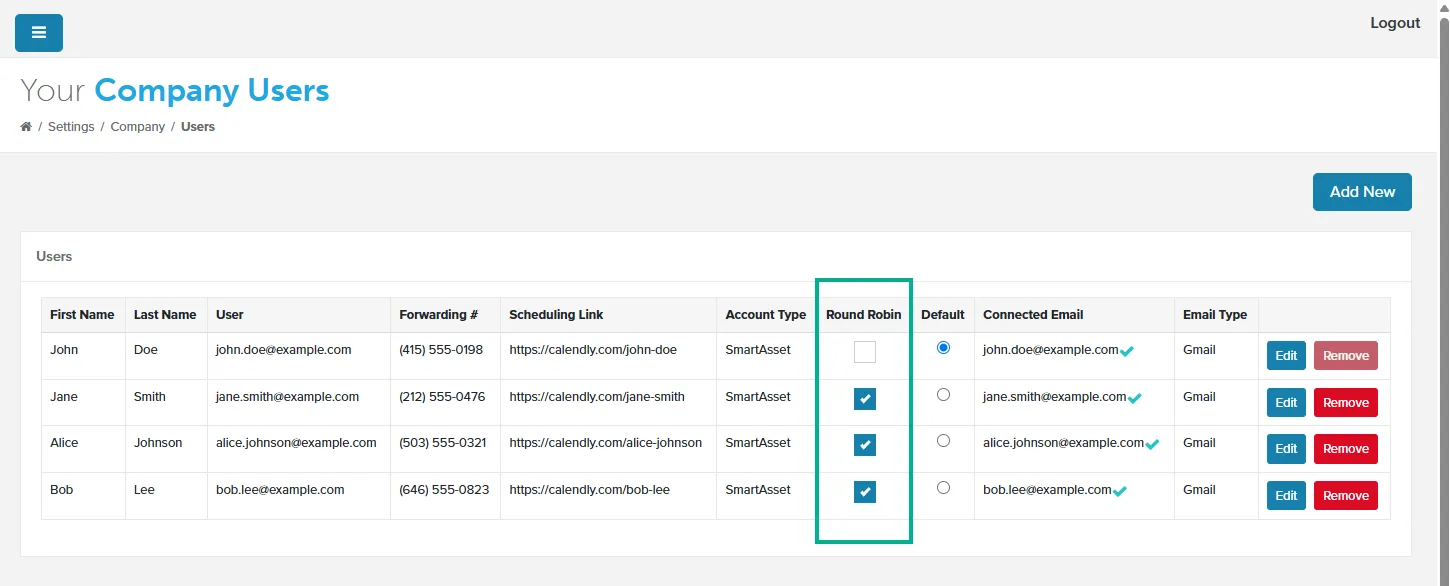
Go to Settings > Users.
-
In the Round Robin column, check the box for each user you want in the rotation. Each change saves right away.
-
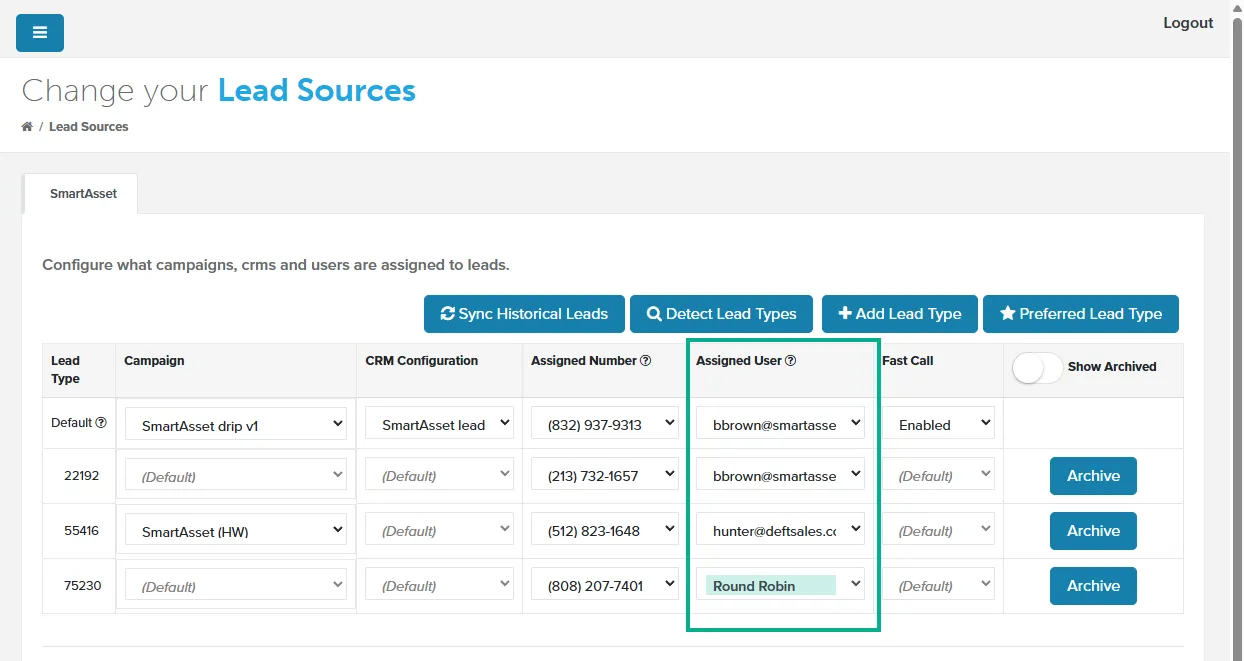
In the side nav, click Lead Sources.
-
In the Default row or a lead type row, under Assigned User, select Round Robin.
-
Click Save SmartAsset Settings.
New leads for that row now rotate among the checked users, in order of email address. If no box is checked, leads rotate among all users.
Use Round Robin Groups
Section titled “Use Round Robin Groups”With Round Robin Groups on, the Round Robin column no longer appears on the Users page, and your group names replace Round Robin in the Assigned User dropdown.
Create a Group
Section titled “Create a Group”-
Go to Settings > Users.
-
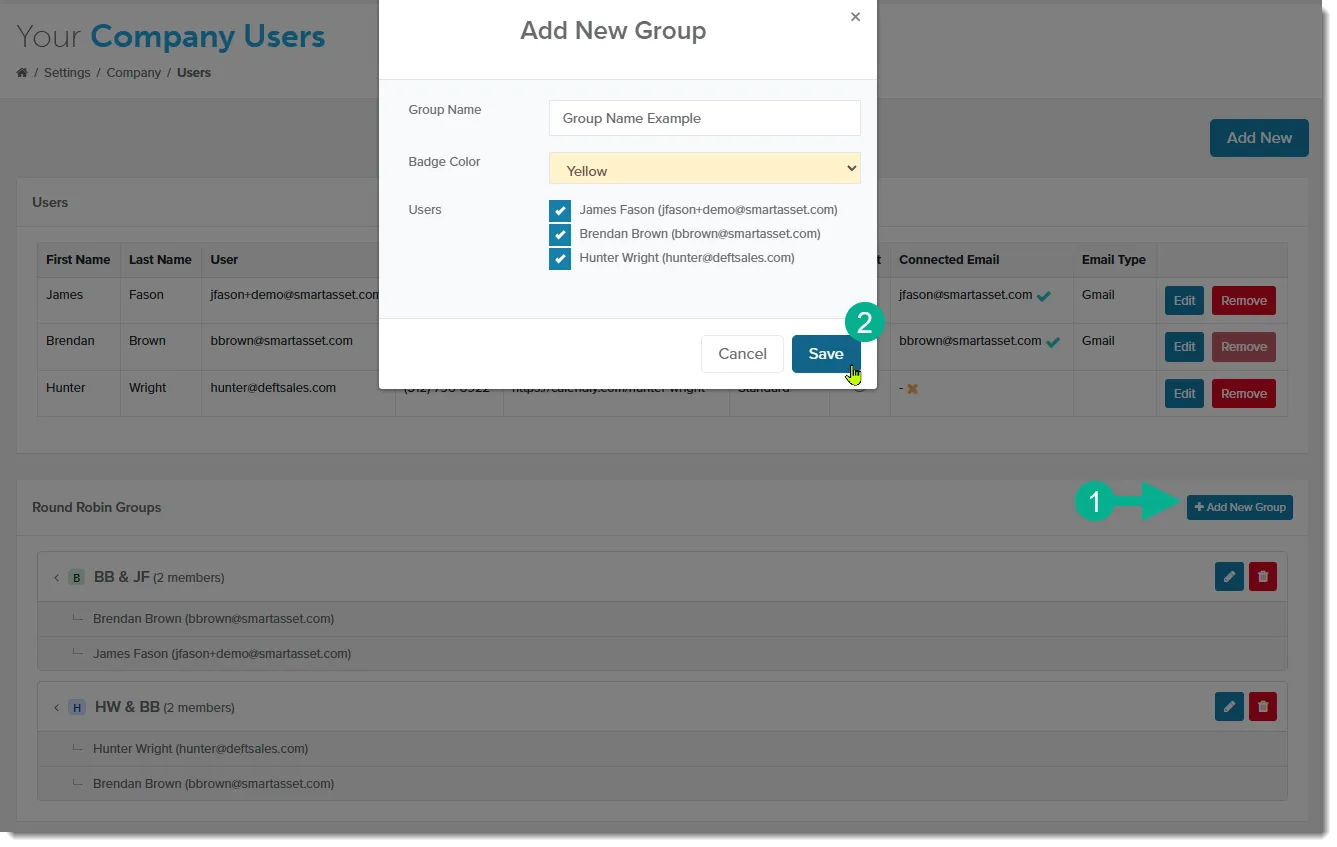
In the Round Robin Groups panel at the bottom of the page, click Add New Group. The Add New Group window opens.
-
In Group Name, enter a name, such as
East Coast Team. -
Optional: In Badge Color, choose a color to tell groups apart.
-
Under Users, check each user in the group.
-
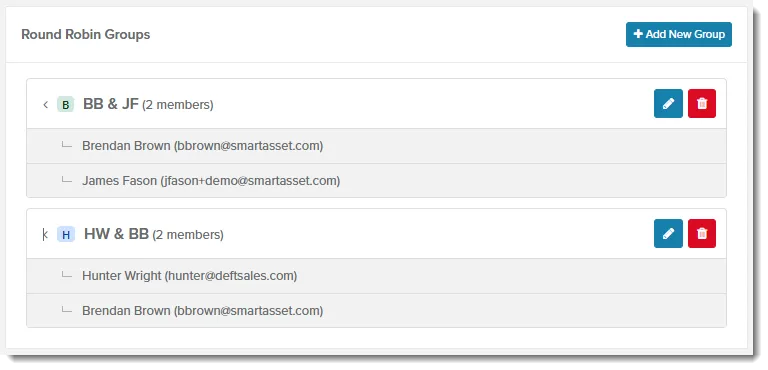
Click Save. The group appears in the Round Robin Groups panel.
Repeat for each group you need. A user can belong to more than one group. To change a group later, click its pencil icon; to delete it, click its trash icon.
Assign a Group
Section titled “Assign a Group”-
In the side nav, click Lead Sources.
-
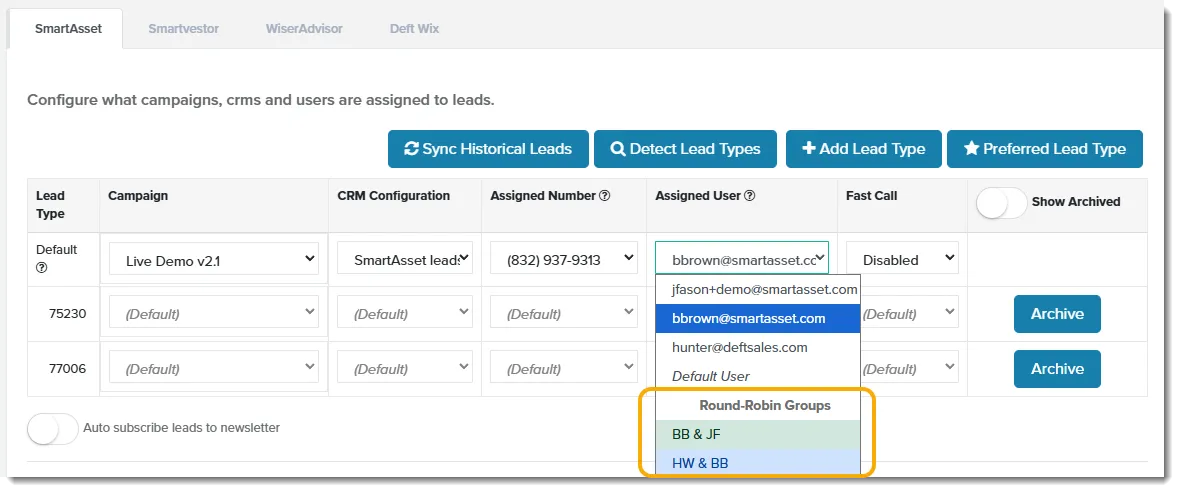
In the Default row or a lead type row, open the Assigned User dropdown.
-
Under Round-Robin Groups, select the group.
-
Click Save SmartAsset Settings.
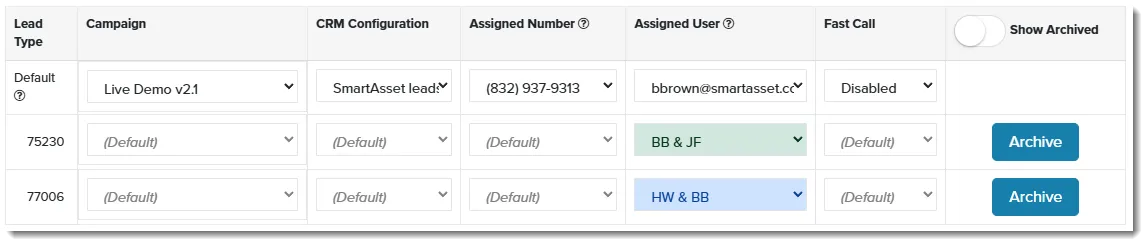
New leads for that row now rotate among the group’s members.
Related Guides
Section titled “Related Guides”- Lead Sources: Routing & Automation: set the campaign, phone number and other settings for each lead type
- Notifications: get an alert when a lead is assigned to you