

Inbox
Overview
Section titled “Overview”The Inbox is an alert list: it shows when a lead replies by email or text, calls you, or books a meeting. From here, you can open a lead’s page and mark each item as read once you’ve followed up. It doesn’t show the email itself; to read a reply, open it in your email provider.
Accessing the Inbox
Section titled “Accessing the Inbox”To open this page, go to Inbox. The number on Inbox in the side menu is your unread count (9+ when there are more than nine).
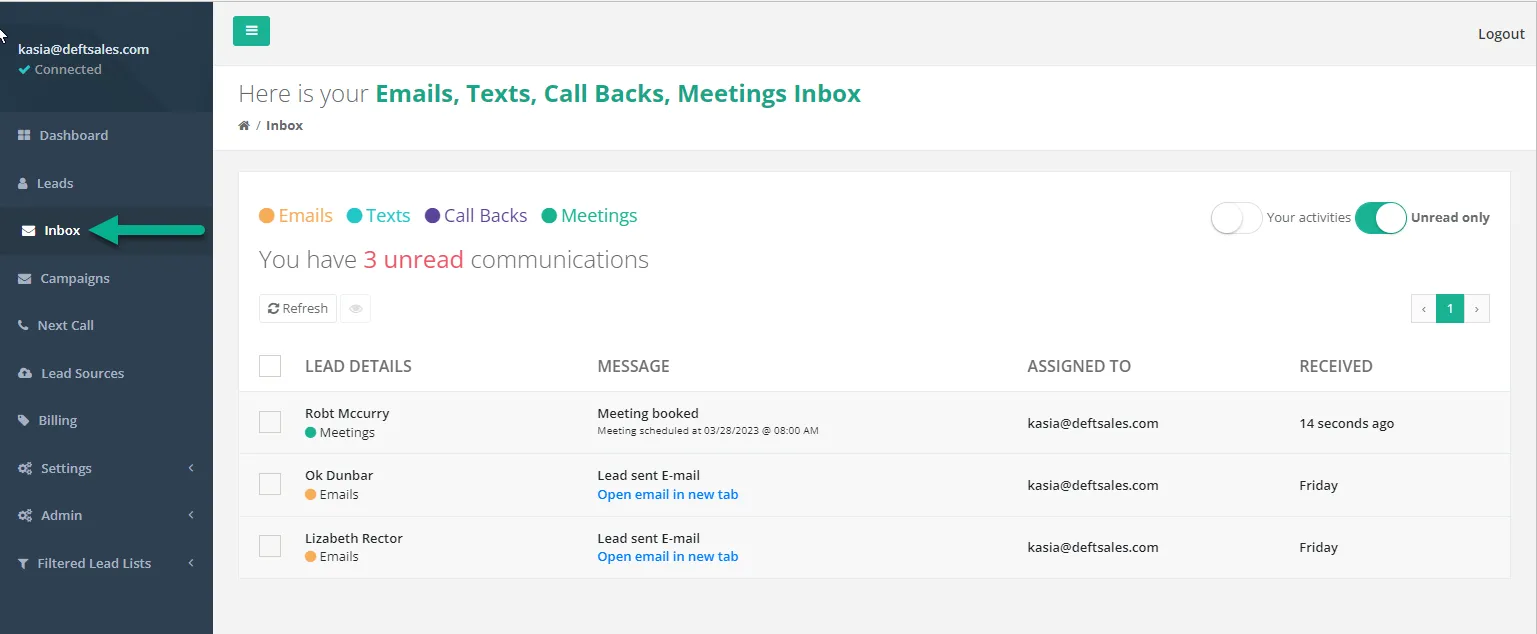
The inbox shows all the latest prospect responses including:
- Emails: OAT detects when a lead replies by email. The Message column reads “Lead sent E-mail”.
- Texts: the Message column reads “Lead sent SMS” and shows the first two lines of the text.
- Call Backs: the lead called your OAT number. The Message column reads “Lead called” with the call time.
- Meetings: the Message column reads “Meeting booked” with the scheduled time.
- Hello Page Activity: if your account has Hello Pages, the Message column reads “Lead clicked video” when a lead plays the video on a Hello Page.
- Newsletters: if your account has Newsletters, the Message column reads “Newsletter approval deadline approaching”, with a View Newsletter link.
Navigating the Inbox
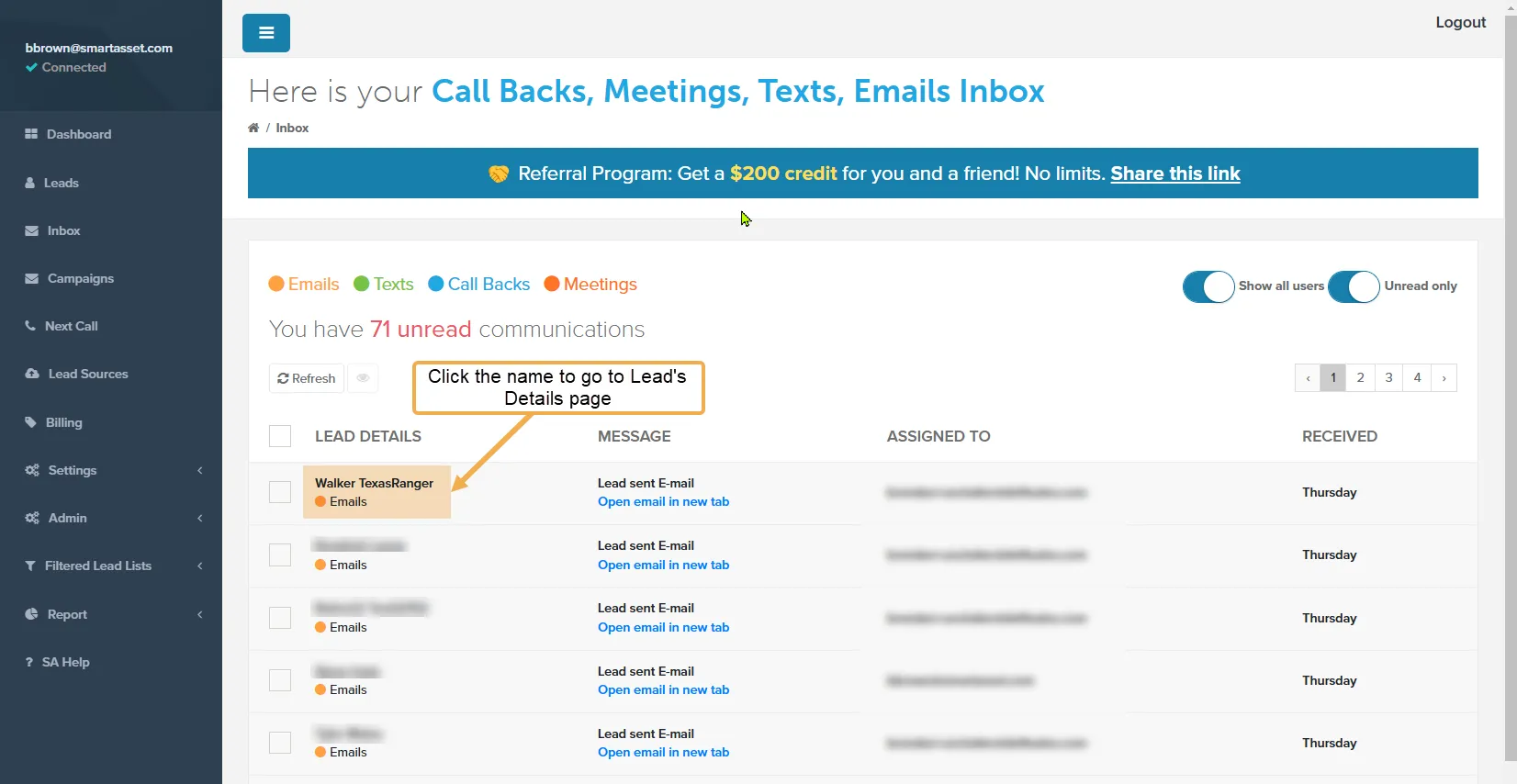
Section titled “Navigating the Inbox”- To open a lead’s page, click the lead’s name. The item is marked as read.
- To read an email reply, click Open email in new tab. The email opens in your email provider, and the item is marked as read. The link appears only for replies received by your connected Office 365, Exchange, or Gmail mailbox.
Mark Items as Read
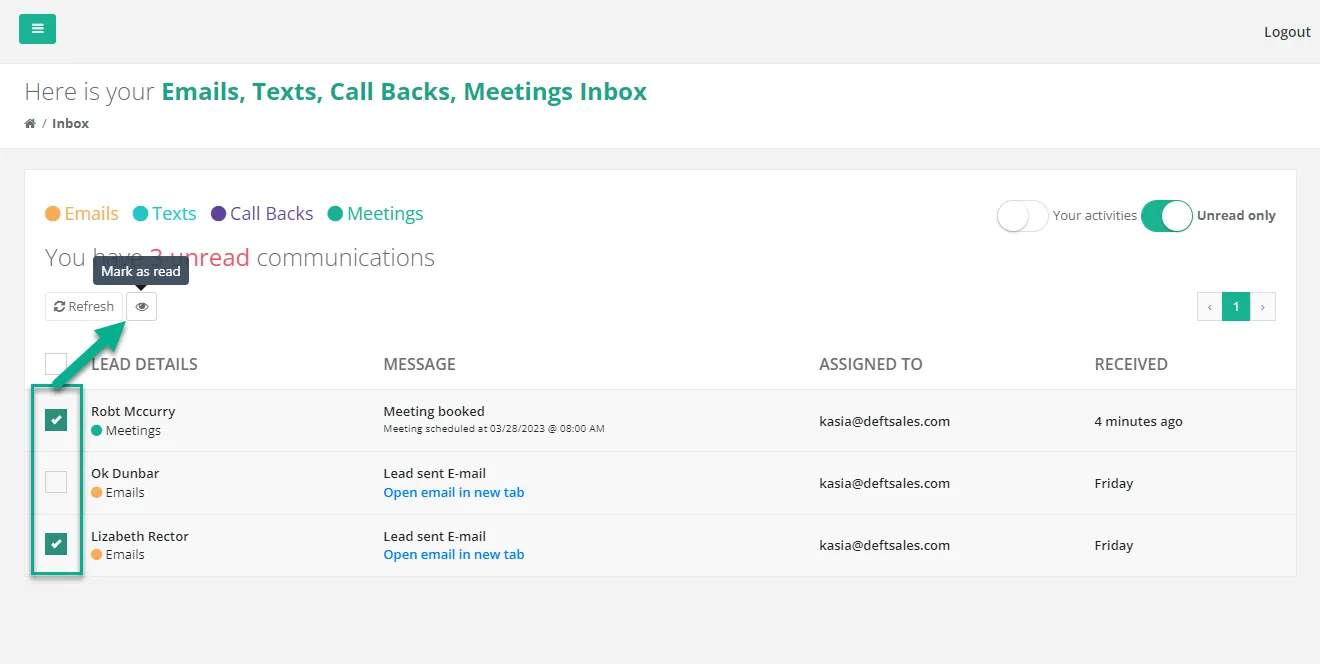
Section titled “Mark Items as Read”- Select the checkbox next to each item you’ve reviewed. To select every unread item on the page, select the checkbox in the header row.
- Click Mark as read (the eye icon).

The items are marked as read, and the unread count at the top of the list goes down. With Unread only on, they leave the list.
Filtering the Inbox
Section titled “Filtering the Inbox”The Inbox shows the last 30 days by default.
- To hide or show a type of item, click its name above the list, such as Emails or Texts. Active types have a filled circle, and the page title lists them.
- To see older items, choose Last 3 months, Last 6 months, or Last 12 months from the date range list.
- To show only certain leads, click Filter. The filter panel opens.
- To see items for leads assigned to every user on your account, turn on the Your activities toggle. Its label changes to Show all users. Turn it off to see only your own leads.
- To see items you’ve already read, turn off Unread only.
Related Guides
Section titled “Related Guides”- Lead Details Screen: view a lead’s information, timeline, and tags
- Texting Features: send texts and reply to leads from their details page
- Notifications: get an email or text when a new lead, text, or call comes in