

Import your email signature
Overview
Section titled “Overview”OAT’s signature import makes your automated emails match the emails you send from Outlook or Gmail.
Every user in OAT has their own email signature that automatically appears at the bottom of campaign emails. This guide walks you through importing yours.
Import your signature
Section titled “Import your signature”-
To open this page, go to Settings > Email.
-
Click Edit Signature. The Email Signature window opens.
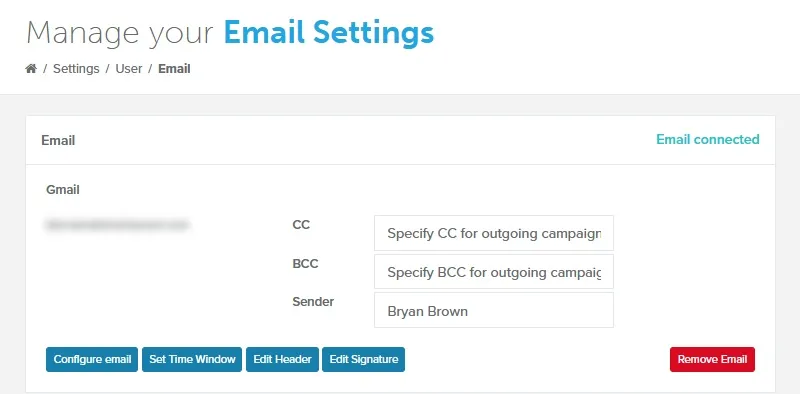
-
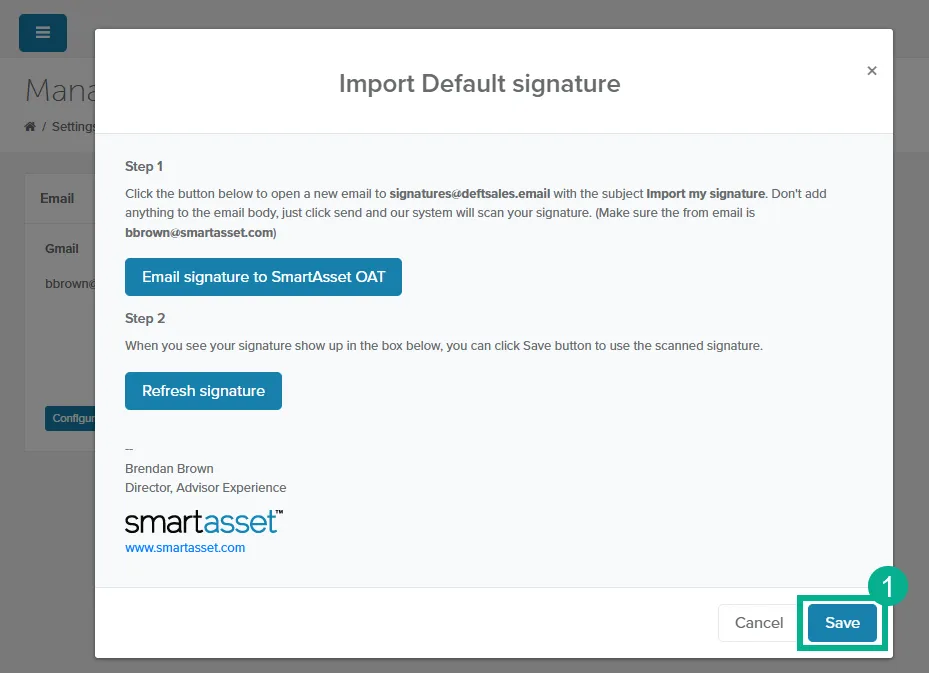
Click Import my signature. The Import Default signature window opens.
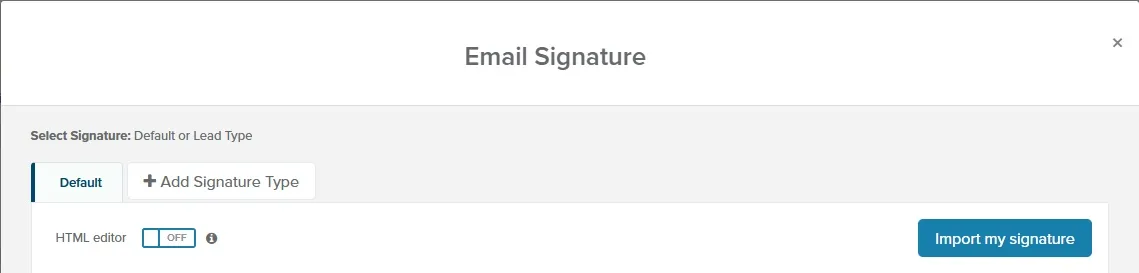
-
Click Email signature to SmartAsset OAT. A new message opens in your email app, addressed to signatures@deftsales.email with the subject Import my signature. If no message opens, create one with that address and subject.
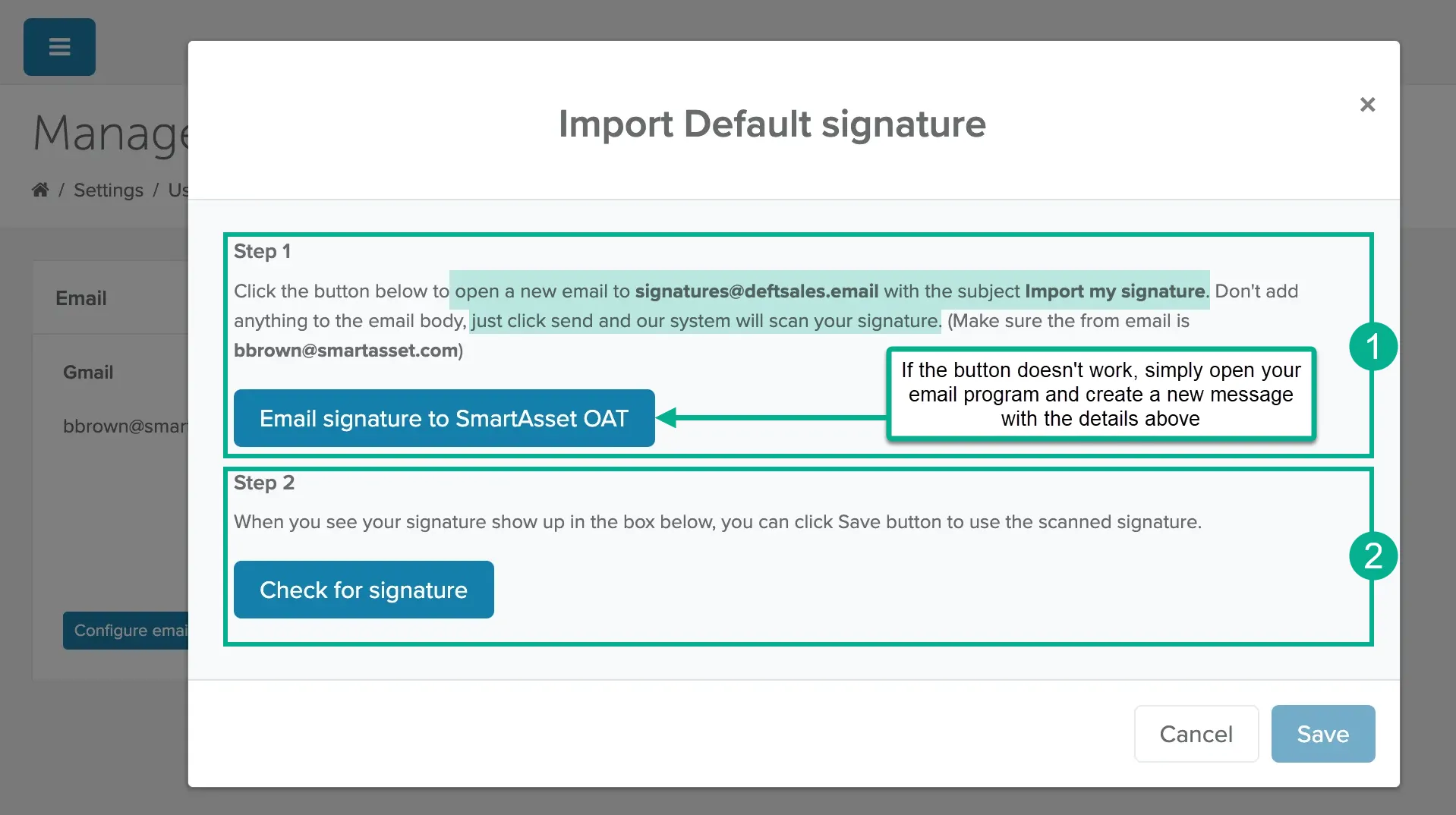
-
Send the message from the email you sign in to OAT with. Don’t add anything to the body except your signature.
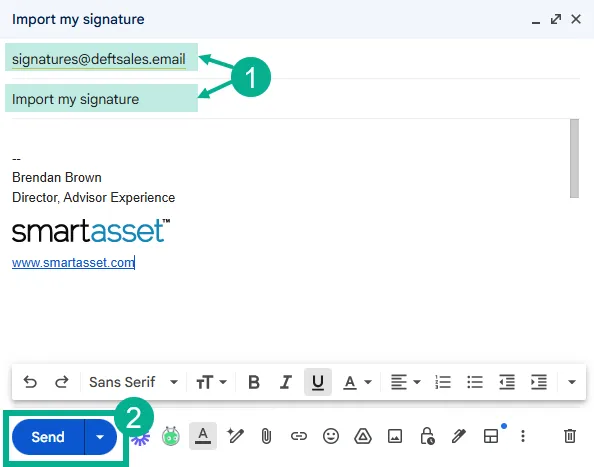
-
Back in OAT, click Check for signature. Your signature appears in the window.
-
Click Save. The Email Signature window shows your imported signature.
-
Click Save changes.
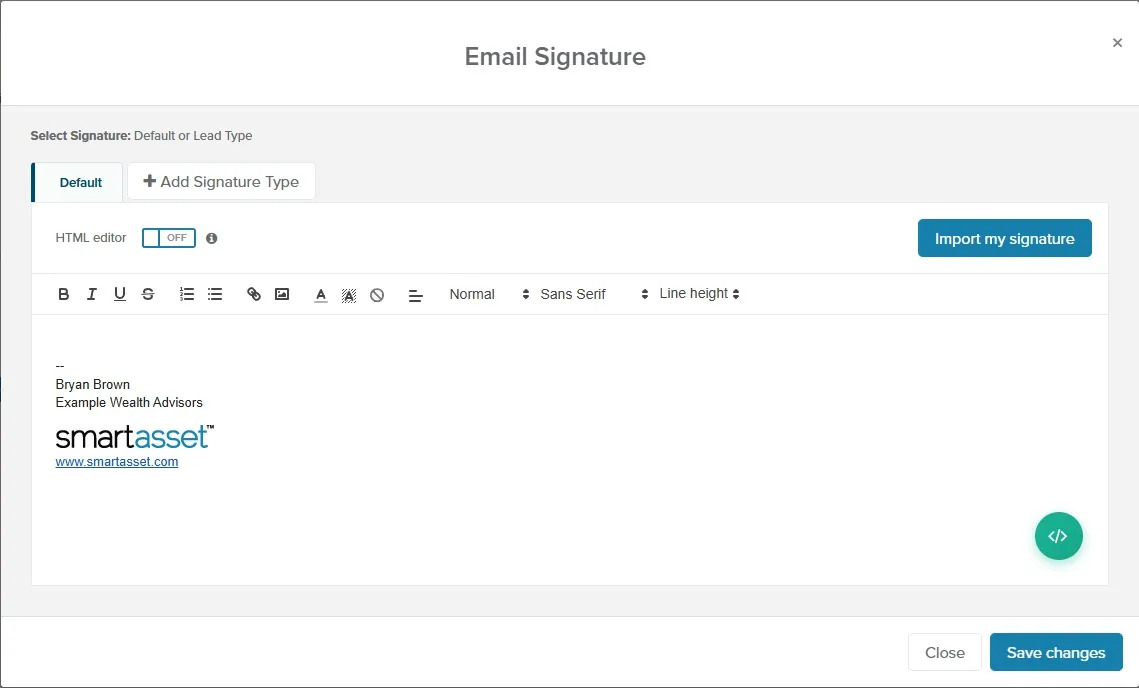
Your imported signature now appears at the bottom of your campaign emails.
More Options
Section titled “More Options”CC, BCC, and sender name
Section titled “CC, BCC, and sender name”These fields appear after you connect your email. Sender isn’t available for Office 365.
-
To open this page, go to Settings > Email.
-
Click the CC, BCC, or Sender field.
-
Enter the email addresses or sender name.
-
Click Save next to the field.
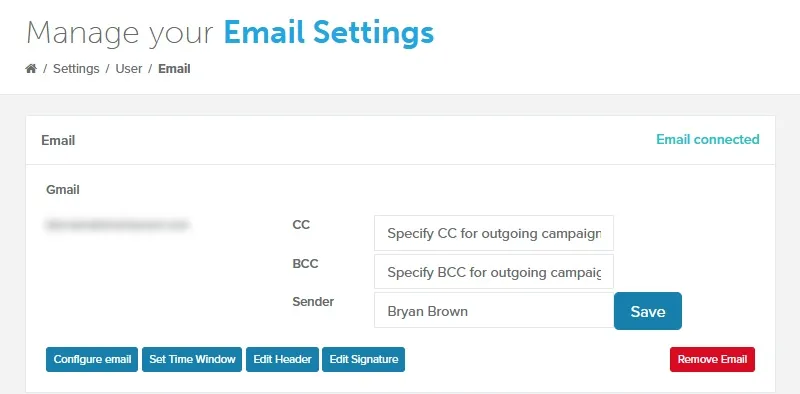
Your campaign emails now go out with these settings.
Lead type signatures
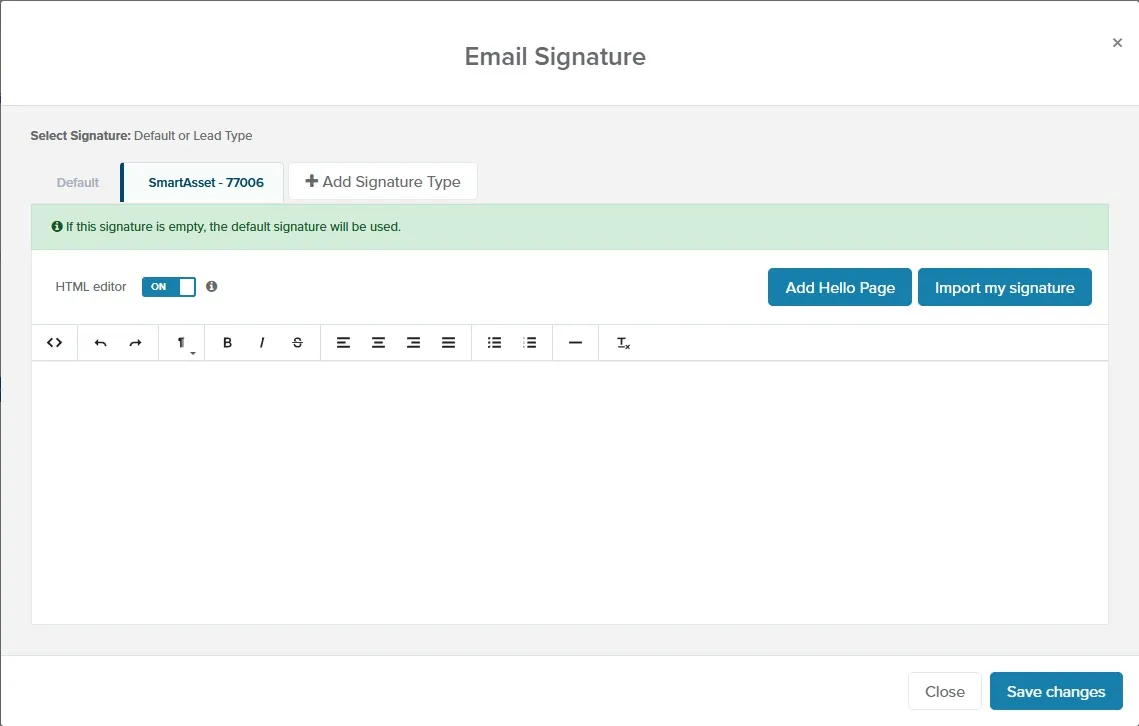
Section titled “Lead type signatures”You can use a different signature for each lead type. Campaign emails use the signature for the lead’s lead type. If that signature is empty, OAT uses your default signature.
- Go to Settings > Email.
- Click Edit Signature.
- Click Add Signature Type.
- Select the lead type.
- On the new tab, click Import my signature and follow the steps above, or build the signature in the editor.
- Click Save changes.
Create a signature from scratch
Section titled “Create a signature from scratch”You can also build your signature in the Email Signature window’s editor. To paste your own HTML instead, turn on HTML editor. Switching between the two editors clears what you’ve entered.
Related Guides
Section titled “Related Guides”- Connect your Email: connect the mailbox your campaign emails send from
- Campaigns: send test emails to see your signature as leads will