

Campaign Analytics
Campaign analytics show how each campaign performs: how many leads it reached, how many responded, and how many booked a meeting.
Opening Campaign Analytics
Section titled “Opening Campaign Analytics”From the Campaign Page
Section titled “From the Campaign Page”-
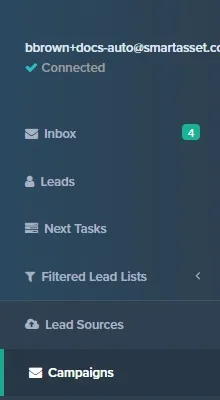
In the side nav, click Campaigns. The Campaigns page opens.
-
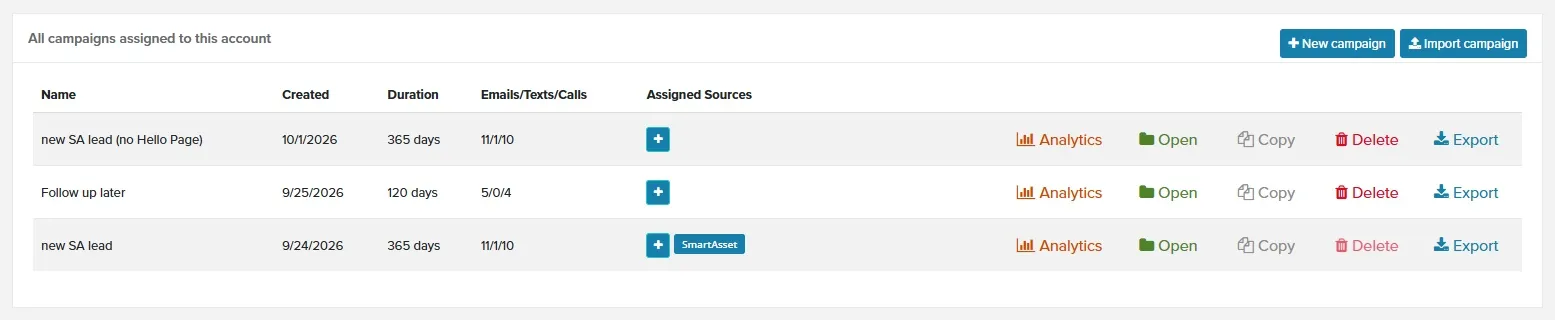
In the campaign’s row, click Open. The campaign page opens.
-
At the top right, click Analytics. The campaign’s Analytics page opens.

From the Campaigns List
Section titled “From the Campaigns List”-
In the side nav, click Campaigns.
-
In the campaign’s row, click Analytics. The campaign’s Analytics page opens.
Running a Report
Section titled “Running a Report”-
Optional: In Lead Source, select a lead source. The default is All.
-
Optional: In Lead Type, select a lead type. Lead types appear only after you select a lead source.
-
In Leads received within, select a range, such as Last 7 days, Last 4 weeks or All time. The default is Last 7 days.
-
Click Run Report. The report appears below the filters.
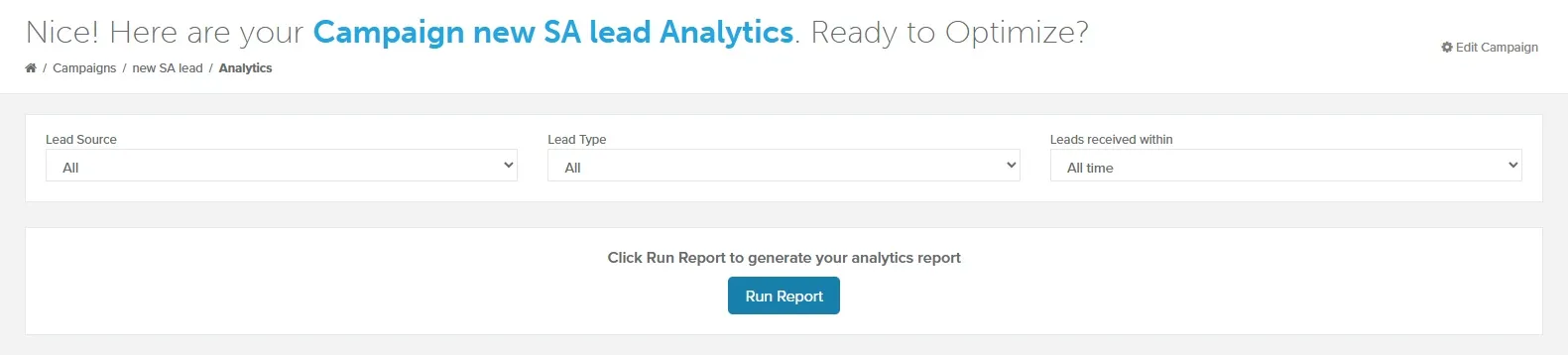
The report counts leads by when they were received, not when messages were sent. If you change a filter, the report clears; click Run Report again.
Understanding Your Campaign Results
Section titled “Understanding Your Campaign Results”The report opens with four boxes:
- Duration: the campaign’s length in days.
- Leads Total: leads received in the selected range that were sent at least one step of this campaign.
- Leads who responded: leads that replied or booked a meeting, with the percentage of Leads Total.
- Meetings Booked: leads that booked a meeting, with the percentage of Leads Total.
Below the boxes, a table lists each step with its Sent, Answers and Bookings counts, and each count’s percentage of Sent. Click a number other than Sent, or a step name, to show those leads in the Activities list.
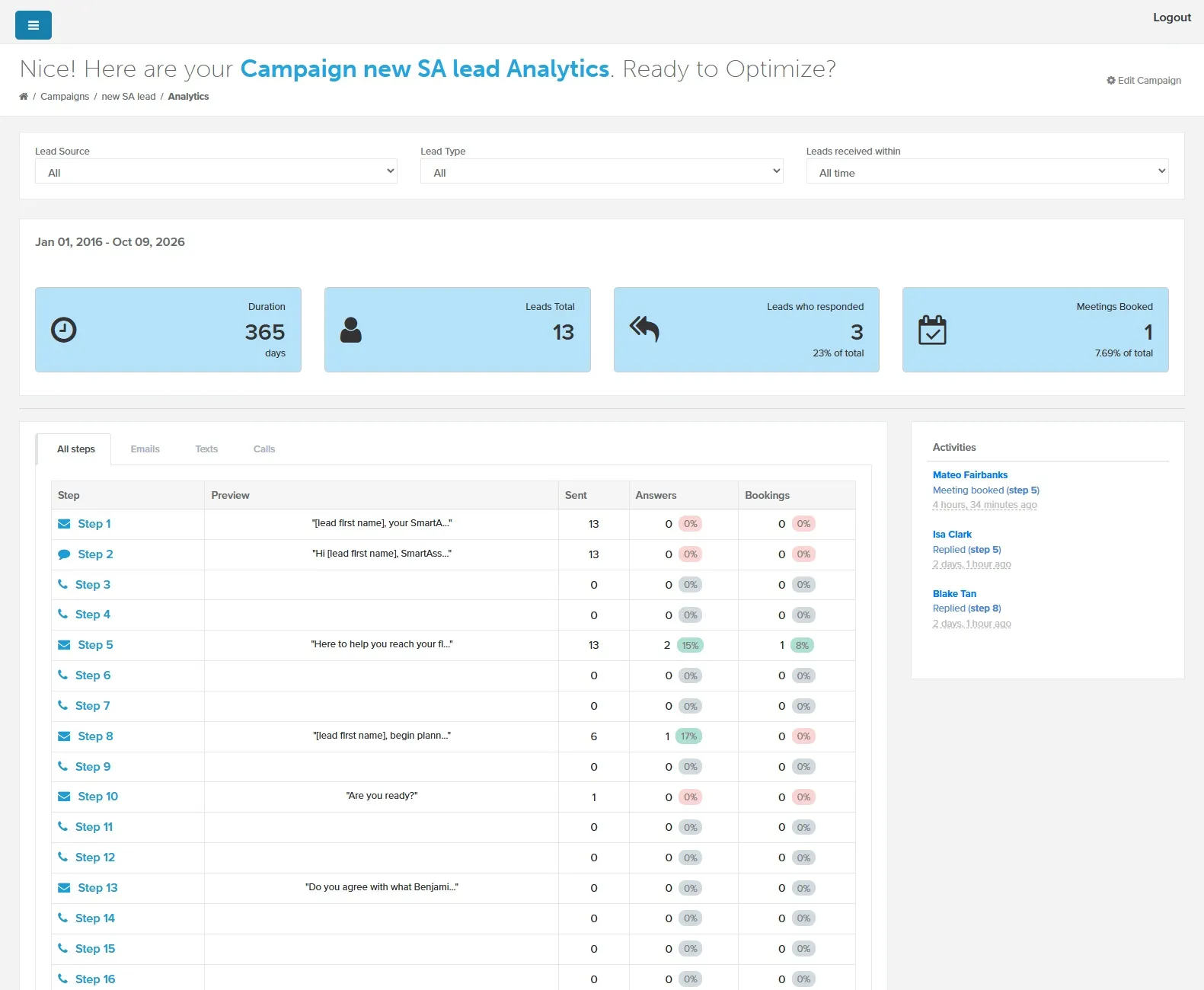
Activities lists recent activity on the campaign, such as opens, replies and booked meetings. Click a lead’s name to open the lead in a new tab.
Email, Text and Call Tabs
Section titled “Email, Text and Call Tabs”Use the tabs above the table to see one step type at a time:
- Emails: Sent, Responses and Bookings, plus Opens, Clicks and Unsubscribes when they’re turned on.
- Texts: Sent, Responses, Bookings and Stops (opt-outs).
- Calls: Outgoing and Connected for each call step and for Fast Calls. Connected counts calls lasting over 2 minutes.
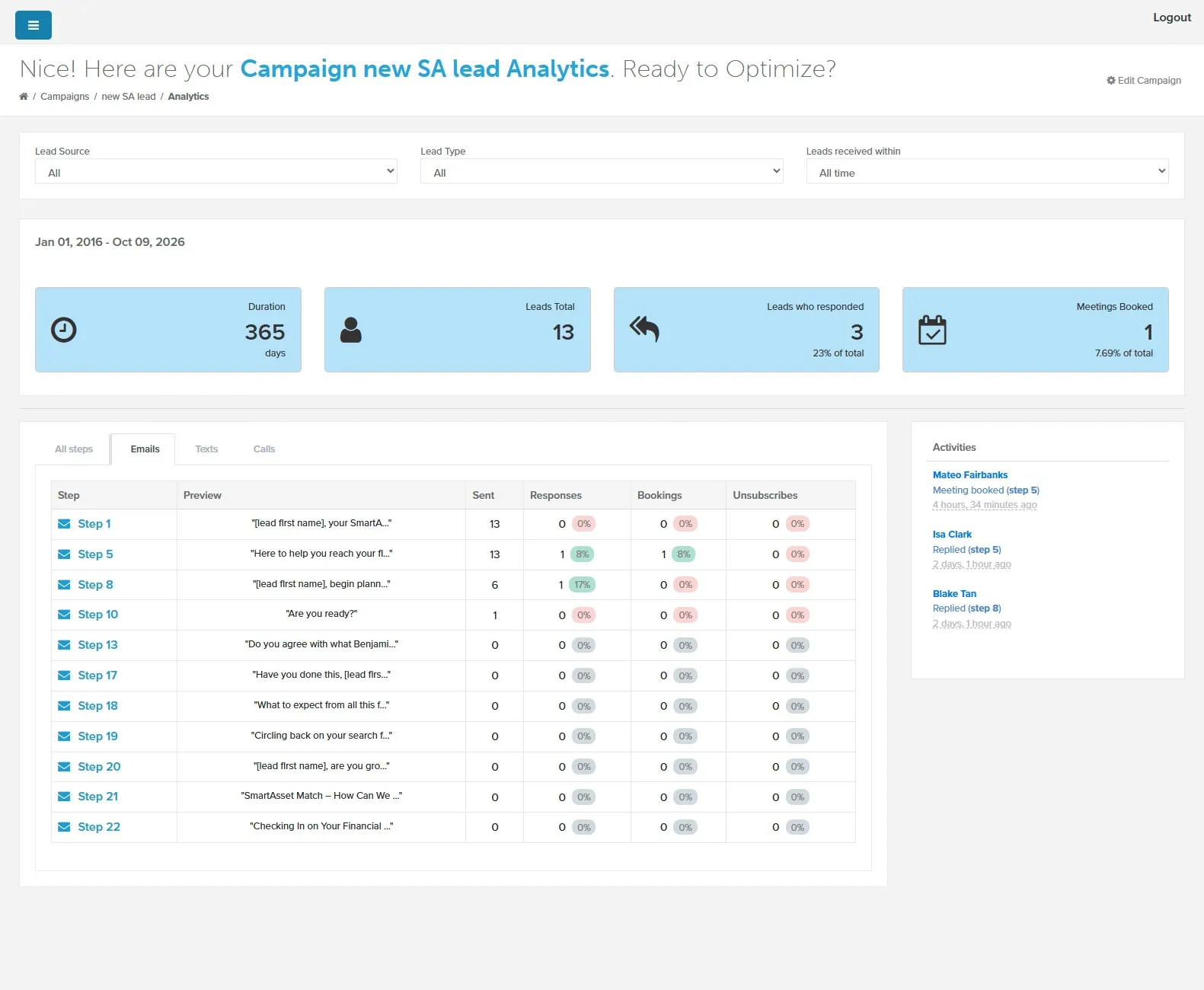
Unsubscribes appears only when the campaign has Include unsubscribe on.
Related Guides
Section titled “Related Guides”- Campaigns: create and edit the campaigns these reports measure
- Live Connection vs Fast Call: what the Fast Calls row counts
- Lead Details Screen: what opens when you click a lead in Activities