

Filtering your Leads
Why Filtering Leads Matters
Section titled “Why Filtering Leads Matters”With targeted filtering, you can:
- Find the right leads faster by filtering results using criteria such as survey responses, recent activities, or when leads were received.
- Stay organized with saved filtered lists you can revisit anytime.
- Improve outreach by prioritizing active and engaged prospects.
Opening the Filters Panel
Section titled “Opening the Filters Panel”- In the side menu, click Leads.
- Click Filter. The Filters panel opens beside your leads.
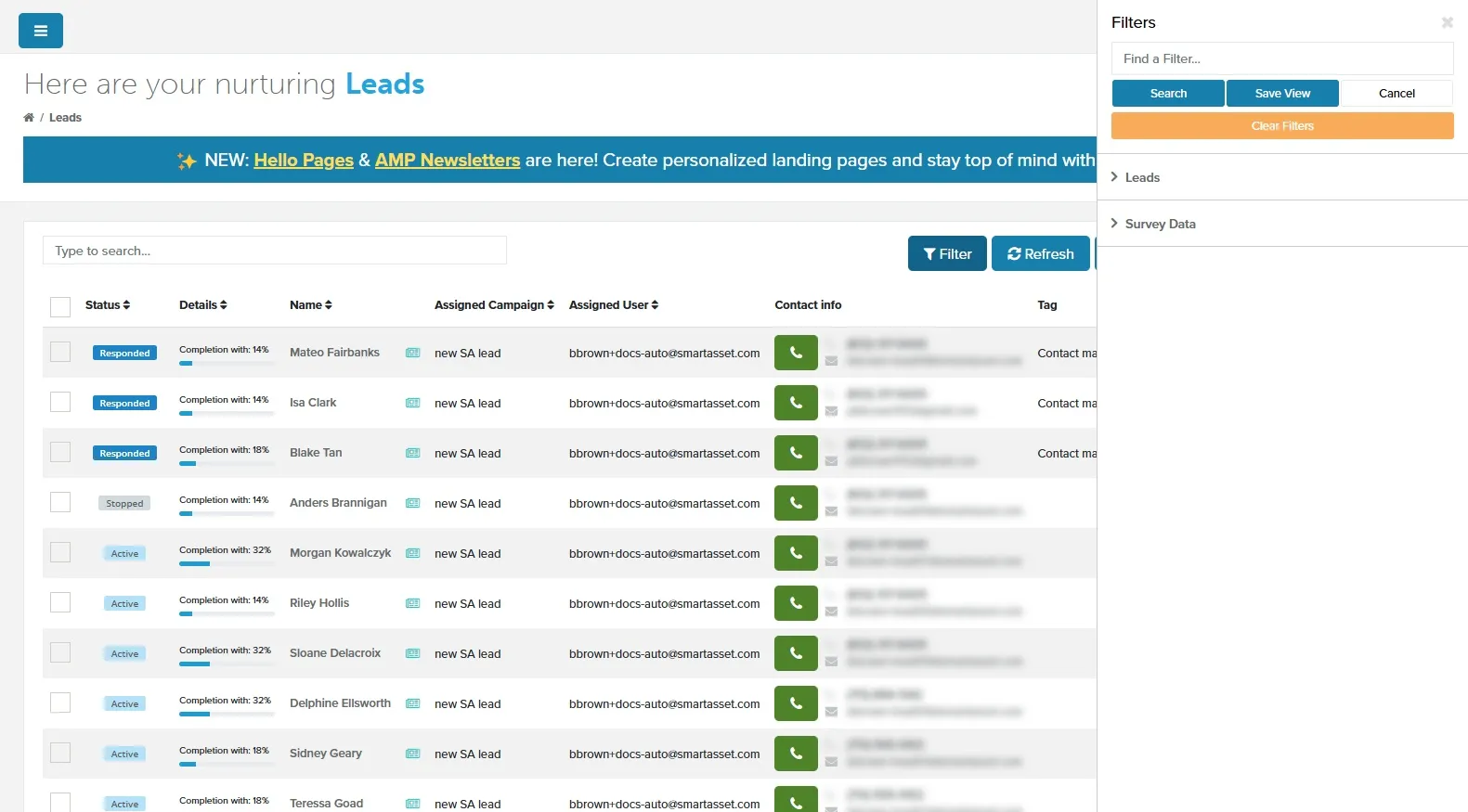
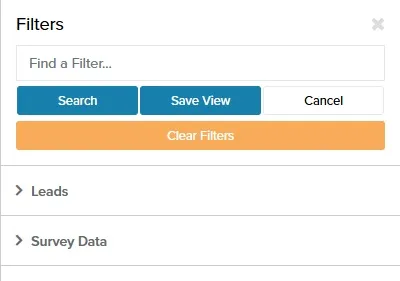
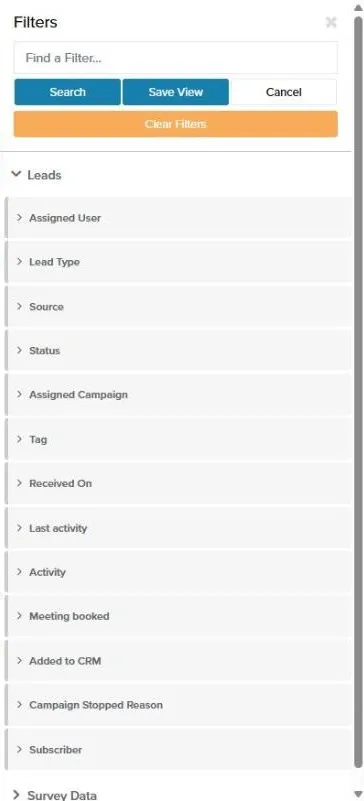
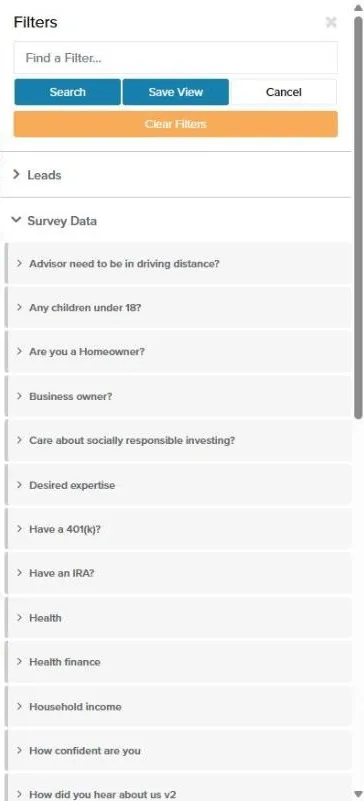
The panel has two sections. Use Leads to filter on lead details, and Survey Data to filter on the lead’s survey answers.
| Section | Filter | What it does |
|---|---|---|
| Leads | Status | Filter by lead progress (e.g., Active, Responded, Stopped, etc.). |
| Leads | Assigned Campaign | Identify leads within a specific campaign. |
| Leads | Last activity | Find leads based on their most recent activity. |
| Leads | Received On | Narrow down by when leads were received. |
| Survey Data | Are you a Homeowner? | Filter for leads who own a home. |
| Survey Data | Business owner? | Identify entrepreneurial leads. |
| Survey Data | Household income | Target based on financial criteria. |
| Survey Data | Investable Assets | Target leads by the investable assets they reported. |
Finding a Filter by Name
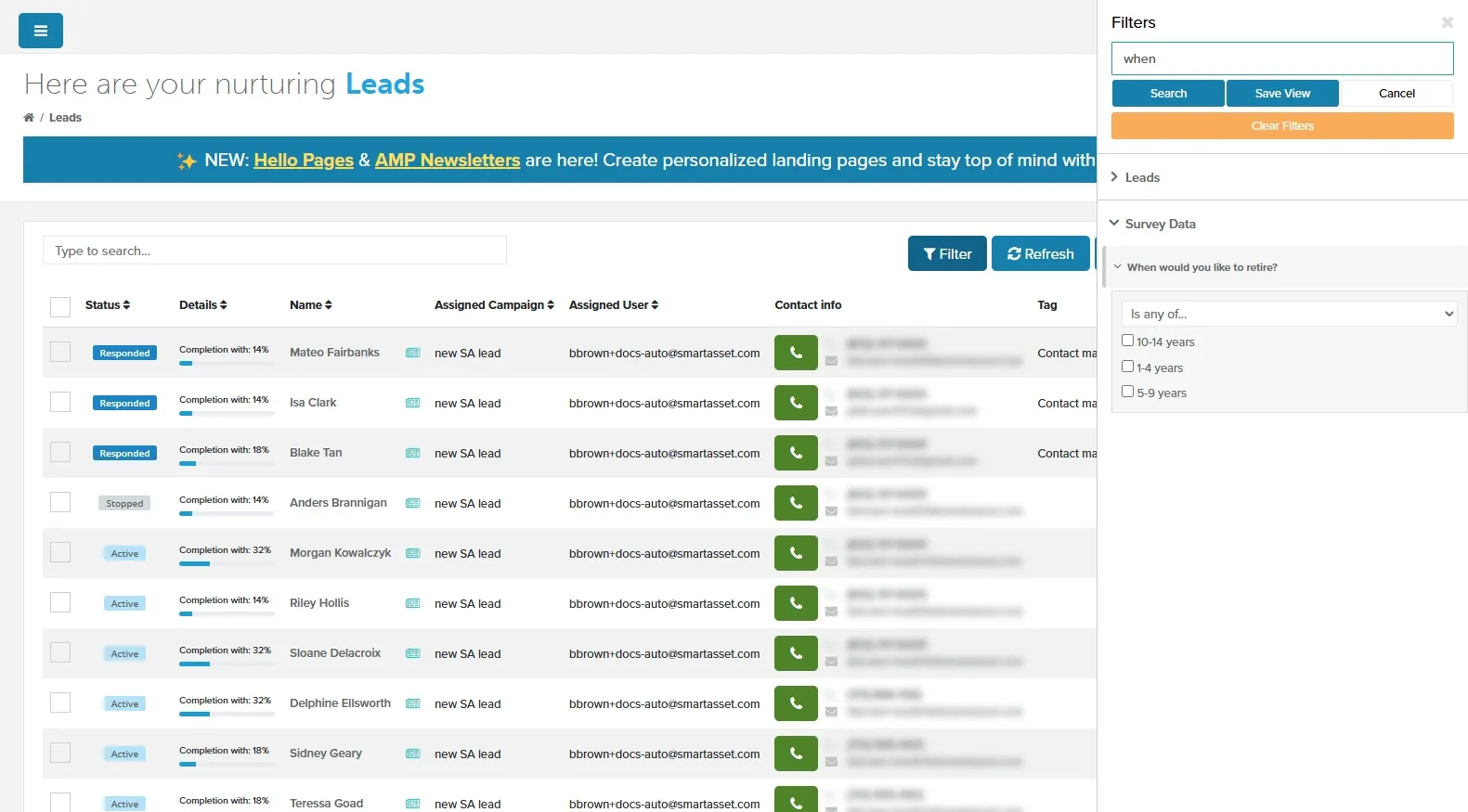
Section titled “Finding a Filter by Name”To find a filter quickly, type part of its name in the Find a Filter… box at the top of the Filters panel. The box also matches answer options.
- Type “house” or “household” to find Household income under Survey Data.
- Type “when” or “when would” to find When would you like to retire? under Survey Data.
Filtering Examples
Section titled “Filtering Examples”Multi-Select Filters (check boxes)
Section titled “Multi-Select Filters (check boxes)”Multi-select filters allow you to include or exclude leads based on multiple options for precise targeting.
- Include leads that match any selected values (Is any of…).
- Exclude leads that match specific values (Is not any of…).
| Filter | What it does |
|---|---|
| Status | Filter leads based on their campaign status (e.g., New SMS, Responded, Active, Stopped, etc.). |
| Household income | Filter leads based on their household income (e.g., $150,000 - $249,999 and Over $250,000). |
| When would you like to retire? | Filter leads based on when they plan to retire (e.g., 1-4 years, 5-9 years). |
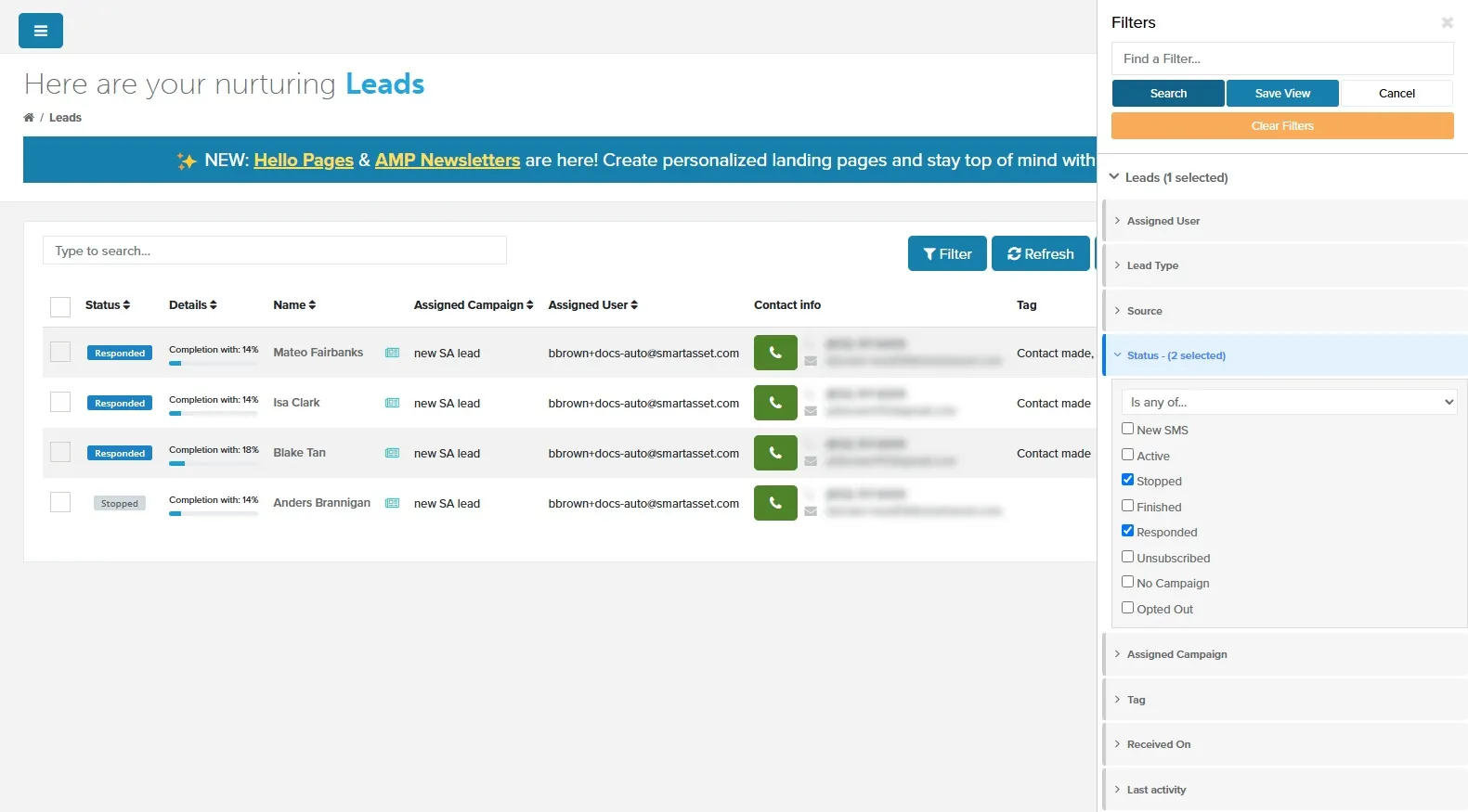
Example 1: Find All Leads with a Stopped Campaign
Section titled “Example 1: Find All Leads with a Stopped Campaign”Target leads whose campaigns stopped, either because they responded or because the campaign was stopped.
Leads → Status → Is any of… → Responded, Stopped
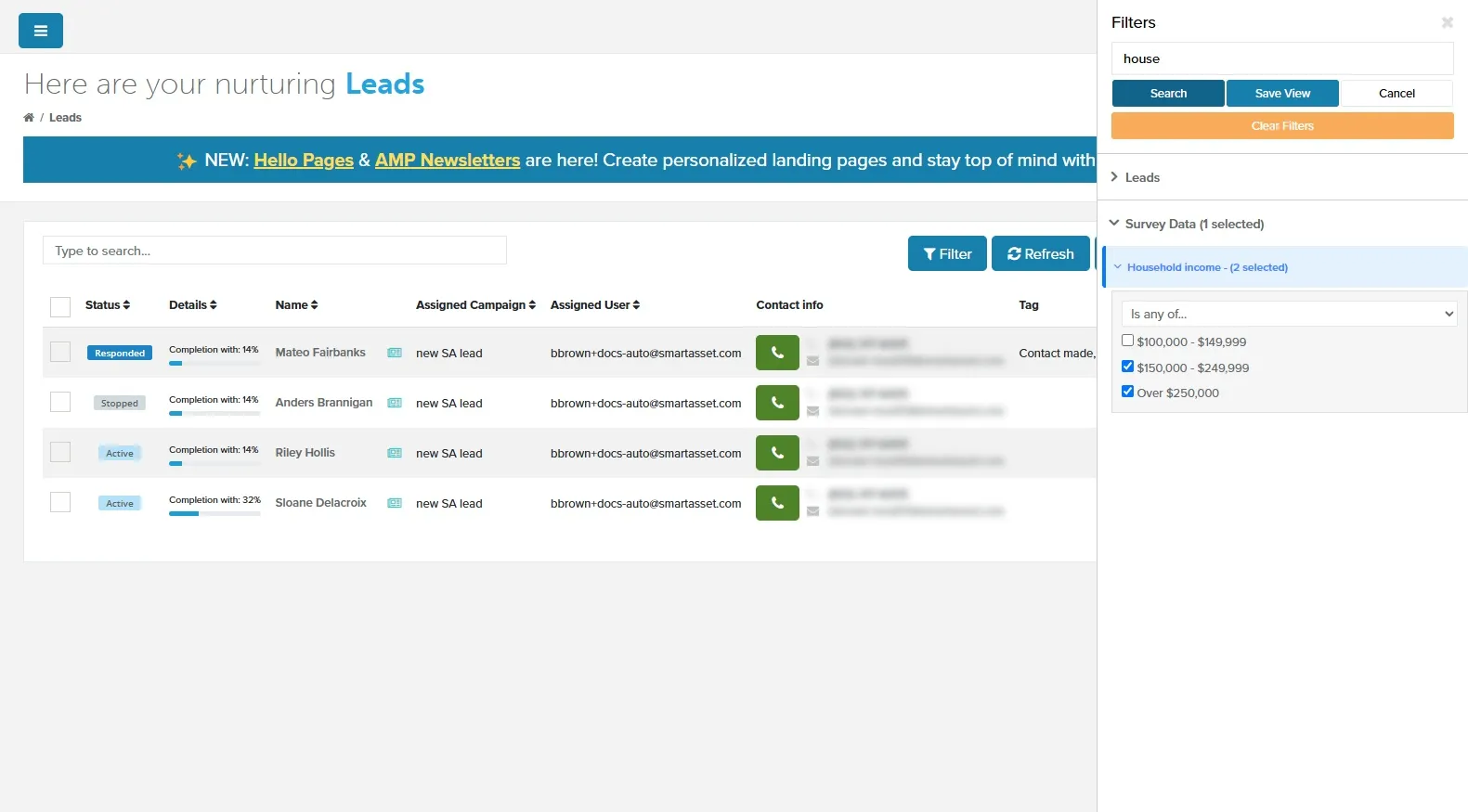
Example 2: Find All Leads with a High Household Income
Section titled “Example 2: Find All Leads with a High Household Income”Survey Data → Household income → Is any of… → $150,000 - $249,999, Over $250,000
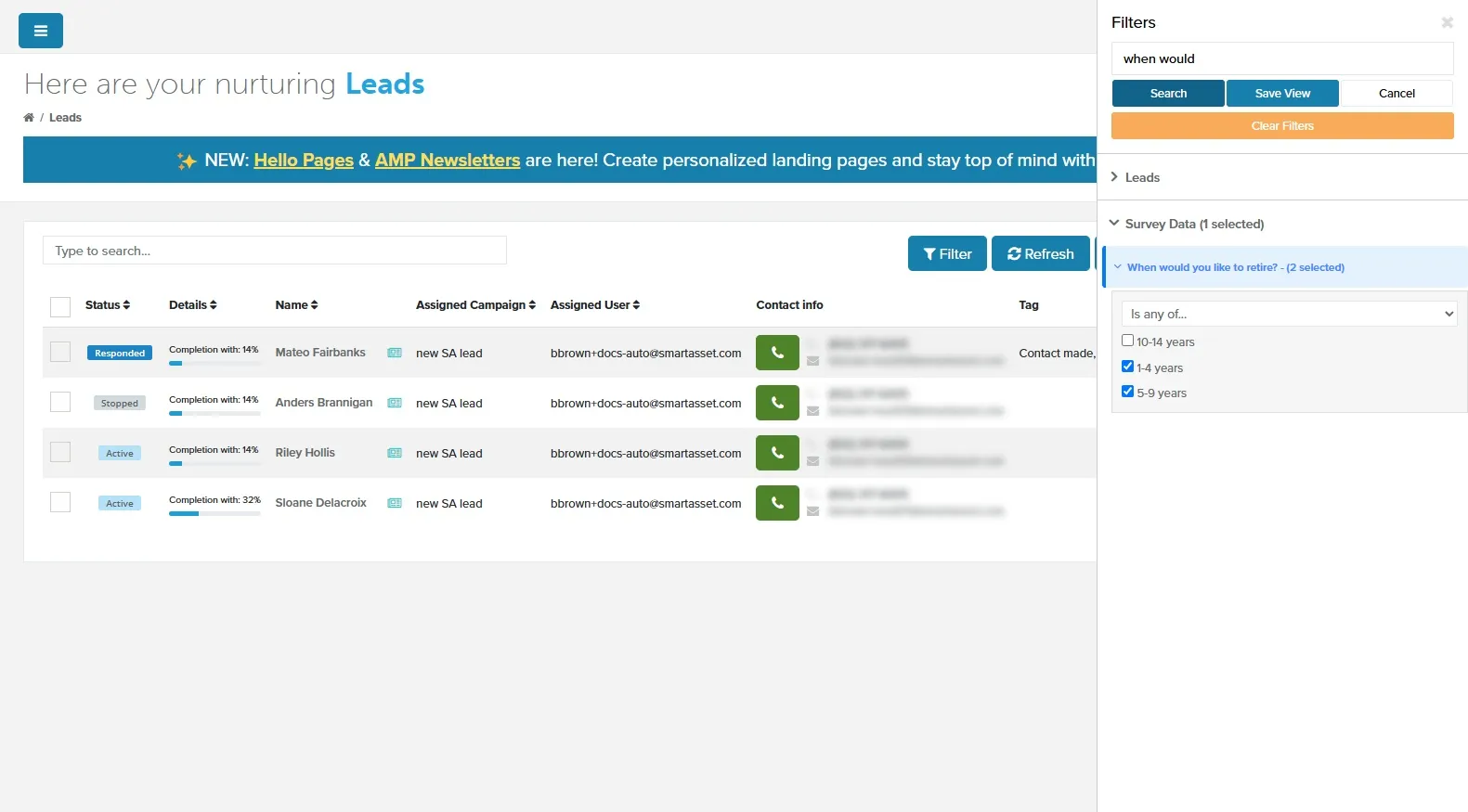
Example 3: Find All Leads Close to Retirement
Section titled “Example 3: Find All Leads Close to Retirement”Survey Data → When would you like to retire? → Is any of… → 1-4 years, 5-9 years
Example 4: Find Engaged Leads with Tags You’ve Created
Section titled “Example 4: Find Engaged Leads with Tags You’ve Created”Different filters must all match. Within one filter, a lead needs to match only one of the values you check.
Leads → Tag → Is any of… → two tags you’ve created
Leads → Status → Is any of… → Active
Leads → Last activity → Is within… → The last 30 days
This finds active leads with either tag and any activity in the last 30 days.
Date Filters
Section titled “Date Filters”Date filters are powerful tools that allow you to focus on leads based on time-based criteria.
| Filter | What it does |
|---|---|
| Received On | Find leads based on when they were added to the system. |
| Last activity | The date of the lead’s most recent activity, such as a call, a text you sent or received, an email reply, or a booked meeting. Campaign texts and emails you send don’t count. |
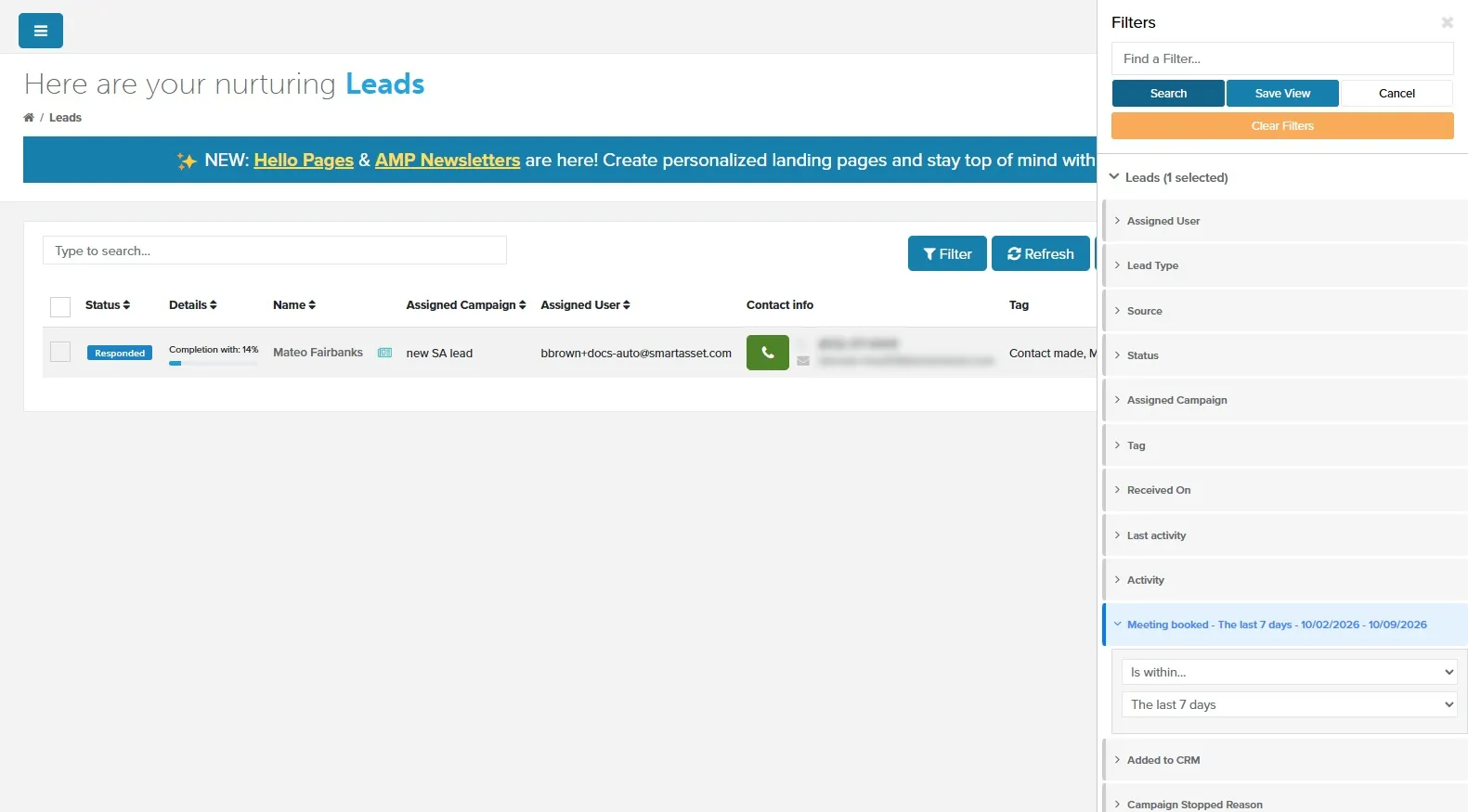
| Meeting booked | Filters by the date the meeting was scheduled, not the actual meeting date (e.g., find leads who scheduled a meeting within the last 7 days, regardless of when the meeting is set to take place). |
To find leads with unread texts, use Status > Is any of… > New SMS.
Example: Find Leads Who Booked a Meeting in the Last 7 Days
Section titled “Example: Find Leads Who Booked a Meeting in the Last 7 Days”Leads → Meeting booked → Is within… → The last 7 days
Saving and Accessing Filtered Lists
Section titled “Saving and Accessing Filtered Lists”Saving a Filtered List
Section titled “Saving a Filtered List”After you set your filters:
- Optional: Click Search to check the results.
- Click Save View. The Save Filtered View window opens.
- In Name, enter a name for the list, such as “Responded or Stopped Leads”.
- Click Save.
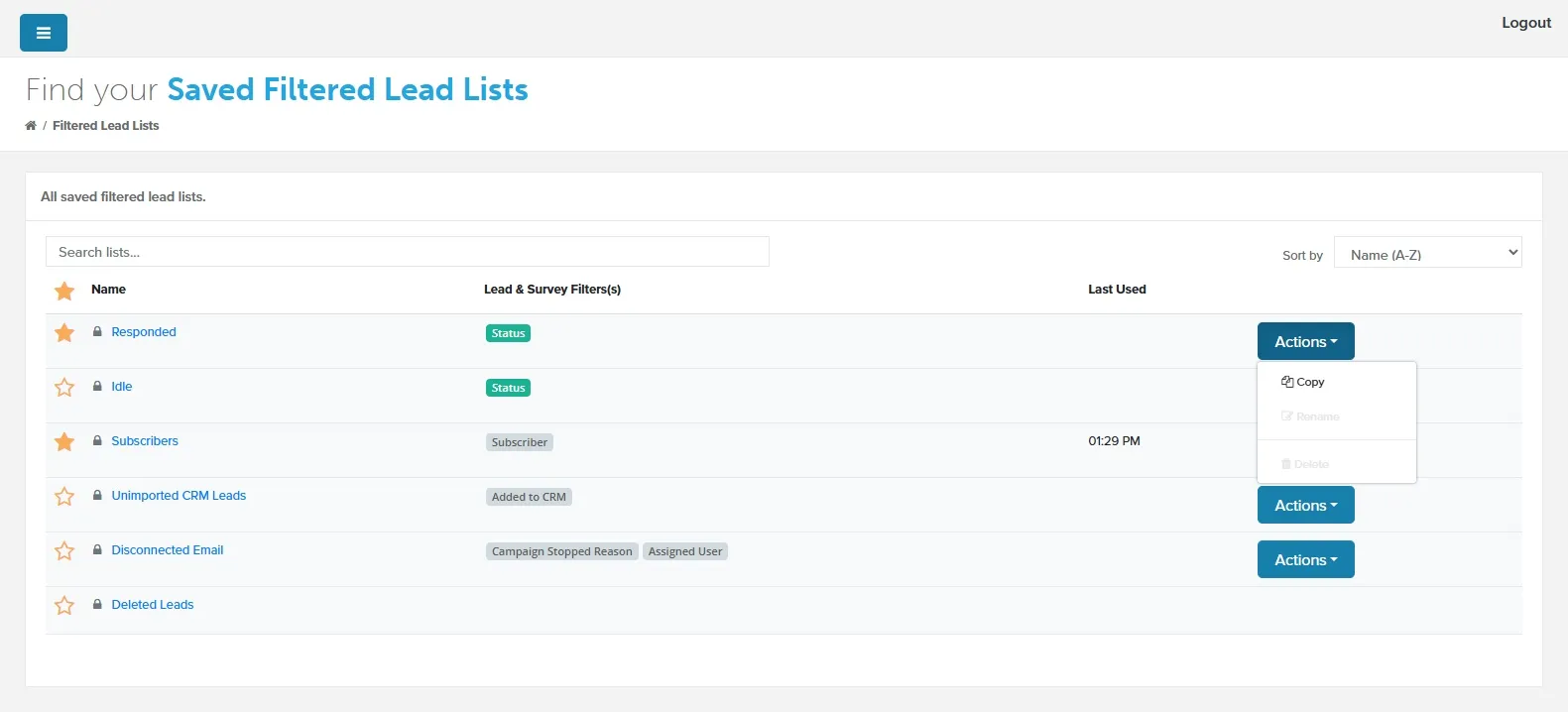
The list opens. It’s saved under Filtered Lead Lists > View All in the side menu, with your filters, columns and sort order.
If a saved list is open, Save View updates that list.
Accessing and Managing Saved Lists
Section titled “Accessing and Managing Saved Lists”Manage your lists from Filtered Lead Lists > View All:
- To open a list, click its name.
- To add a list to the side menu, click its star. Starred lists appear under Filtered Lead Lists.
- To copy a list, click Actions > Copy.
- To rename a list, click Actions > Rename. In the Edit Filtered View window, change Name:, then click Save Changes.
- To delete a list, click Actions > Delete, then confirm with Yes.
Related Guides
Section titled “Related Guides”- Leads Screen: the Leads page toolbar and where your saved lists live
- Tagging Leads: create the tags you filter on
- Next Tasks: filter your tasks with the same Filters panel